PDF · EN
How to save the pictures inside a PDF
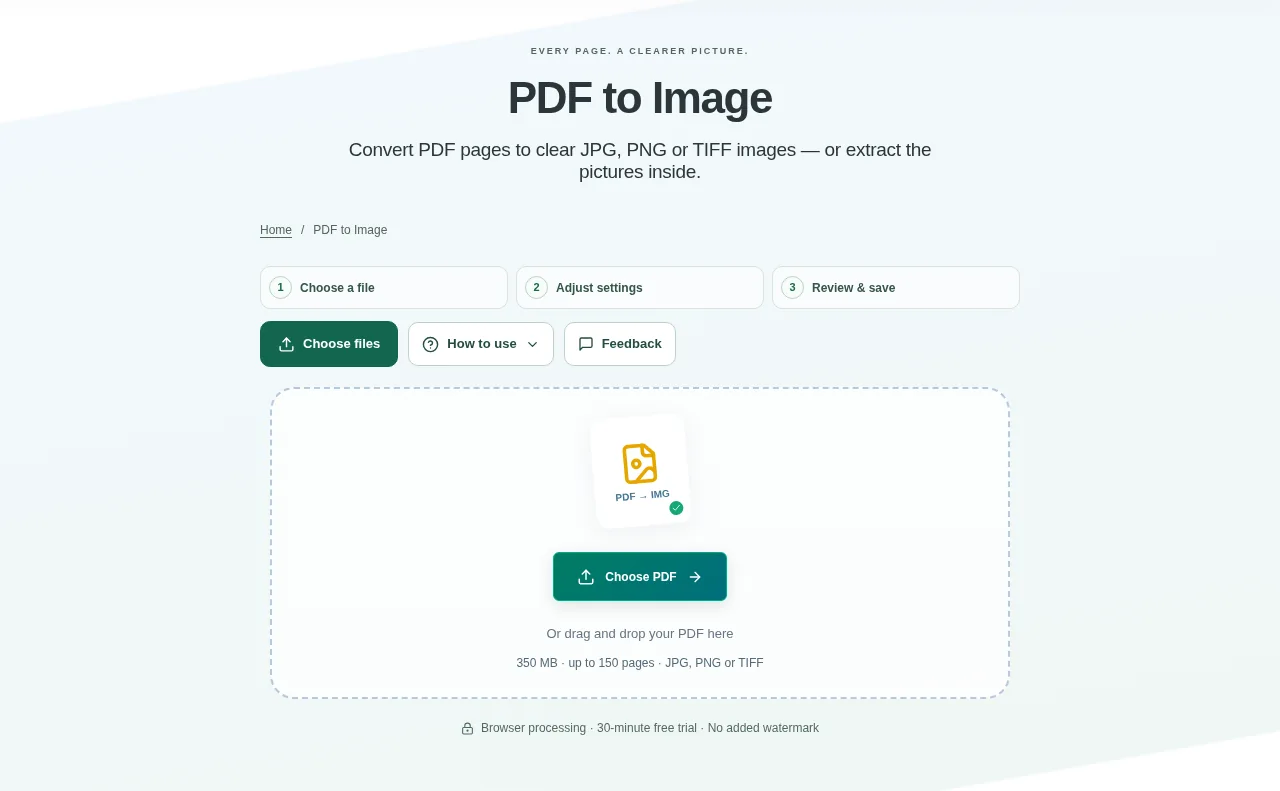
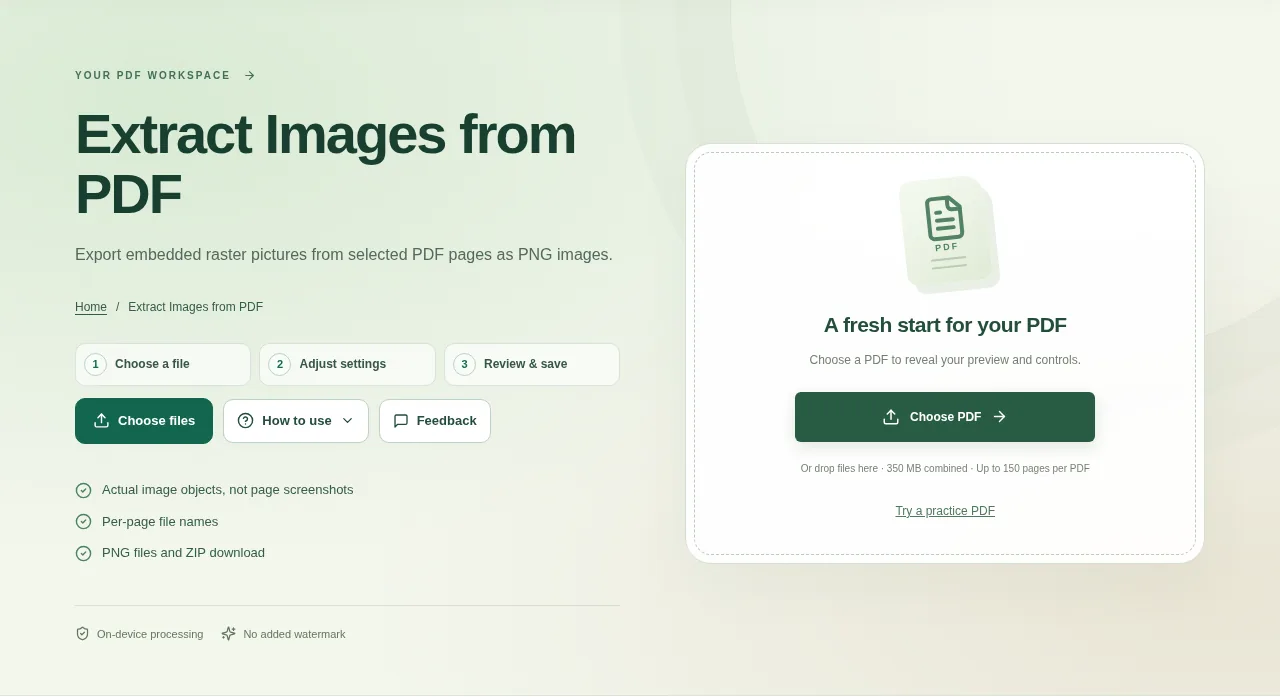
Choose the PDF and select the source pages. Start with the page that contains the picture you need. Download PNG images separately or use the ZIP for the collection.

Practical guides for the files you work with every day. Start with a task, understand the options and know what to check before you download.
Real workflows. Clear limits. A useful next step.Choose the PDF and select the source pages. Start with the page that contains the picture you need. Download PNG images separately or use the ZIP for the collection.
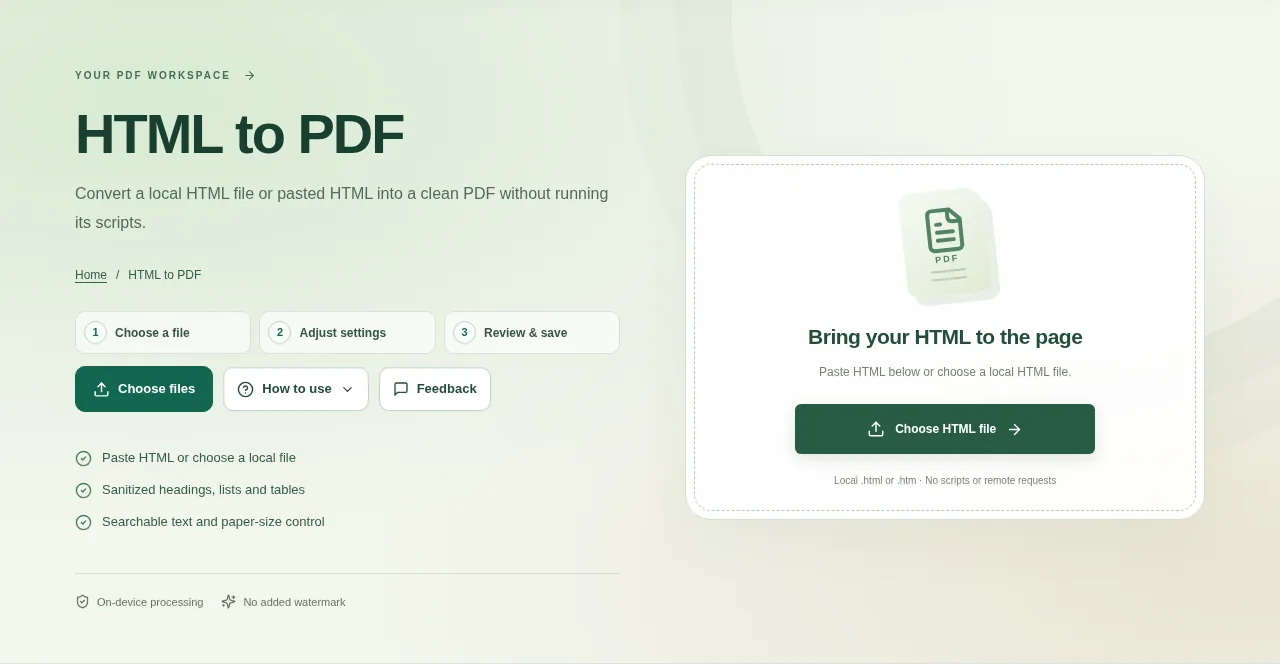
Paste the HTML into the workspace or choose one local HTML file. Start with a small document so you can check how its headings, lists and tables are laid out. Create the PDF and check the resulting pages before downloading.
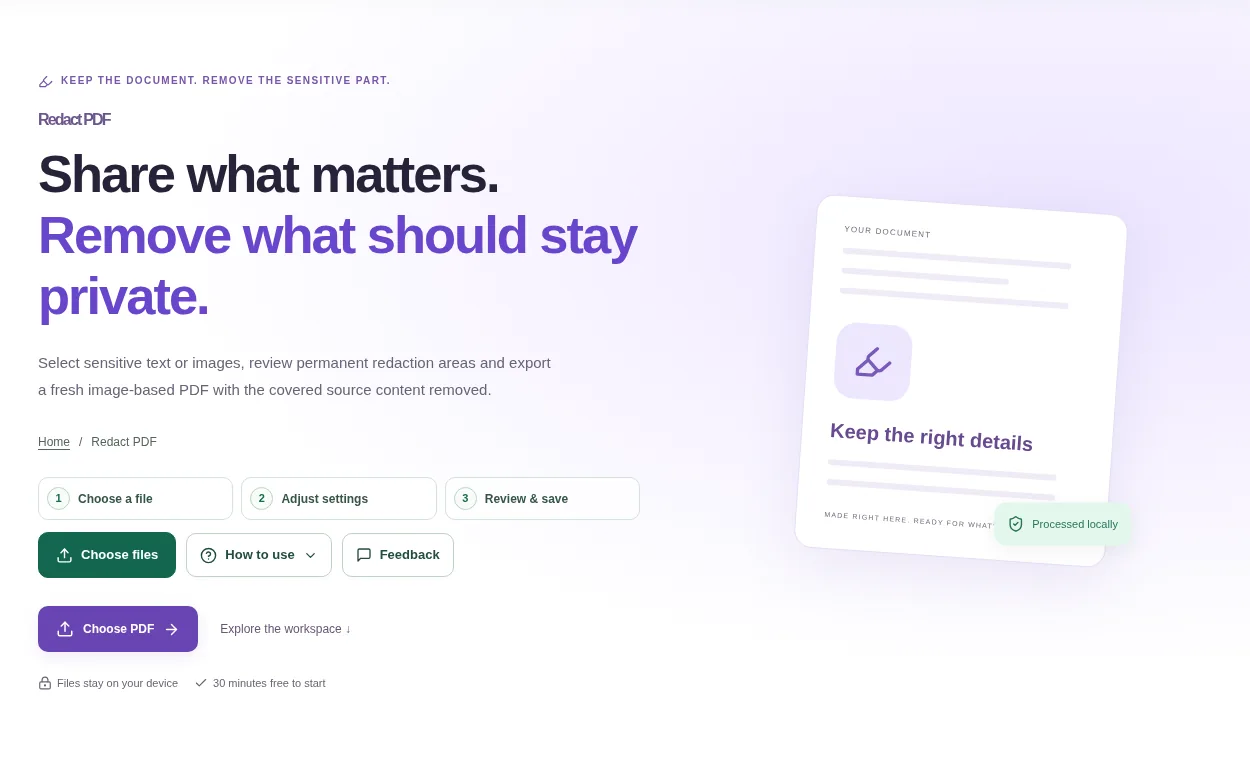
Open a copy of the PDF and find every page containing information you need to remove. The tool does not automatically identify private details for you. Download the new file and inspect every page, including pages where you did not draw a box.
Choose an unlocked PDF and inspect the page thumbnails. Select all pages, a page number or a range, depending on what you want to save. Convert one page or the selection, then wait for the image previews.
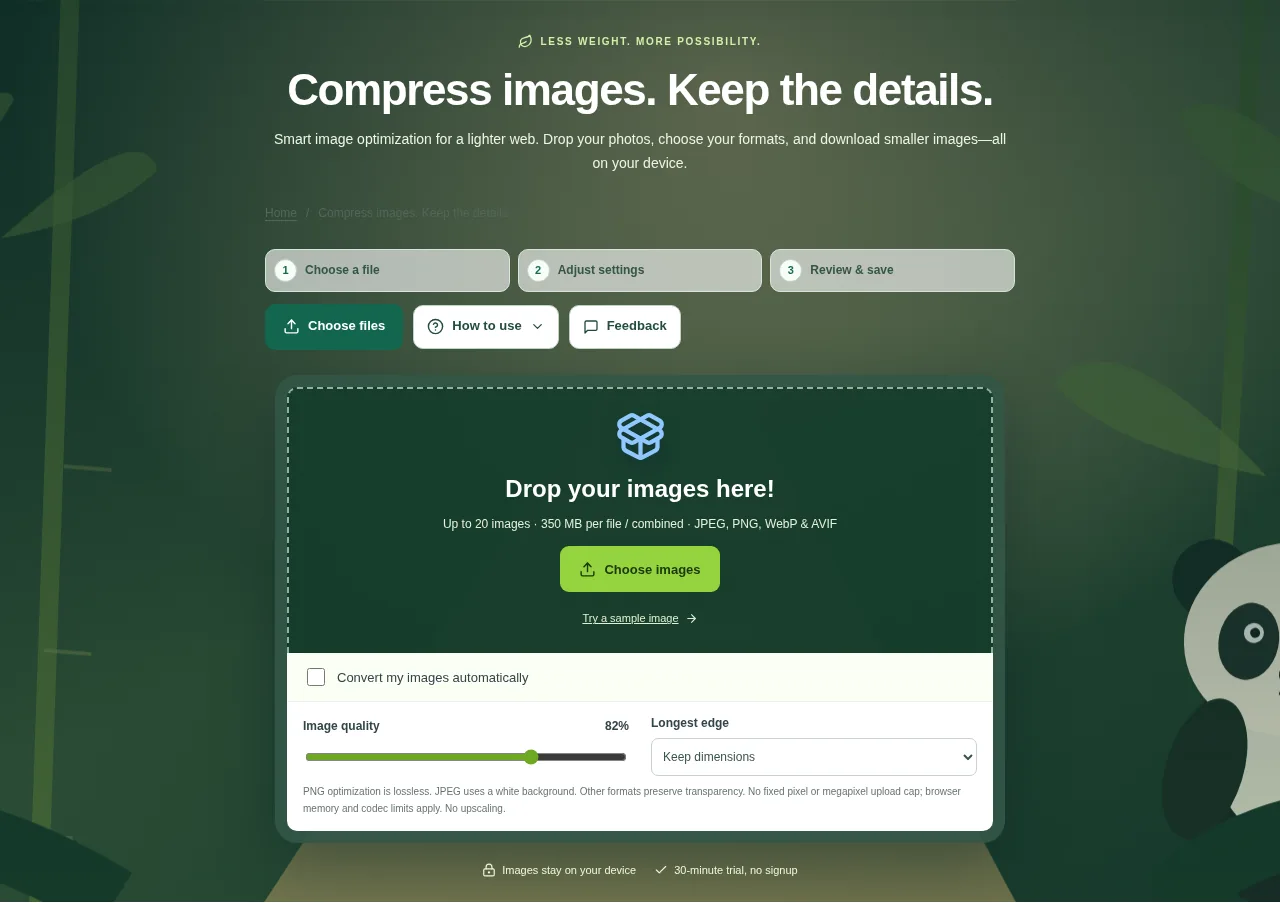
Choose still images in JPEG, PNG, WebP or AVIF. Decide whether you want to keep their format or try a different one. Review the before/after comparison and real file sizes, then download files or a ZIP.
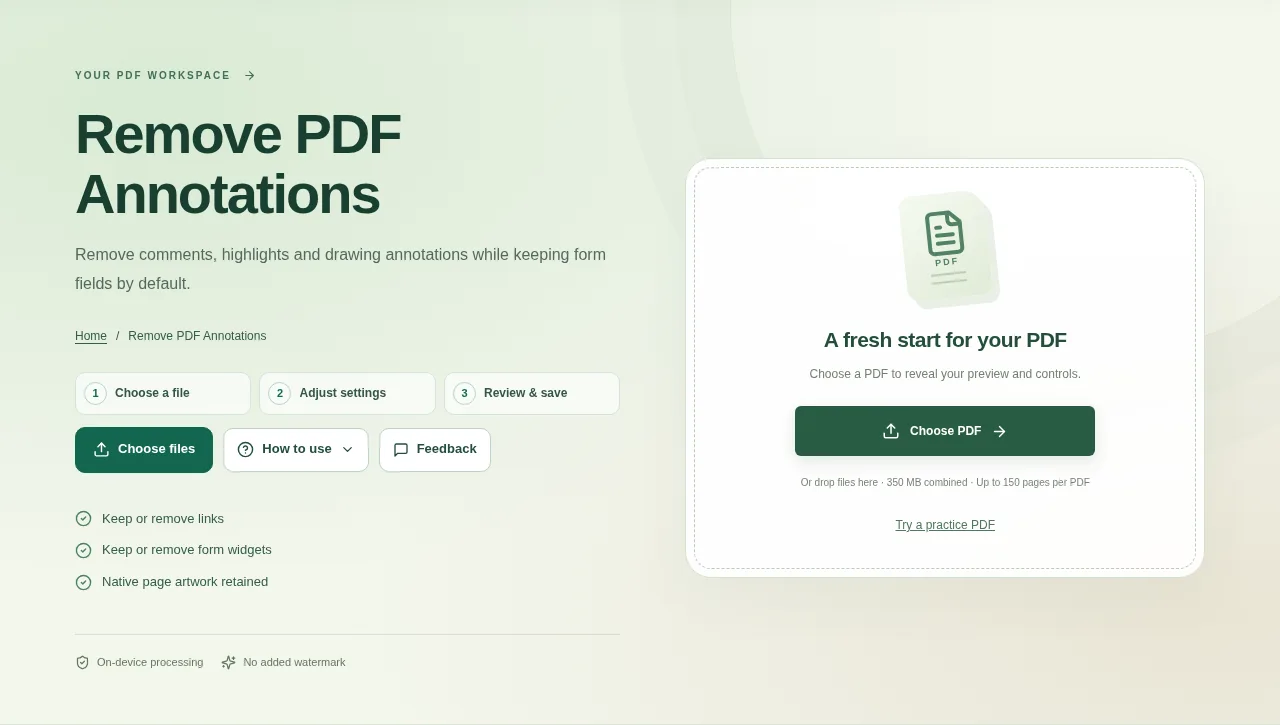
Choose the PDF and inspect the marks. A highlight made by a PDF annotation is different from a colored patch already printed into a scanned page. Open the output and inspect both the cleaned pages and any form or link you meant to retain.
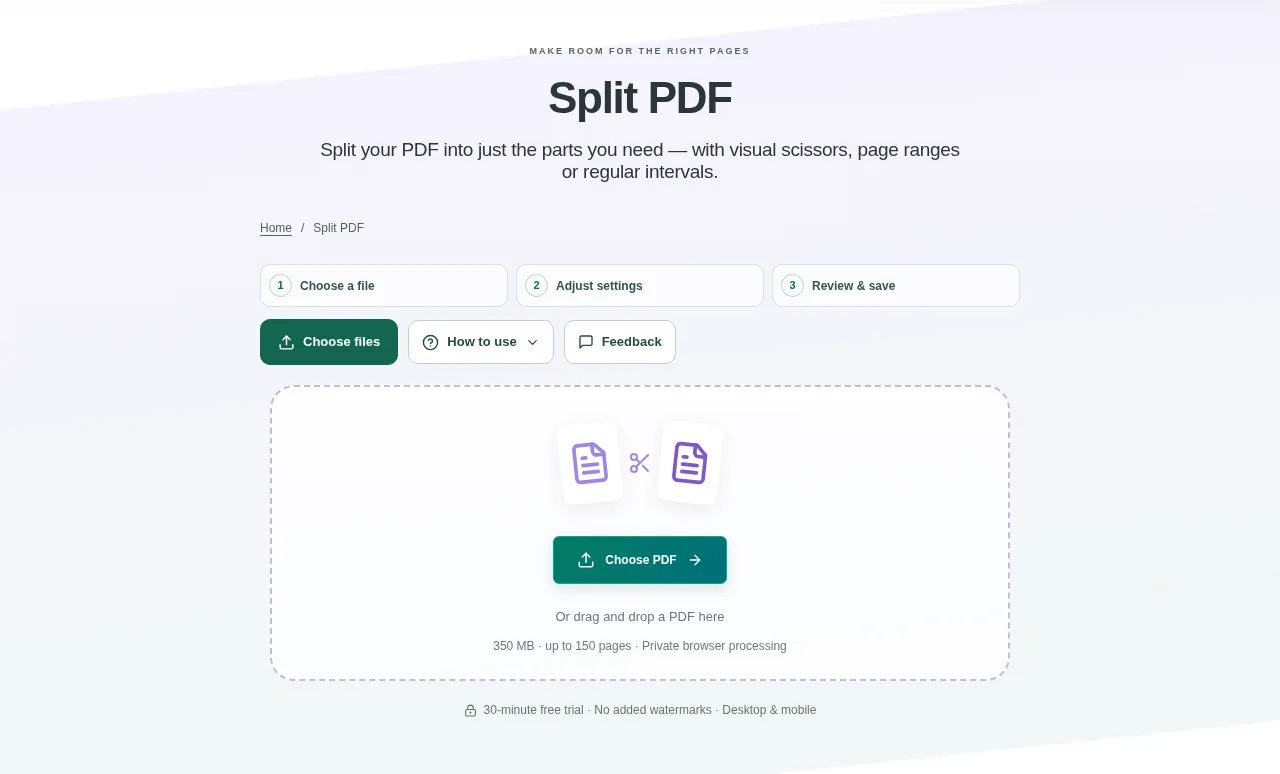
Choose one PDF in Split PDF. Wait for the thumbnails, then decide whether you want separate pages, regular intervals or your own groups. For custom ranges, follow the example shown beside the range field: commas make separate PDFs, while + joins selections within one part. Create the split files when the labels look right.
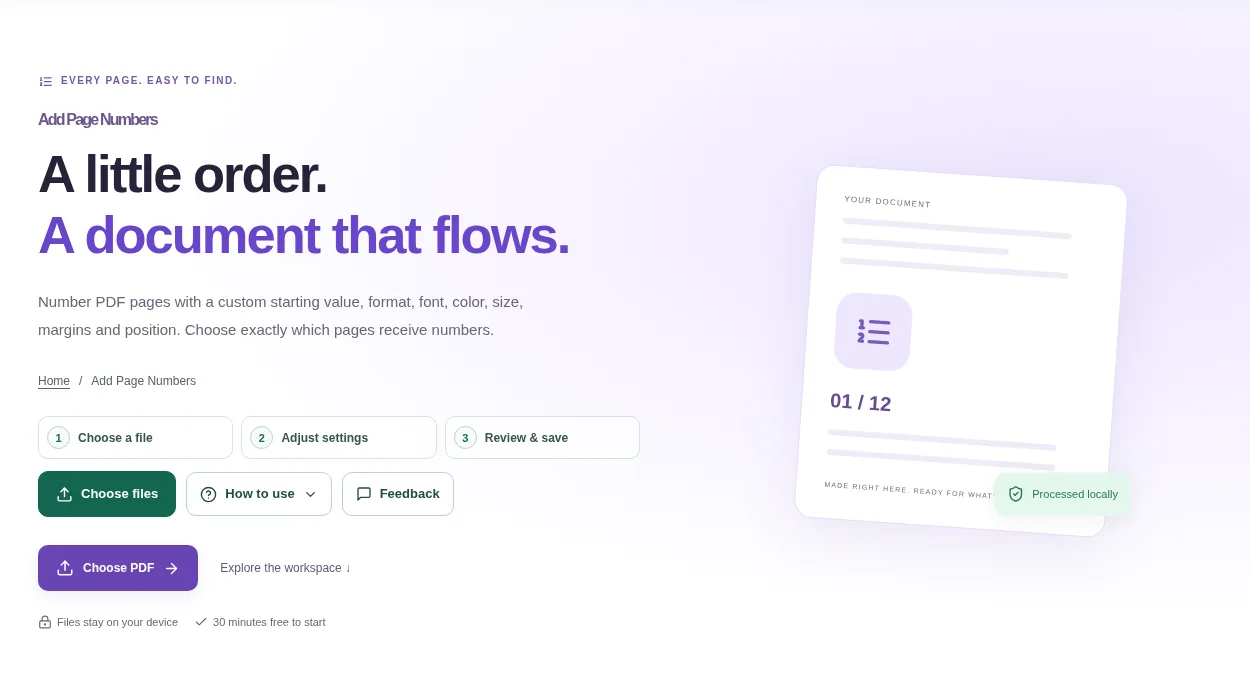
Choose the PDF and decide where the new numbers will fit. Check pages that already have a footer or a printed page number. Use Add page numbers and inspect the result.
Open Merge PDF and add the PDFs or images you need. Use Files view to arrange whole documents, or Pages view when you need to work on individual pages. Keep Original layout for mixed page sizes. Choose A4 or Letter only when you want the pages fitted onto that paper size, then create the merged PDF.