
How to permanently redact a private area in a PDF
Open a copy of the PDF and find every page containing information you need to remove. The tool does not automatically identify private details for you. Download the new file and inspect every page, including pages where you did not draw a box.
 View full size
Covering a name with a white rectangle can leave the words underneath recoverable. Redact PDF uses a different workflow: it renders the pages, replaces the selected areas with opaque pixels and builds a fresh image-based PDF.
1. Open your file
Open a copy of the PDF and find every page containing information you need to remove. The tool does not automatically identify private details for you.
2. Work through the settings
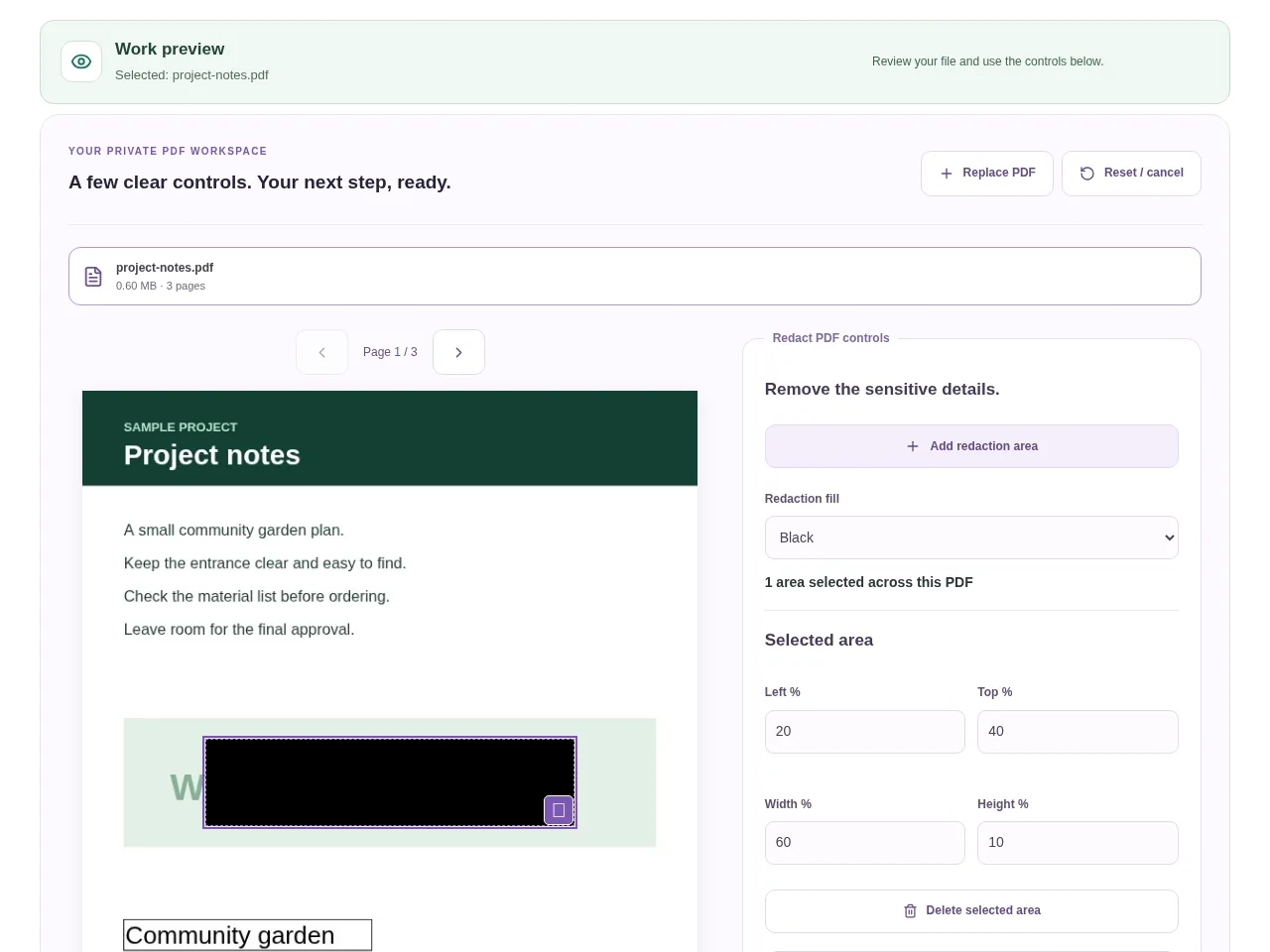
- Add a redaction area and place it over the full sensitive item, leaving enough coverage around its edges.
- Choose black or white fill. Review all selected areas before confirming the permanent operation.
- Confirm permanent redaction and apply it. Every page is rebuilt, so plan for the loss of interactive features.
- Download the new file and inspect every page, including pages where you did not draw a box.
 View full size
3. Check before you share
- Check page edges, repeated headers and duplicate mentions of the same information.
- Confirm the covered area is large enough at high zoom.
- Review the final document before sending it to someone else.
File limits and first-use notes
The file budget is 350 MB, with up to 150 pages per source PDF. Every page is rasterized at 150 DPI, within 12 MP per page. Searchable text, forms, links, attachments and digital signatures are not retained. Review every page; this is not automatic sensitive-data detection.
Questions you may have
How is this different from Whiteout in PDF Editor?
Whiteout is a visual cover. This redaction workflow creates new page images after overwriting the chosen pixels, without copying the source text underneath.
Will the result still have searchable text?
No. This output is image-based. Consider whether that trade-off suits your sharing requirement before applying it.


