Real local AI colorization
A DeOldify neural model estimates different colors across a black-and-white image. No external image service or per-image API charge.

Turn black-and-white photos into colorful memories. Upload a photo and local AI adds color automatically, then compare, refine and save a full-size copy on your own device.
Choose, drop or paste one supported photo. Try the NASA sample photo or an original sample illustration.
Local AI starts automatically after upload. Turn automatic processing off to start manually with Colorize photo. Compare with the original, adjust the tones or brush a chosen color into a small area.
Prepare and download the original-size result or a smaller preview as PNG, JPG or WebP. Save your file before closing this page.
350 MB per image · No fixed pixel/megapixel ceiling; device limits apply · First-use engine about 75 MB · Estimated colors, not exact historical recovery.
30-minute trial. Continue with a paid pass or an eligible member trial.
You get 30 minutes to try the tools that need access, without creating an account. Once that window ends, wait at least one hour before starting another. Opening an eligible trial tool starts the next window. Time keeps running while you are away. The nine free tools have no session timer.
Drop your image here, or paste a copied photo.
JPG, PNG, WebP, BMP, GIF¹ & supported AVIFUpload, drop or paste a black-and-white photo. AI adds color automatically. First use downloads about 75 MB of reusable model files.
AI runs here. Your photo stays here.A real local AI estimate, with space to make your own corrections.
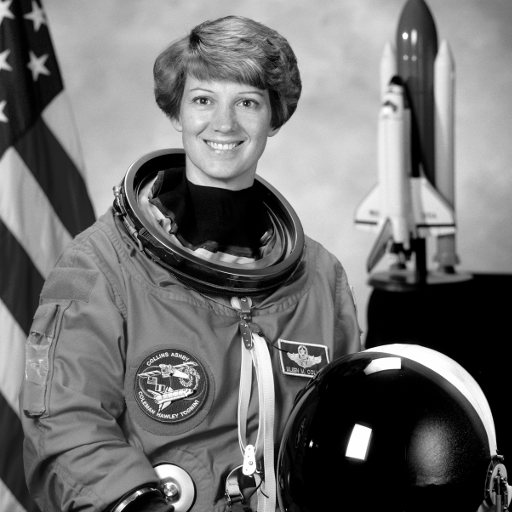
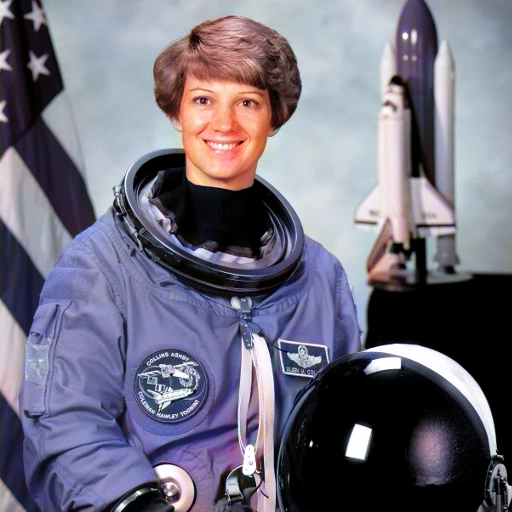
NASA astronaut Eileen Collins · Public-domain source · Estimated colors, not a recovery of original colors. Other samples are original illustrations.
A DeOldify neural model estimates different colors across a black-and-white image. No external image service or per-image API charge.
Start with Natural, Vivid, Warm or Cool. Refine color intensity, original-color blend, warmth, tint, brightness and contrast.
Brush in a chosen color while preserving light and shade. Restore original pixels, undo a correction or redo it.
The original image supplies texture, geometry and transparency. Download at original dimensions in PNG, JPG or WebP.
Open, drop or paste one photo. Try the supplied samples if you want to explore first.
Colorization starts automatically after upload. Compare and refine the result, or choose Colorize photo if automatic processing is off.
Prepare the original-size image or a smaller preview. Save it before closing this page.
Useful answers. Clear next steps.
To colorize a photo, choose, drop or paste one supported image. Colorization starts automatically by default; turn off Automatically colorize after upload to start manually with Colorize photo. A local DeOldify neural model estimates colors; the original provides full-resolution luminance detail, geometry and alpha. Compare side by side or with a before-and-after slider. Tune color intensity, original-color blend, warmth, tint, brightness and contrast, or paint a color correction and restore original pixels with undo/redo. Prepare an original-size image or a smaller preview in PNG, JPG or WebP. Pictures are not uploaded to an image-processing server. First-use AI and runtime files are about 75 MB and can be cached locally. Maximum file size is 350 MB; there is no fixed application pixel/megapixel limit, but browser memory and canvas limits apply. Colors are estimates, not a recovery of exact historical colors. GIF uses its first frame; supported AVIF depends on the browser. Shared trial and paid-pass access apply.
Choose, drop or paste a black-and-white photo. By default, local AI starts adding color automatically after the photo opens. Watch the Upload, Add color and Download steps, compare the result, adjust its tones and prepare a PNG, JPG or WebP download. Turn off Automatically colorize after upload if you prefer to start manually. The samples work the same way.
It uses a local DeOldify neural model to estimate different colors across the image. The original image supplies luminance detail and transparency; only estimated color is transferred from the model. Warmth, tint and color presets are separate adjustments applied after colorization.
No. A black-and-white photo does not contain enough information to recover its exact historical colors. AI creates plausible estimates and may color faces, clothing or backgrounds incorrectly. Use the color brush, Restore original and comparison views to review and correct the result.
Yes. Prepare full-size image uses the original decoded dimensions. PNG and WebP keep source transparency; JPG puts transparent areas on white. The smaller preview is at most 1200 pixels on its longest edge and never enlarges a small input. Model inference uses a 256-pixel working image for color estimates, while full-size output retains detail from the original.
No photo-processing upload occurs. AI inference and adjustments run in your browser worker. Model files may be saved in browser cache. Your edits stay in the open page, so download them before closing or reloading. Feedback images are only sent if you explicitly submit the separate feedback form.
First use downloads about 75 MB of model and runtime files and starts the local AI engine. These files can be reused from browser storage. Processing time depends on your device, memory and connection. Cancel stops the worker; you can retry with your unchanged original.
Use JPG, PNG, WebP, BMP, GIF first frame or browser-supported AVIF, one image at a time, up to 350 MB. There is no fixed application pixel or megapixel ceiling. Your device still needs enough memory and browser canvas support. This tool does not repair scratches or reconstruct missing photo detail.
Yes. Use Keep original colors to blend existing colors with the AI estimate, then adjust intensity, brightness and contrast. The shared all-tools 30-minute trial and published one-time access passes apply. Registered accounts can start 30 continuous minutes every 3 hours. There is no separate per-image AI service charge.