How to clean up photographed or scanned document pages
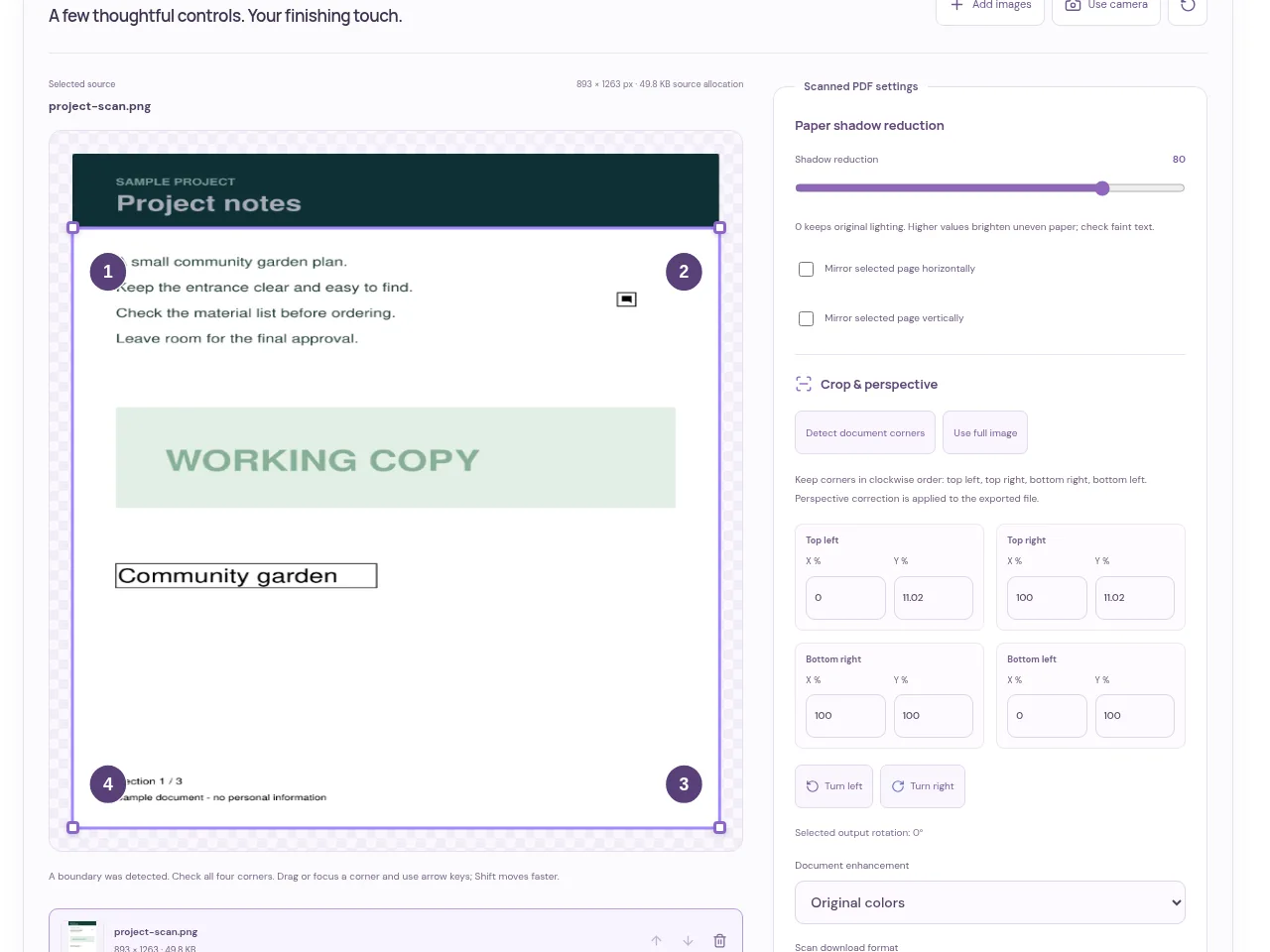
Add your scan or document photos. The batch supports up to twelve document pages. Select a page to check its corner outline. Create the clean PDF, inspect the actual processed pages and download it. You can continue to Compress PDF afterward if necessary.
 View full size
Scanned PDF is for document pages that need straighter edges, clearer lighting or a simpler color treatment. It accepts document pictures and supported PDFs, so you can work with an existing scan as well as new photos.
1. Open your file
Add your scan or document photos. The batch supports up to twelve document pages. Select a page to check its corner outline.
2. Work through the settings
- Move the four handles to the actual paper corners. Automatic detection is a starting point, not a reason to skip the check.
- Reduce uneven lighting and choose color, grayscale or black and white. Compare pale text before making the page very bright.
- Rotate or mirror the selected page only if it needs that change. Keep the page sequence clear.
- Create the clean PDF, inspect the actual processed pages and download it. You can continue to Compress PDF afterward if necessary.
 View full size
3. Check before you share
- Check all four corners, including any stamp near an edge.
- Read the lightest writing and the smallest print.
- Count the final pages and make sure none were duplicated or omitted.
File limits and first-use notes
Add PDF, JPEG, PNG, WebP, HEIC/HEIF, BMP, GIF or supported AVIF files. Work with up to 12 document pages per batch and 350 MB combined source files. Image uploads have no fixed pixel or megapixel cap; browser memory and codec limits apply. PDF pages render at 150 DPI within a 24 MP / 16,000 px output budget. Output is an image-based PDF; searchable text, forms and digital signatures are not retained.
Questions you may have
Can I add an existing PDF as well as photos?
Yes. The supported PDF pages are rendered for this image cleanup workflow, within its page and output limits.
Why did searchable text disappear after cleanup?
The tool rebuilds the output as document images. Run OCR separately if you need a searchable text layer afterward.