
How to put several PDFs into one file
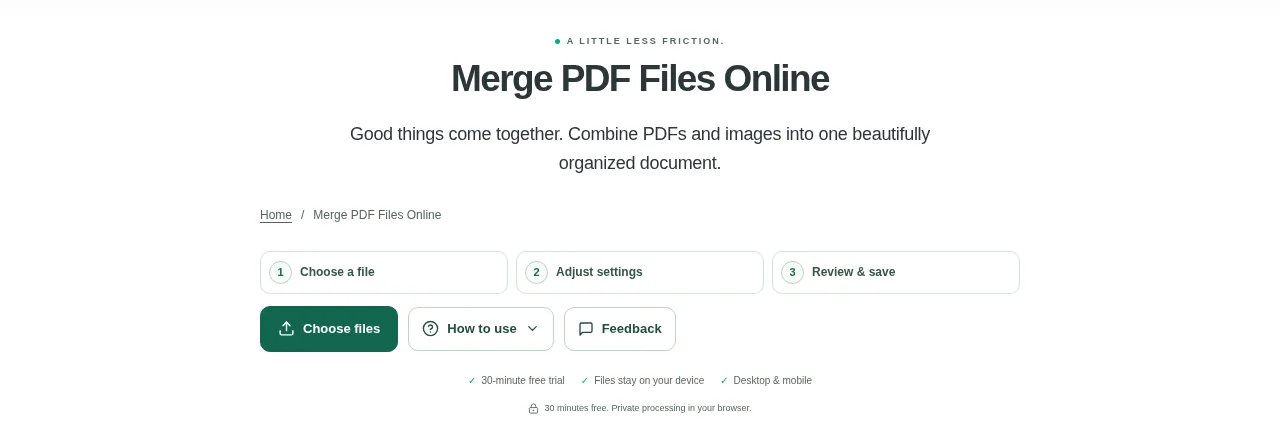
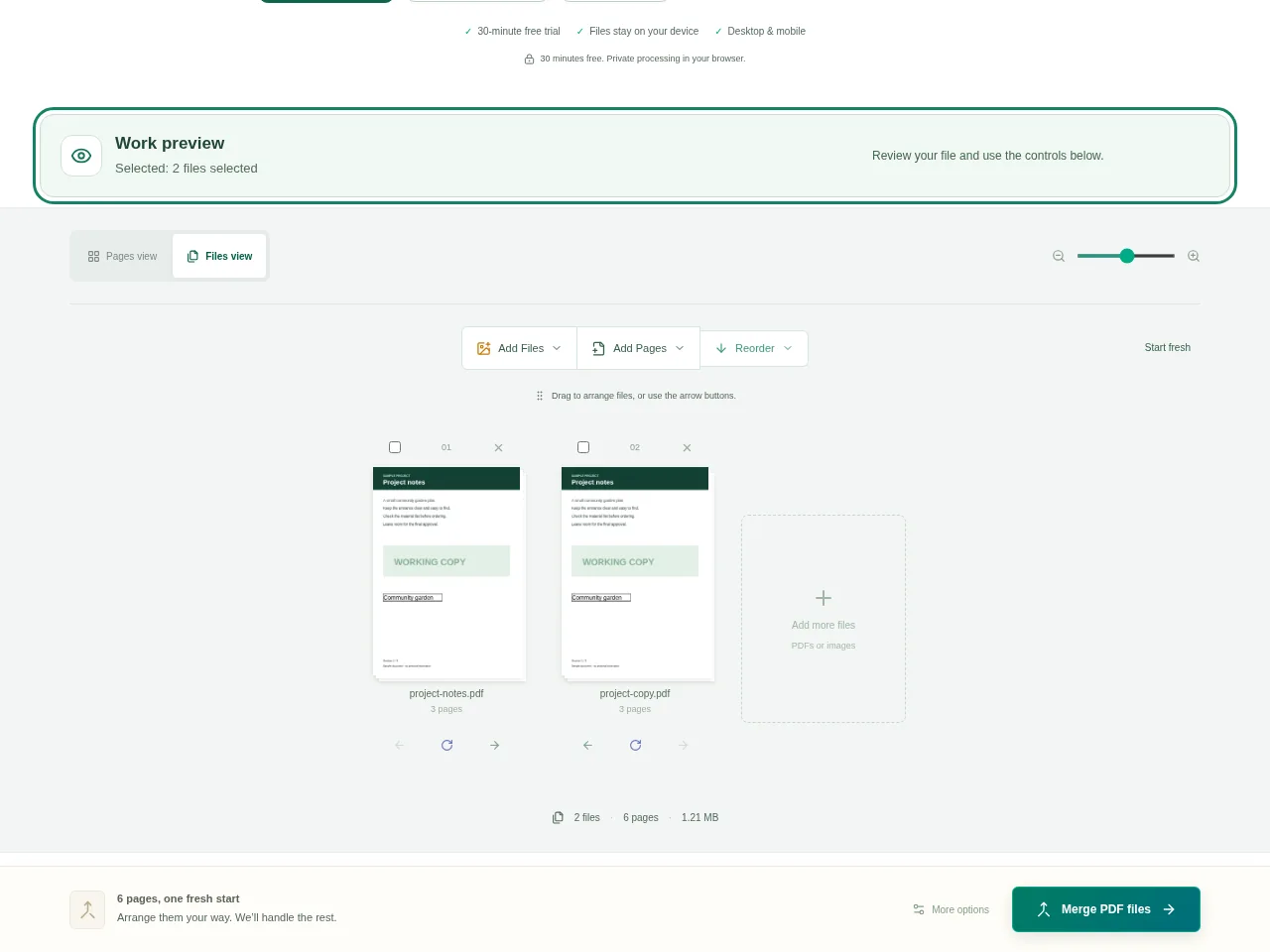
Open Merge PDF and add the PDFs or images you need. Use Files view to arrange whole documents, or Pages view when you need to work on individual pages. Keep Original layout for mixed page sizes. Choose A4 or Letter only when you want the pages fitted onto that paper size, then create the merged PDF.
 View full size
Keep a cover letter, a report and its supporting pages together instead of sending three attachments. Merge PDF lets you decide the order before you create the final document. You can also include supported pictures as pages.
1. Open your file
Open Merge PDF and add the PDFs or images you need. Use Files view to arrange whole documents, or Pages view when you need to work on individual pages.
2. Work through the settings
- Put the first document at the start of the list. Drag it into place or use the move controls.
- If you only need part of a PDF, set its page selection instead of including every page.
- Turn sideways pages, remove unwanted ones or insert a blank page where it makes the document easier to read.
- Keep Original layout for mixed page sizes. Choose A4 or Letter only when you want the pages fitted onto that paper size, then create the merged PDF.
 View full size
3. Check before you share
- Read the first and last page of each source section.
- Check sideways pages and the edges of fitted pictures.
- Download one merged PDF and keep the source files until you have checked it.
File limits and first-use notes
350 MB per file / combined. 150 output pages. Up to 50 files per addition.
Questions you may have
Can I include a photo between PDF pages?
Yes. Add a supported PNG, JPG, WebP or GIF image and place it where you want its page to appear.
Does changing the file order change the source documents?
No. The arrangement is used for the new download. The files on your device are not overwritten.


