
How to make a simple PDF from local HTML
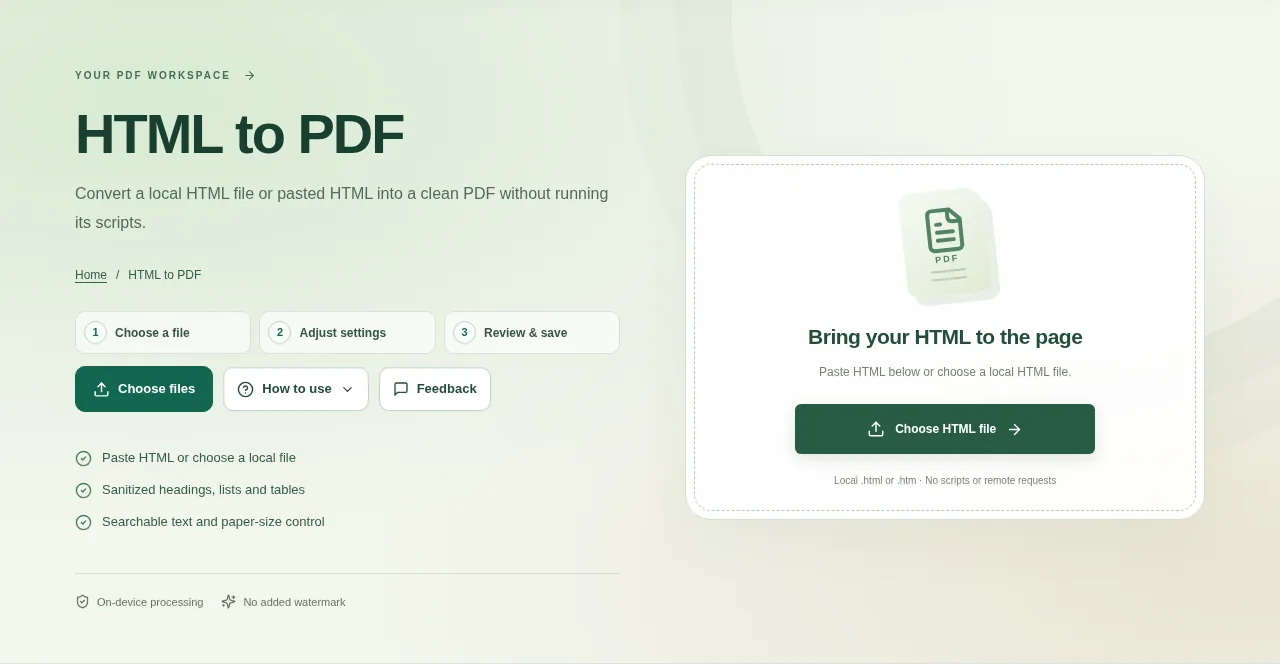
Paste the HTML into the workspace or choose one local HTML file. Start with a small document so you can check how its headings, lists and tables are laid out. Create the PDF and check the resulting pages before downloading.
 View full size
A short HTML note or a saved report can become a clean PDF without opening its scripts. Tooldu’s HTML to PDF is for supported text structure, not a photograph of an entire website.
1. Open your file
Paste the HTML into the workspace or choose one local HTML file. Start with a small document so you can check how its headings, lists and tables are laid out.
2. Work through the settings
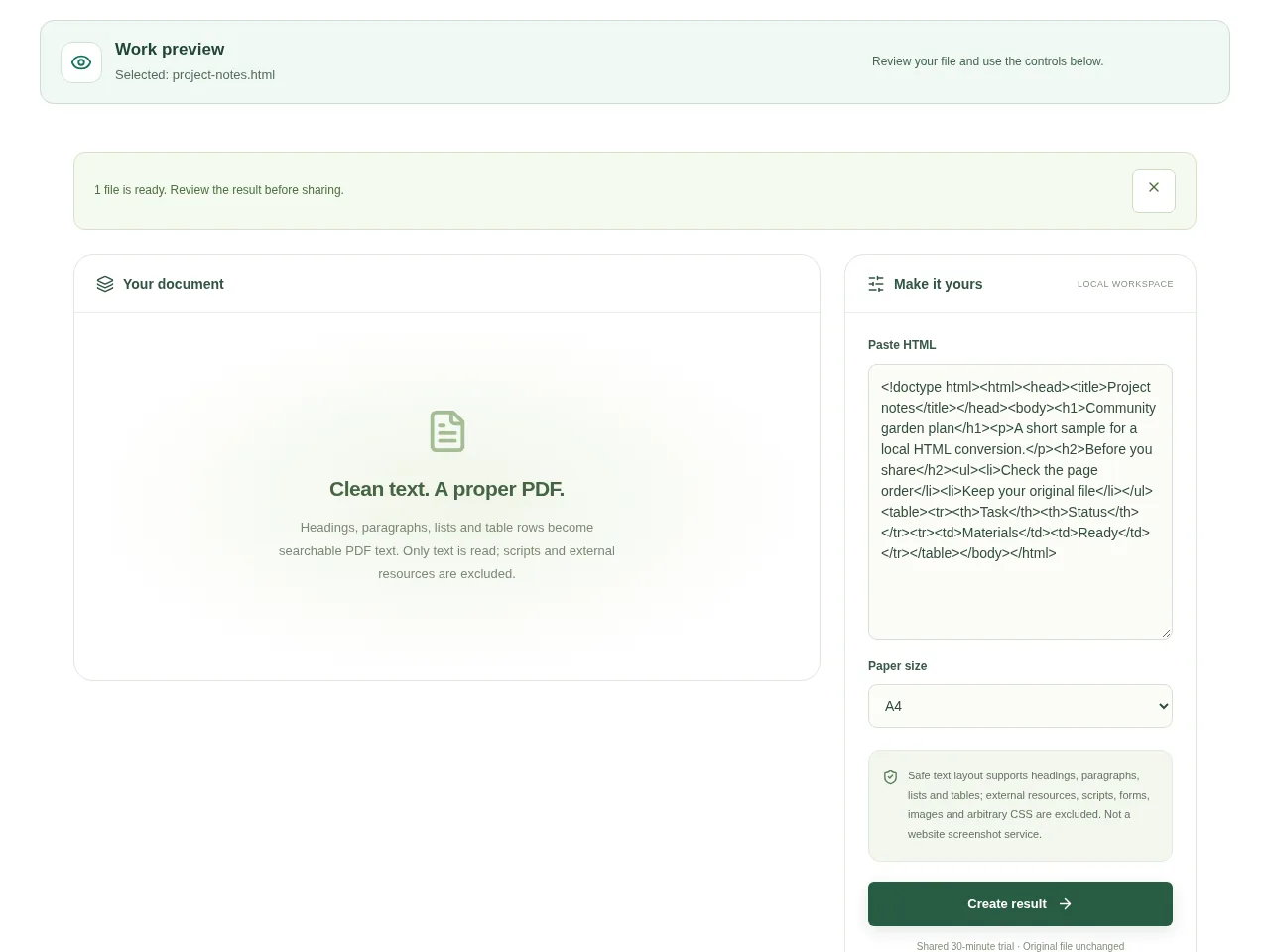
- Review the sanitized preview instead of assuming every browser style will be copied.
- Choose a paper size that suits the document.
- Keep the HTML structure simple: headings, paragraphs, lists and supported tables work better than a complex web layout.
- Create the PDF and check the resulting pages before downloading.
 View full size
3. Check before you share
- Read long table cells and look for awkward page breaks.
- Make sure the expected text is present.
- Check that the output page size suits your printing or sharing needs.
File limits and first-use notes
The file budget is 350 MB, with up to 150 pages per source PDF. Safe text layout supports headings, paragraphs, lists and tables; external resources, scripts, forms, images and arbitrary CSS are excluded. Not a website screenshot service.
Questions you may have
Can I paste a website URL instead of HTML?
This page converts pasted HTML or a local HTML file. It is not a remote website screenshot service.
Why are the website pictures and styles missing?
The conversion deliberately excludes images, remote resources and arbitrary CSS. Use it for a clean text document rather than an exact website copy.


