
How to add page numbers to a PDF
Choose the PDF and decide where the new numbers will fit. Check pages that already have a footer or a printed page number. Use Add page numbers and inspect the result.
 View full size
A PDF assembled from several sources may have no consistent numbering. Add Page Numbers puts a new visible sequence in a chosen page position without rewriting the original paragraphs or graphics.
1. Open your file
Choose the PDF and decide where the new numbers will fit. Check pages that already have a footer or a printed page number.
2. Work through the settings
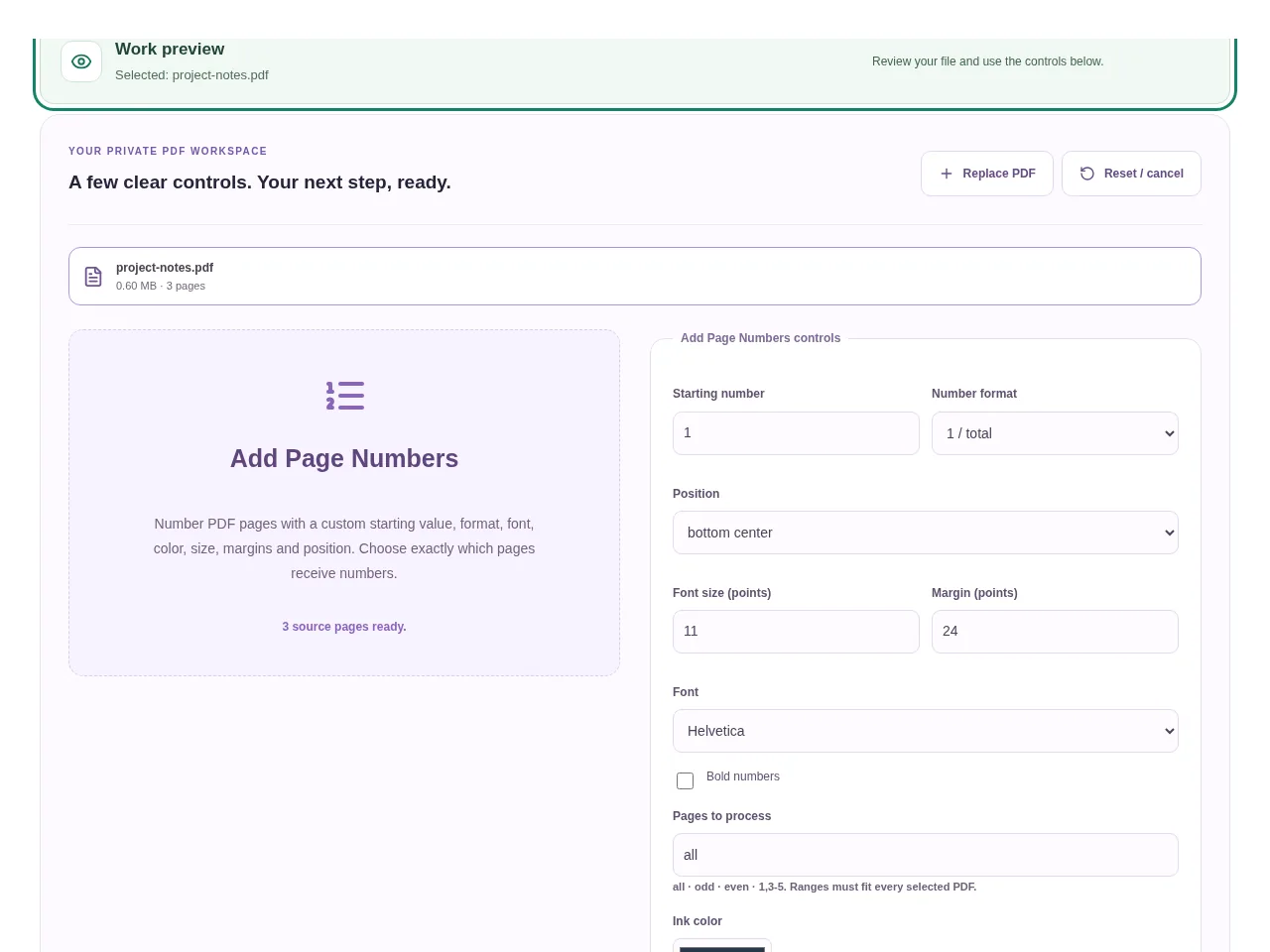
- Set the starting value and choose the number format, such as a number alone or a page/total style.
- Pick a font, size, color and one of the available page positions.
- Set a margin that leaves the label clear of existing writing. Choose all, odd, even or specific pages.
- Use Add page numbers and inspect the result.
 View full size
3. Check before you share
- Check the first number and the last number in the selected sequence.
- Look at a page with an existing footer.
- Make sure the total displayed matches the numbering convention you intended.
File limits and first-use notes
The file budget is 350 MB, with up to 150 pages per source PDF. Page-number labels use standard Latin PDF fonts. Existing PDF text and vector graphics remain native. Signed PDFs require an unsigned copy.
Questions you may have
Can the numbering start from a value other than 1?
Yes. Set the starting number before processing.
Will it move my footer out of the way?
No. Adjust the position and margin so the new label does not overlap existing page content.


