How to compare modern image formats before downloading
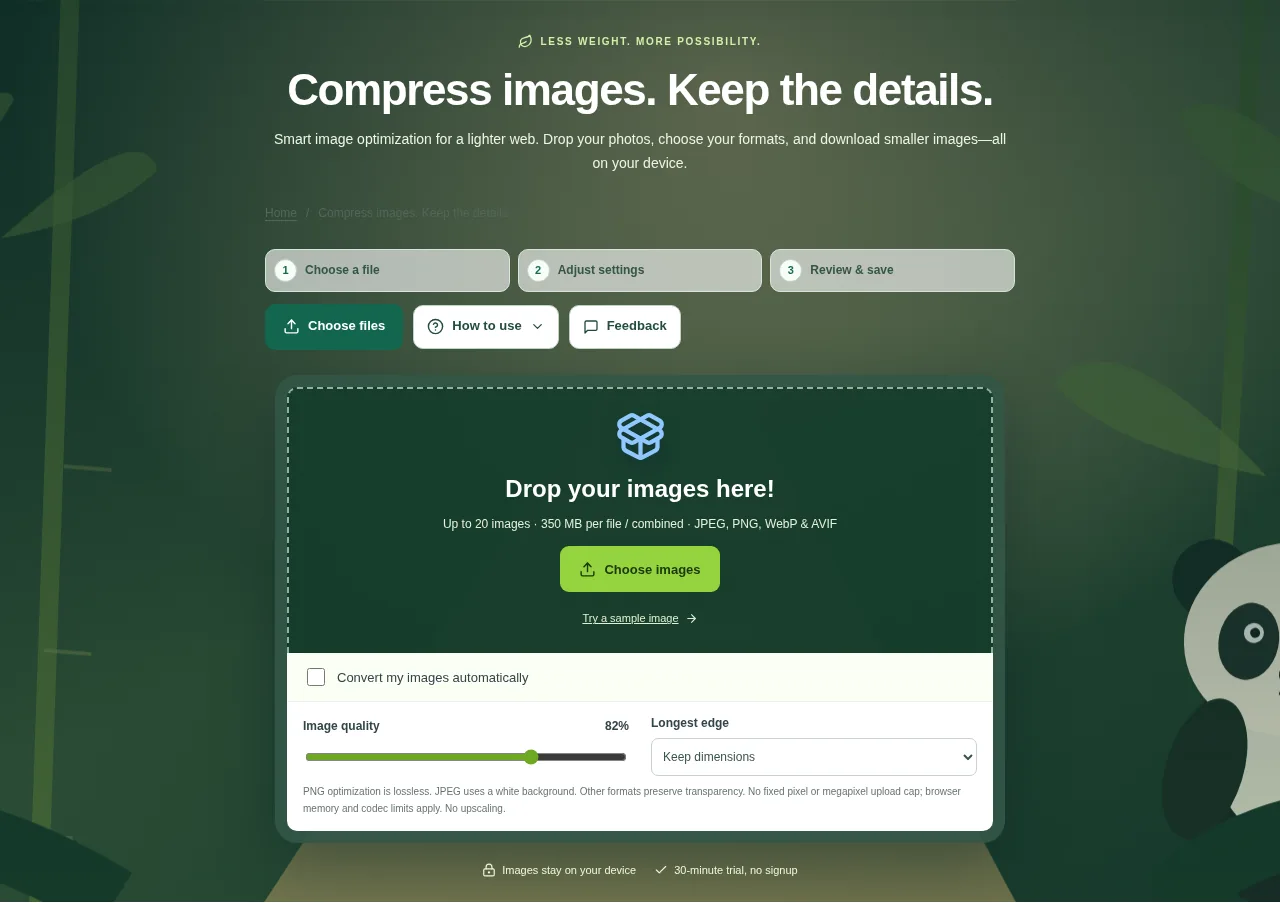
Choose still images in JPEG, PNG, WebP or AVIF. Decide whether you want to keep their format or try a different one. Review the before/after comparison and real file sizes, then download files or a ZIP.
 View full size
A smaller image is useful only if the receiving app can open it and the important detail still looks right. Image Optimizer lets you compare the result and its actual byte size across supported output formats.
1. Open your file
Choose still images in JPEG, PNG, WebP or AVIF. Decide whether you want to keep their format or try a different one.
2. Work through the settings
- Choose Keep source or an output such as WebP, AVIF, JPEG XL, JPEG or PNG. Check compatibility before choosing a newer format.
- Set lossy quality where that format supports it. PNG encoding is lossless.
- Set optional maximum dimensions if the pictures are much larger than the destination needs.
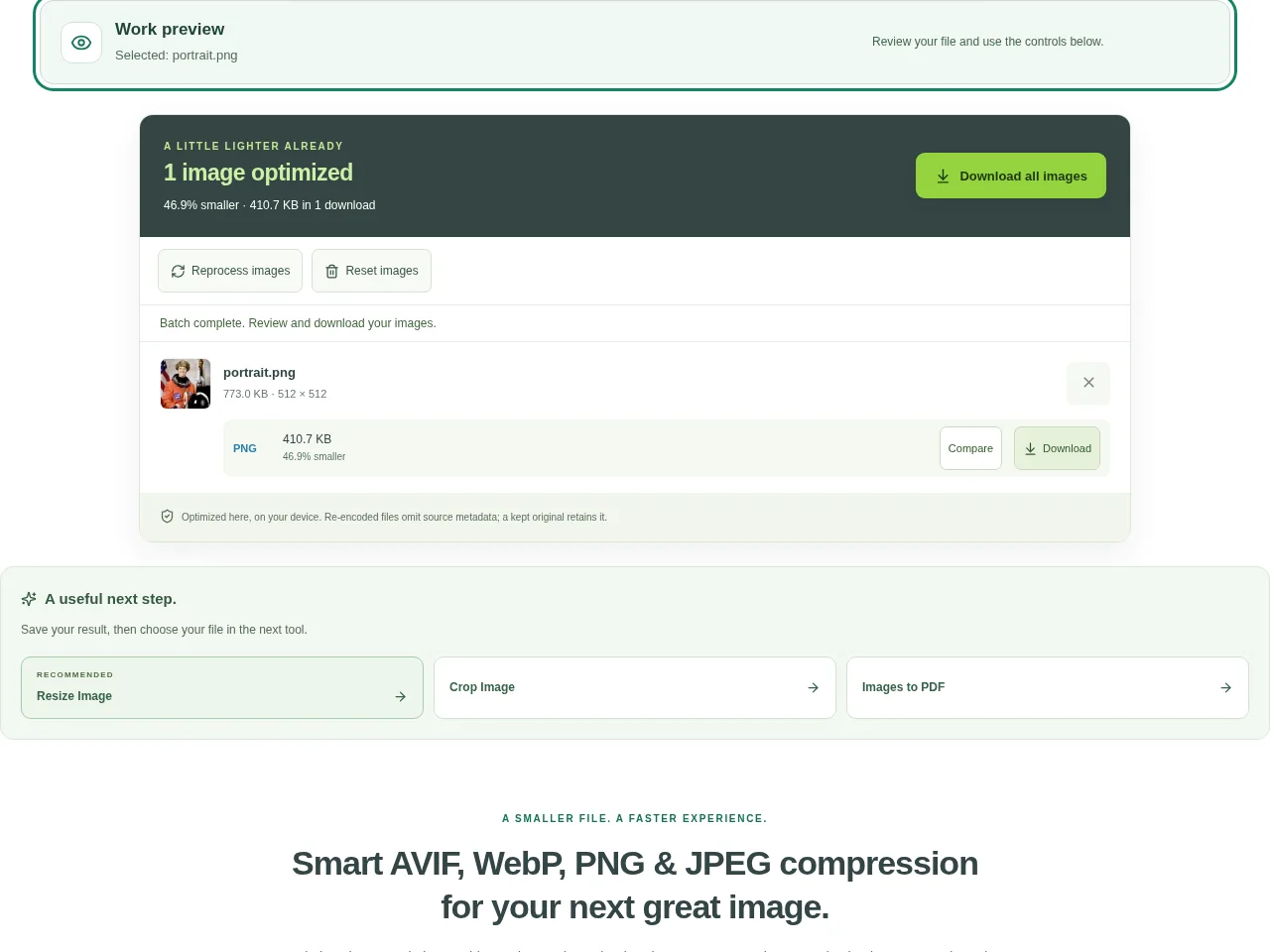
- Review the before/after comparison and real file sizes, then download files or a ZIP.
 View full size
3. Check before you share
- Zoom into text, hair and smooth color gradients.
- Test the output format in the destination app.
- Check transparent areas and the saved image dimensions.
File limits and first-use notes
350 MB per file / combined. 20 still images. No fixed pixel / MP upload cap. 100 MB output budget.
Questions you may have
Should I always choose the smallest result?
No. Choose a size and format that also keeps the needed detail and works in the receiving app.
Will a PNG output always be smaller than the input?
No. Lossless encoding keeps decoded pixel information, and file size depends on the image and its original encoding.