How to remove a small distraction from a photo
Choose one photo and zoom into the distraction. Start with a small object on a simple background while you learn how each repair method behaves. Compare the original, then choose a format and Prepare download.
 View full size
A small stray object or mark can distract from the subject of a photo. Remove Objects from Image repairs a selected area using surrounding texture, smooth color or pixels you choose as a clone source.
1. Open your file
Choose one photo and zoom into the distraction. Start with a small object on a simple background while you learn how each repair method behaves.
2. Work through the settings
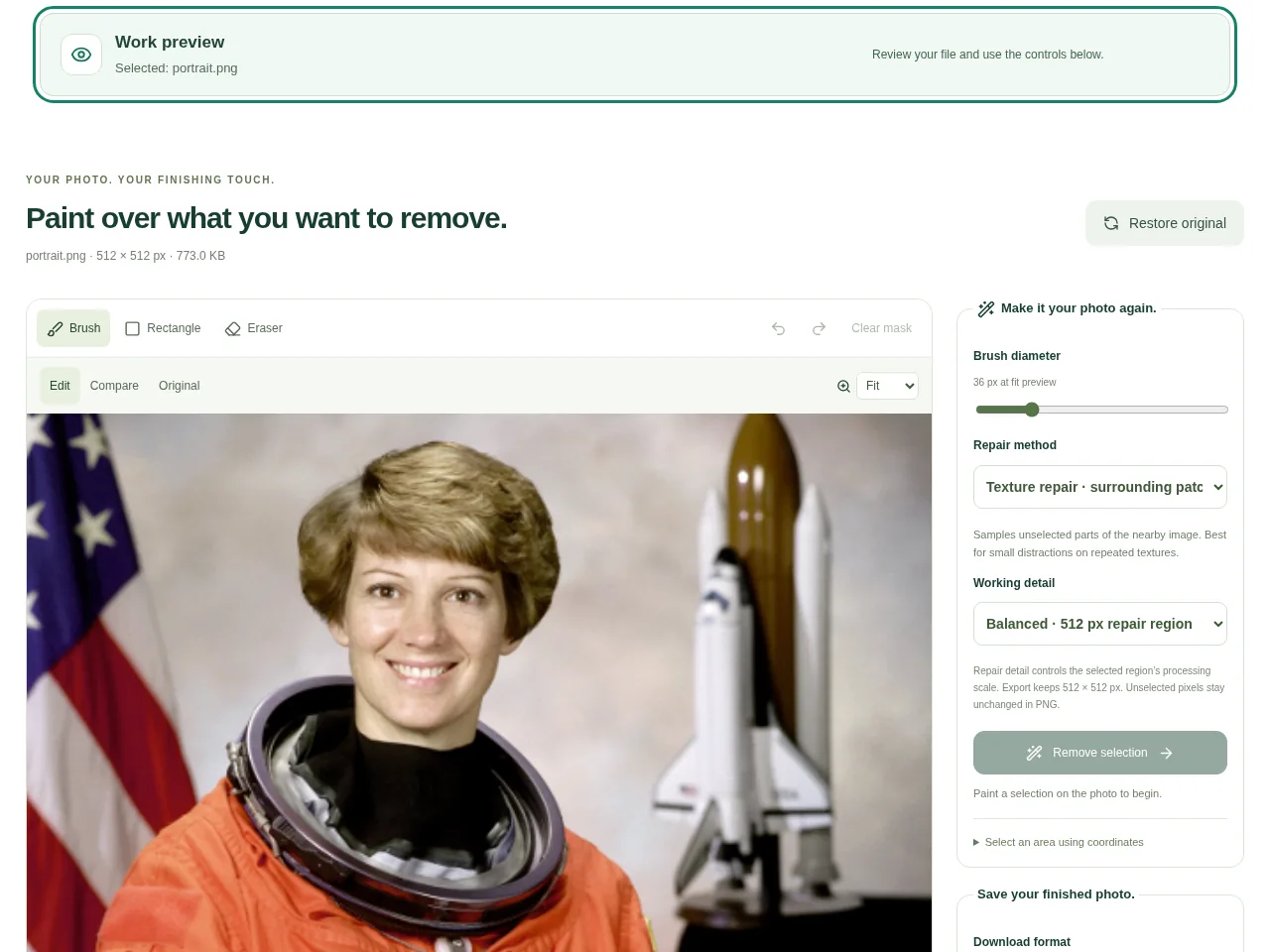
- Use Brush or Rectangle to mark the object. Use Eraser to correct the selection, and include enough of its edge to avoid a leftover outline.
- Choose Texture for nearby patterns, Smooth for plain walls or gradients, or Clone when you can select suitable source pixels.
- Use Remove selection and inspect the actual repair. Undo and try a smaller area or another method if it looks repeated or smeared.
- Compare the original, then choose a format and Prepare download.
 View full size
3. Check before you share
- Look for repeating texture, blurred patches and leftover shadows.
- Inspect any lines that cross the repaired area.
- Check the full photo again so a close-up repair does not look odd at normal size.
File limits and first-use notes
One image. 350 MB. No fixed pixel / MP upload cap. Device memory and codec limits apply. Local texture/color and clone repair; no generative AI or guaranteed reconstruction. Balanced / Fine repair detail: 512 / 768 px region. Original output dimensions.
Questions you may have
Can it recreate a face that was behind another object?
No reliable reconstruction is promised. Surrounding-pixel repair is best suited to simpler backgrounds and small distractions.
Does repairing change the output dimensions?
The output keeps the original dimensions within device and output budgets. The repair region uses the selected Balanced or Fine working detail.