
How to save PDF pages as JPG, PNG or TIFF images
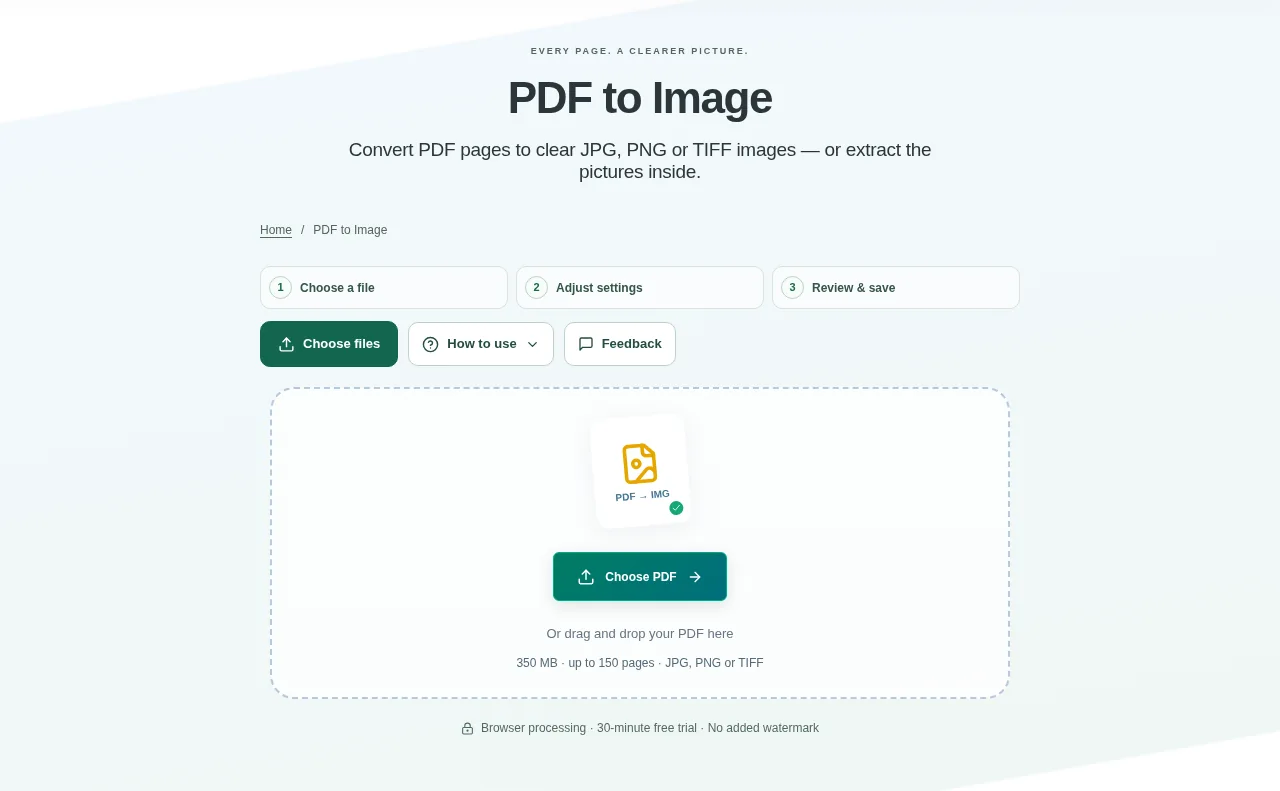
Choose an unlocked PDF and inspect the page thumbnails. Select all pages, a page number or a range, depending on what you want to save. Convert one page or the selection, then wait for the image previews.
 View full size
Use PDF to Image when you need a page in a presentation, an image upload form or a design. It can export the whole page, including its text and artwork, or extract separate embedded pictures.
1. Open your file
Choose an unlocked PDF and inspect the page thumbnails. Select all pages, a page number or a range, depending on what you want to save.
2. Work through the settings
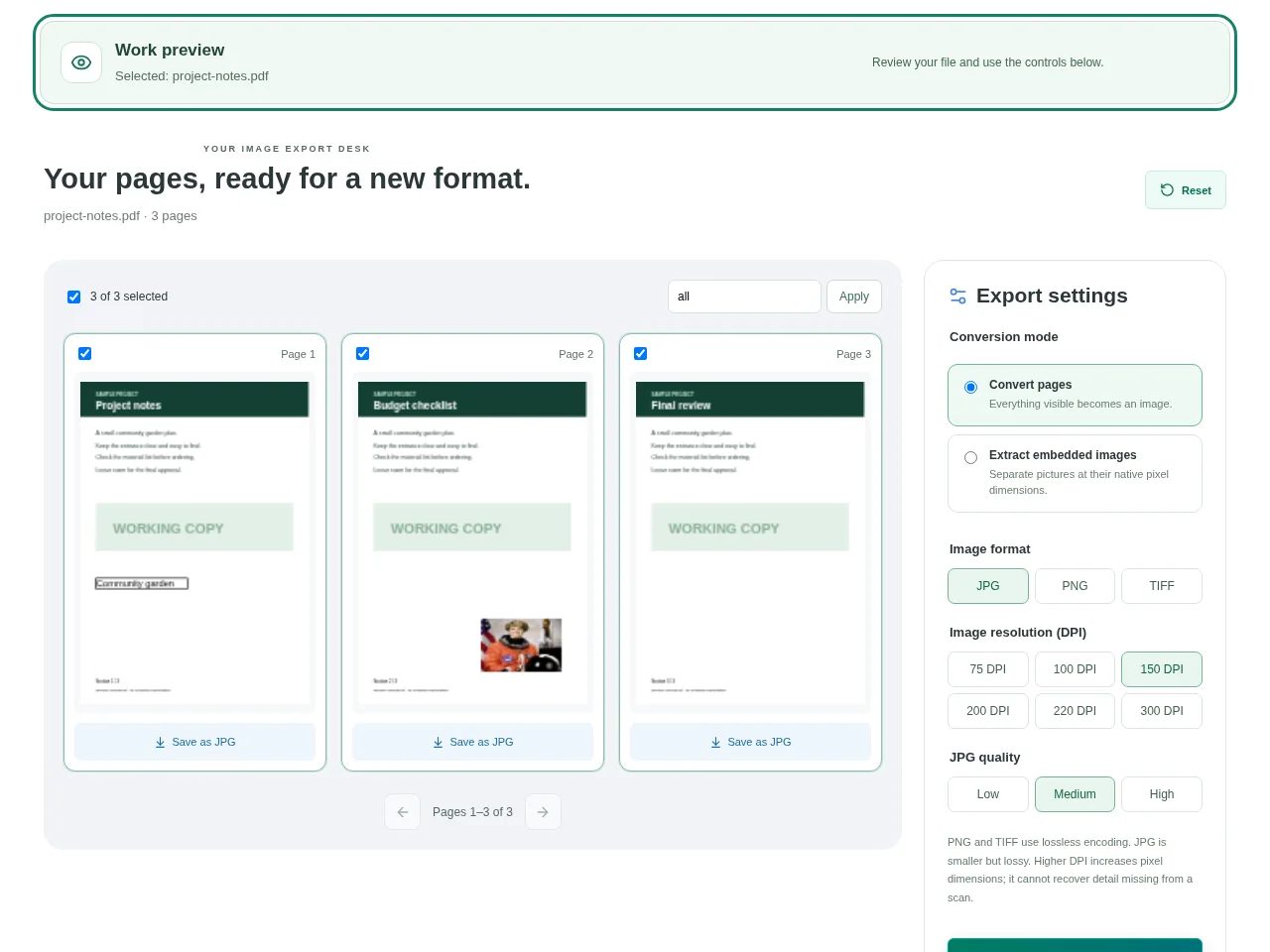
- Choose Convert pages when you want an image of everything visible on each selected page.
- For whole pages, choose JPG, PNG or TIFF and a resolution between the available 75–300 DPI presets. Higher DPI makes more pixels and usually larger files.
- If you need a picture inside the PDF rather than the page around it, choose the embedded-image extraction mode. That mode uses the image dimensions already in the file.
- Convert one page or the selection, then wait for the image previews.
 View full size
3. Check before you share
- Zoom into small writing and thin lines.
- Check that the chosen format opens in the app where you will use it.
- Save individual images or download the selection as a ZIP.
File limits and first-use notes
350 MB. 150 PDF pages. 24 MP per image. Up to 600 results / 350 MB output.
Questions you may have
Which format should I choose for a screenshot-like page?
PNG is a good starting point for text and diagrams. JPG often makes photographs smaller. TIFF is useful when the receiving workflow specifically asks for it.
Is an extracted picture the same as a page screenshot?
No. Extraction saves supported embedded raster images. It does not include surrounding text or turn vector artwork into a separate picture.


