
How to trim a video and save the part you need
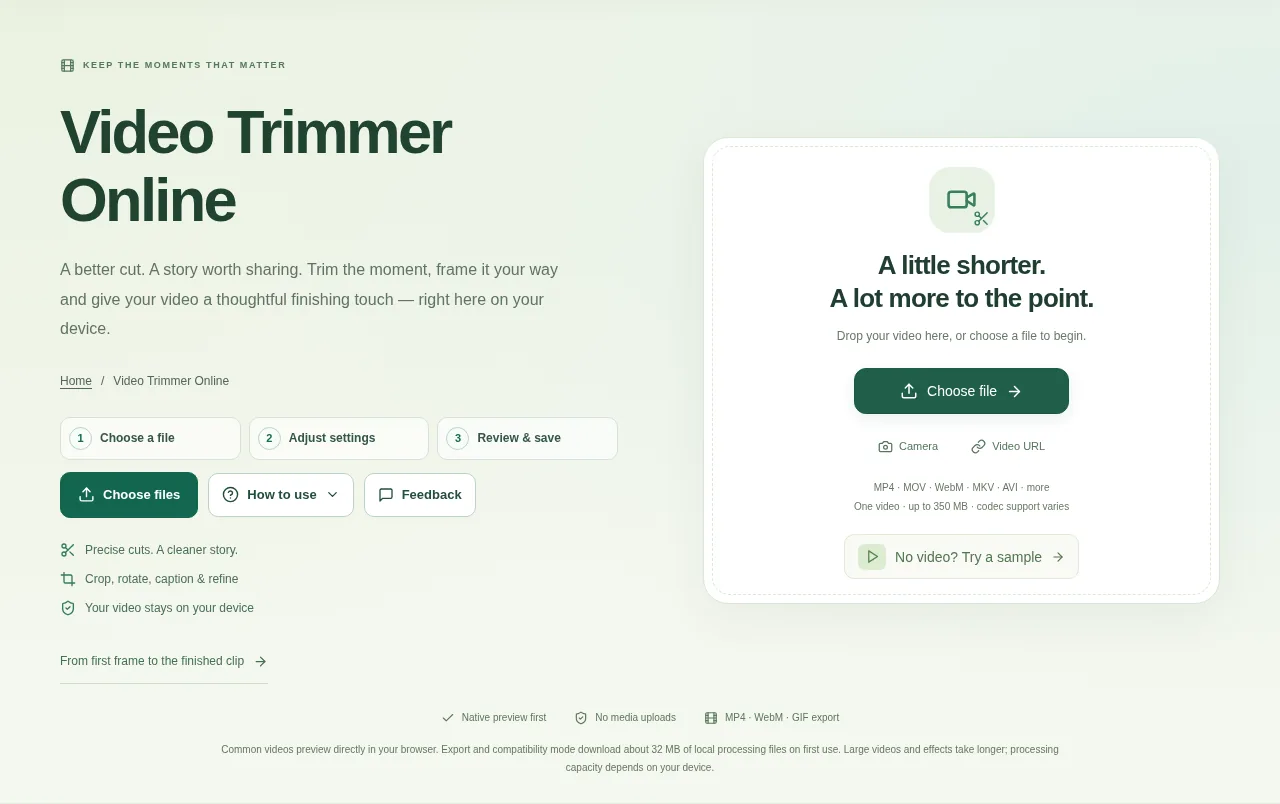
Open a video, set the start and end times and choose whether to keep or remove the selection. Preview your edits, choose an output format and export a new clip.
 View full size
A short clip is often easier to share than a whole recording. Video Trimmer Online lets you set exact boundaries, preview edits and add a few finishing touches before exporting a new file.
1. Open your file
Open a supported video and wait for its preview and timeline. Other supported codecs may need a compatibility preview before they play in the browser.
2. Work through the settings
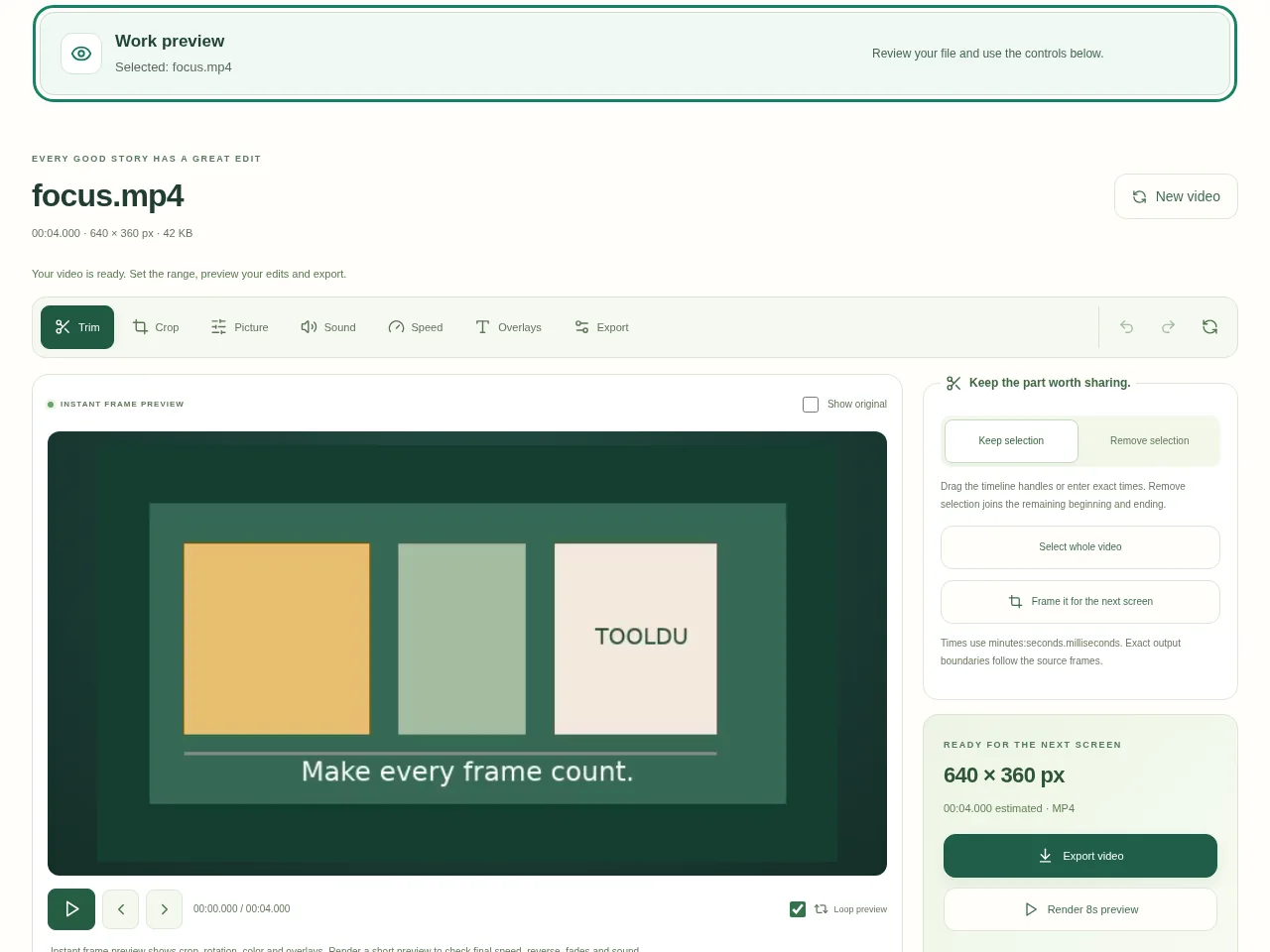
- Drag the start and end handles or enter exact times. Choose whether to keep the marked section or remove it.
- Crop, rotate, mute or adjust speed only where needed. A caption or image overlay should be placed where it does not hide the subject.
- Render a short edited preview to check the combined changes. Original playback alone does not show every exported effect.
- Choose a supported output such as MP4, WebM or GIF and export. Use Precise mode for accurate cuts; Fast keyframe mode trades exact timing for speed.
 View full size
3. Check before you share
- Watch the first and last moment of the saved clip.
- Listen for abrupt sound cuts and check any fades.
- Check captions, crop edges and the final output dimensions.
File limits and first-use notes
350 MB combined video and logo; 350 MB per output. Codec and browser memory limits apply. First processing downloads about 32 MB. Reverse: 30 kept source seconds; GIF: 30 output seconds / 480 px longest edge. Rendered preview: up to 8 seconds.
Questions you may have
Why is a fast cut not at the exact frame I chose?
Fast mode follows keyframes for speed. Choose Precise mode when exact boundaries matter.
Can I save one frame as a picture?
A PNG frame export is available. Check the selected frame carefully before saving it.


