
How to remove a known opening password from a PDF
Choose the encrypted PDF. Have the known password ready and keep the protected original until you have checked the output. Close and reopen that copy in a viewer to confirm it no longer asks for the opening password.
 View full size
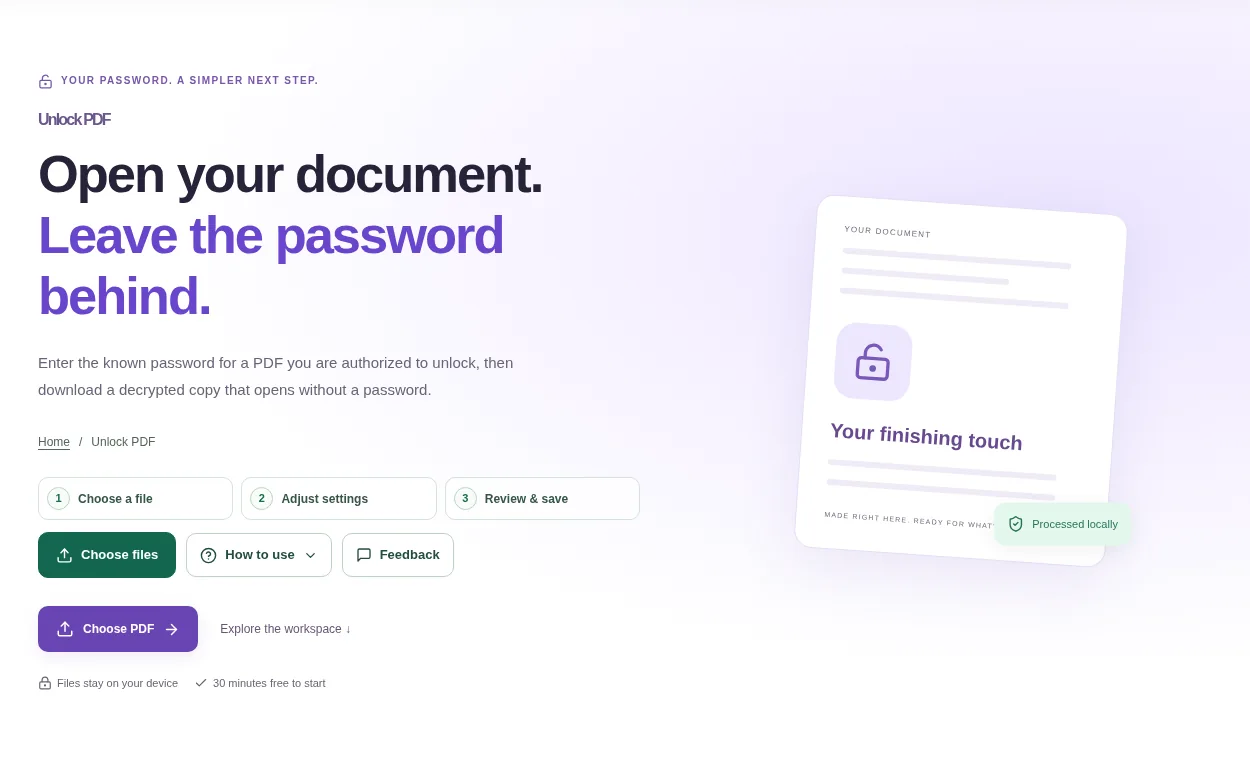
If you already know a PDF’s password and are allowed to remove it, Unlock PDF can make a copy that opens without that prompt. It is not a password-guessing service.
1. Open your file
Choose the encrypted PDF. Have the known password ready and keep the protected original until you have checked the output.
2. Work through the settings
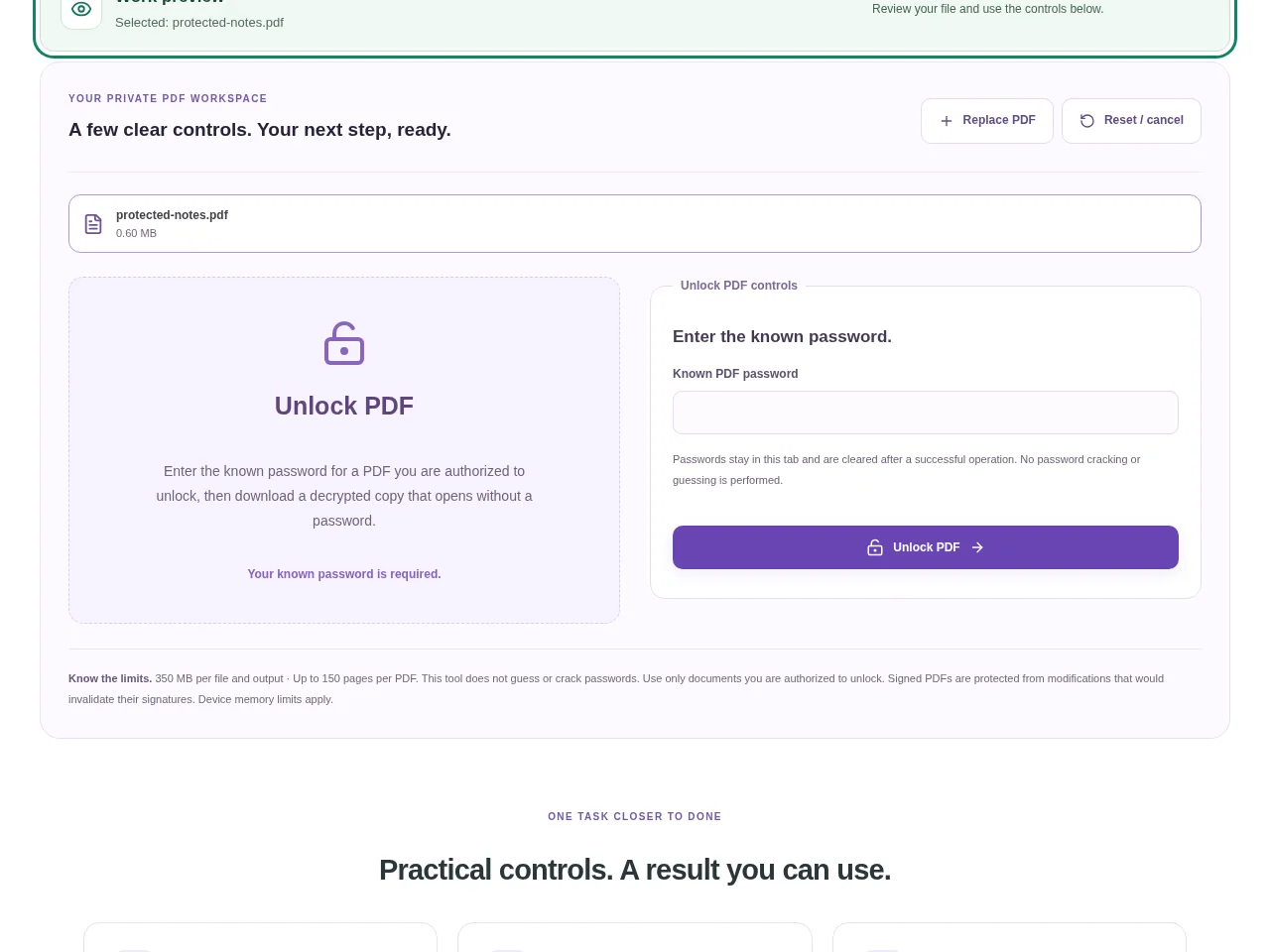
- Enter the correct opening password.
- Use Unlock PDF and read any error carefully. A wrong password should not be treated as a successful unlock.
- Download the decrypted copy after the tool finishes.
- Close and reopen that copy in a viewer to confirm it no longer asks for the opening password.
 View full size
3. Check before you share
- Check the page count and visible content.
- Make sure you are opening the new download rather than the original protected file.
- Share the unlocked file only when removing its protection is appropriate.
File limits and first-use notes
The file budget is 350 MB, with up to 150 pages per source PDF. This tool does not guess or crack passwords. Use only documents you are authorized to unlock. Signed PDFs are protected from modifications that would invalidate their signatures.
Questions you may have
Can it open a PDF if I forgot the password?
No. You need the known password or an authorized unprotected copy from the source.
Why does it say the document is already unlocked?
The chosen PDF does not need an opening password removed. Check that you selected the intended file.


