
How to make one PDF from your pictures
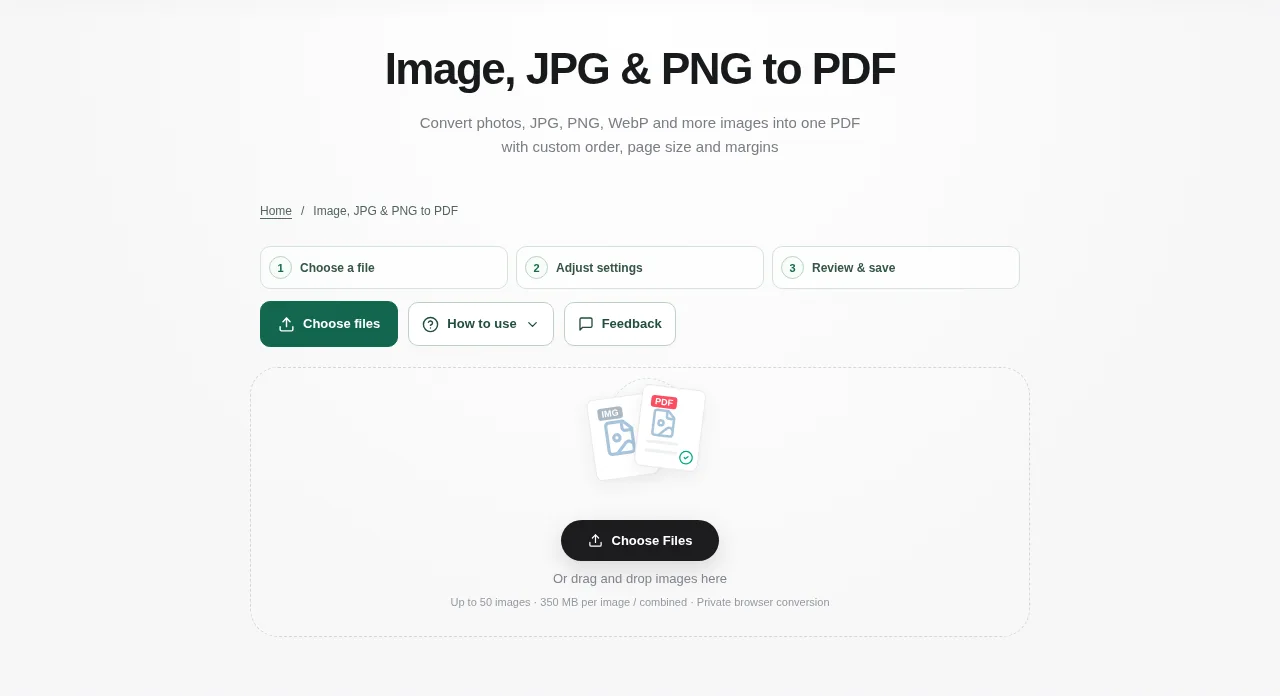
Choose your pictures in Images to PDF. Supported formats include JPG, PNG, WebP and several other still-image formats. Arrange them in the order you want the pages to appear. Choose one combined PDF or separate PDFs, then create the result.
 View full size
Receipts, photographed notes and a few scanned pages are often easier to share as one PDF. Images to PDF gives you a page preview before you download, so the order and margins do not have to be a guess.
1. Open your file
Choose your pictures in Images to PDF. Supported formats include JPG, PNG, WebP and several other still-image formats. Arrange them in the order you want the pages to appear.
2. Work through the settings
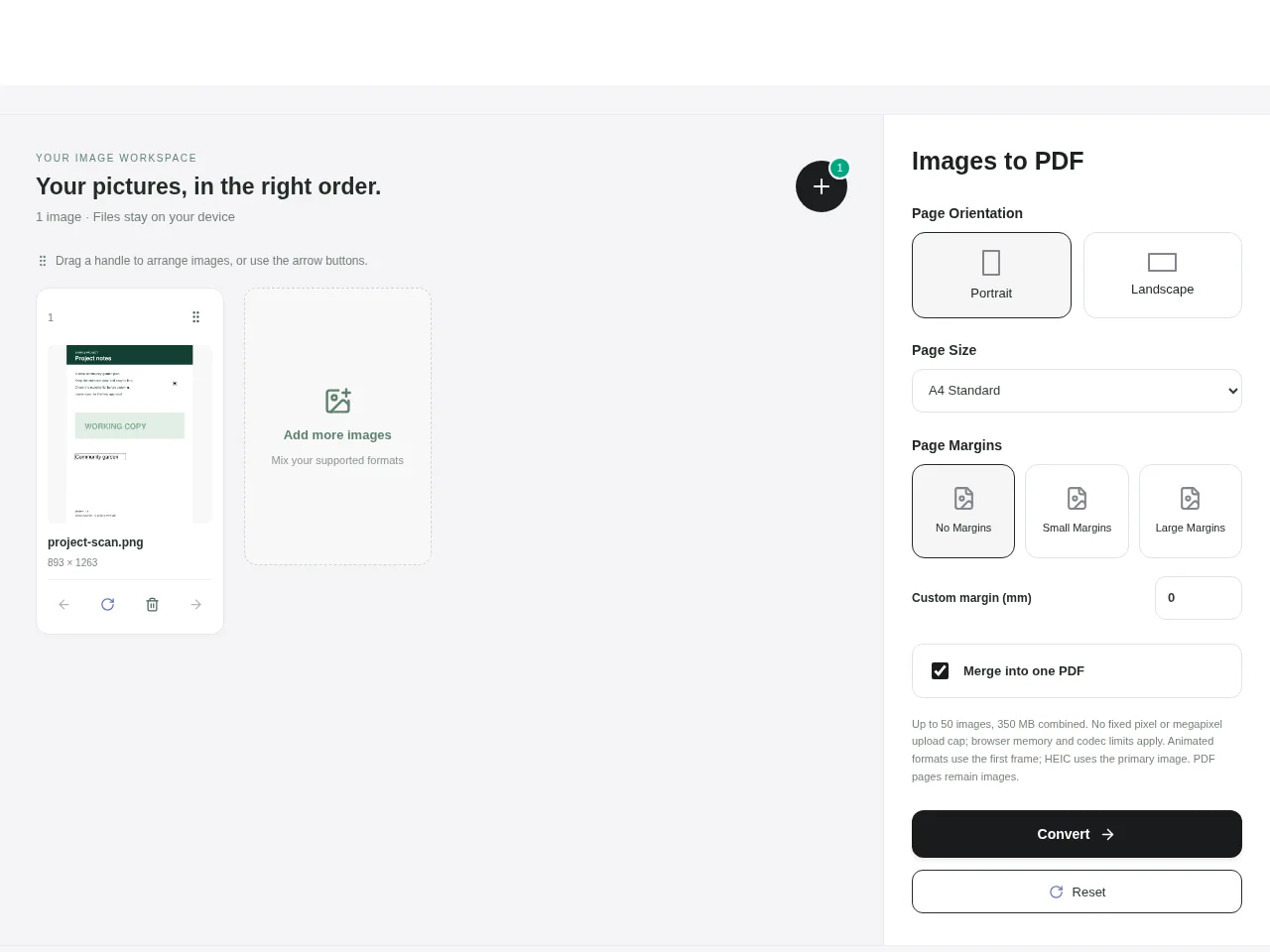
- Move the pictures into sequence before deciding on the paper size.
- Choose A4 or Letter for a familiar print size, Auto-fit for a page based on each picture, or custom dimensions if you need them.
- Adjust portrait or landscape orientation and the margins. Rotate any picture that was added sideways.
- Choose one combined PDF or separate PDFs, then create the result.
 View full size
3. Check before you share
- Confirm that no photo has been clipped at the edges.
- Check that receipts and small print are readable at normal zoom.
- Download the PDF or ZIP and count the pages once more.
File limits and first-use notes
350 MB per file / combined. 50 images. Image and decoded-memory limits also apply.
Questions you may have
Can I mix portrait and landscape pictures?
Yes. Review the page-size and orientation choices so each image fits the layout you want.
Will an animated image become an animated PDF page?
No. This tool uses a still or primary frame. Check the frame shown in the preview before creating the PDF.


