
How to split a PDF when a phrase starts each section
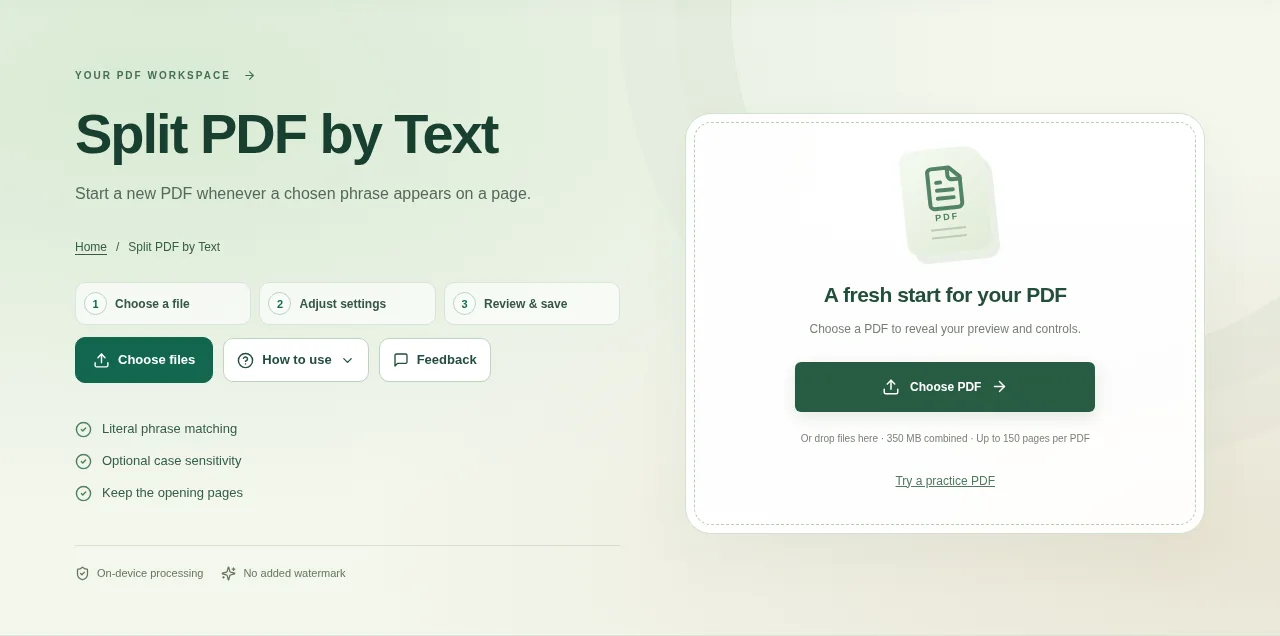
Open the PDF and choose a phrase that identifies the section starts. Try copying the phrase from the PDF first to see whether the page has readable text. Create the results and check the boundaries against the original sections.
 View full size
Some combined documents repeat a heading such as “Invoice” or “Monthly statement” at the start of every section. Split PDF by Text looks for a phrase in the extractable text and starts a new document on each matching page.
1. Open your file
Open the PDF and choose a phrase that identifies the section starts. Try copying the phrase from the PDF first to see whether the page has readable text.
2. Work through the settings
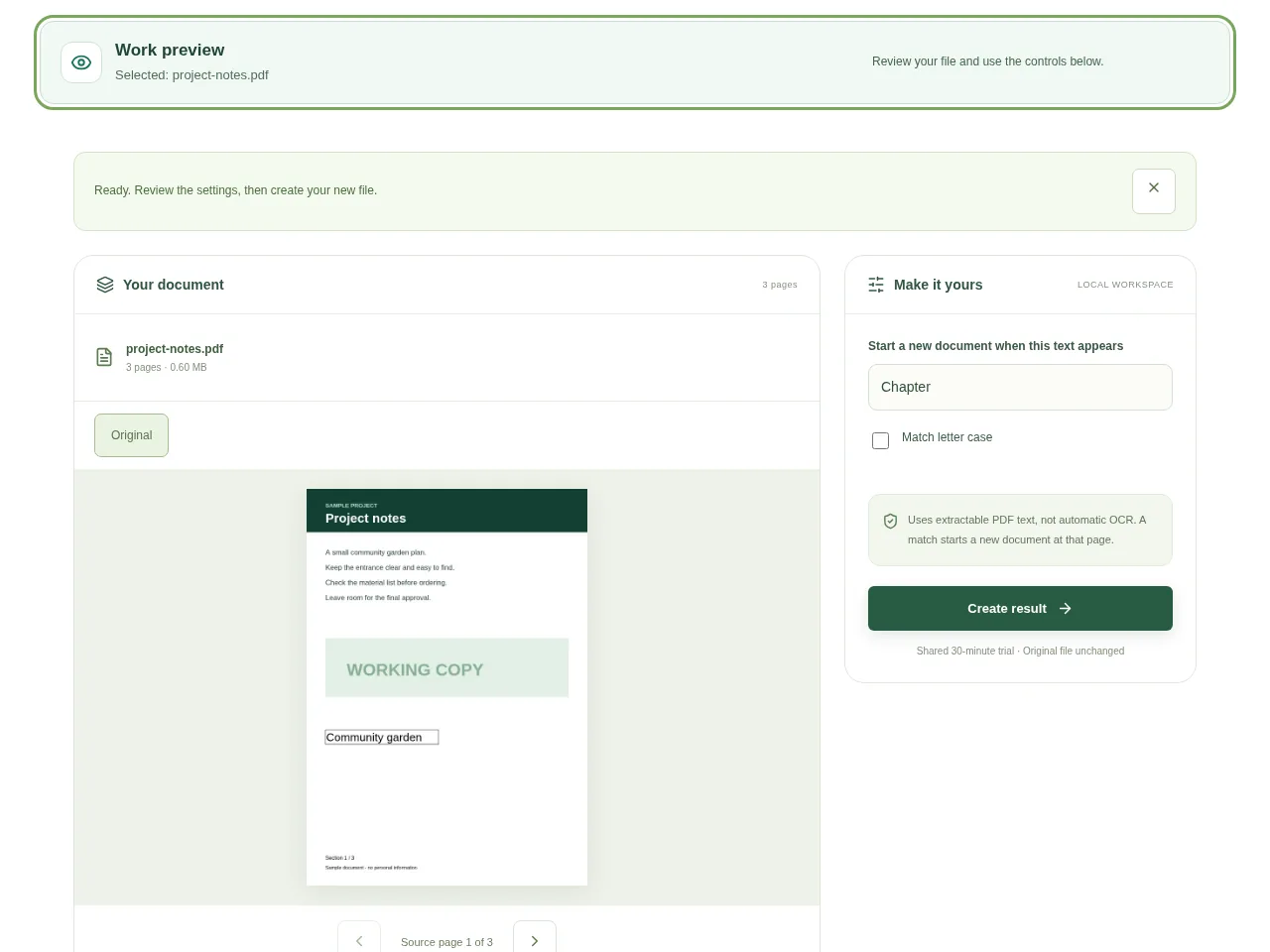
- Enter the literal phrase to find. Keep it specific enough that it does not appear on every ordinary page.
- Set case sensitivity if capital and lowercase versions should be treated differently.
- Choose how to handle pages before the first match. Keep them when they contain an introduction you still need.
- Create the results and check the boundaries against the original sections.
 View full size
3. Check before you share
- Check the first match and one later match.
- Look for a phrase repeated in headers that caused unwanted extra splits.
- Review any opening pages separately.
File limits and first-use notes
The file budget is 350 MB, with up to 150 pages per source PDF. Uses extractable PDF text, not automatic OCR. A match starts a new document at that page.
Questions you may have
Does it split in the middle of a page?
No. A matching phrase starts a new file at that page. Content elsewhere on the same page stays with it.
Can I use a general word such as “page”?
You can, but it may match far too often. A distinctive section heading usually gives more useful boundaries.


