
How to split a PDF into custom page groups
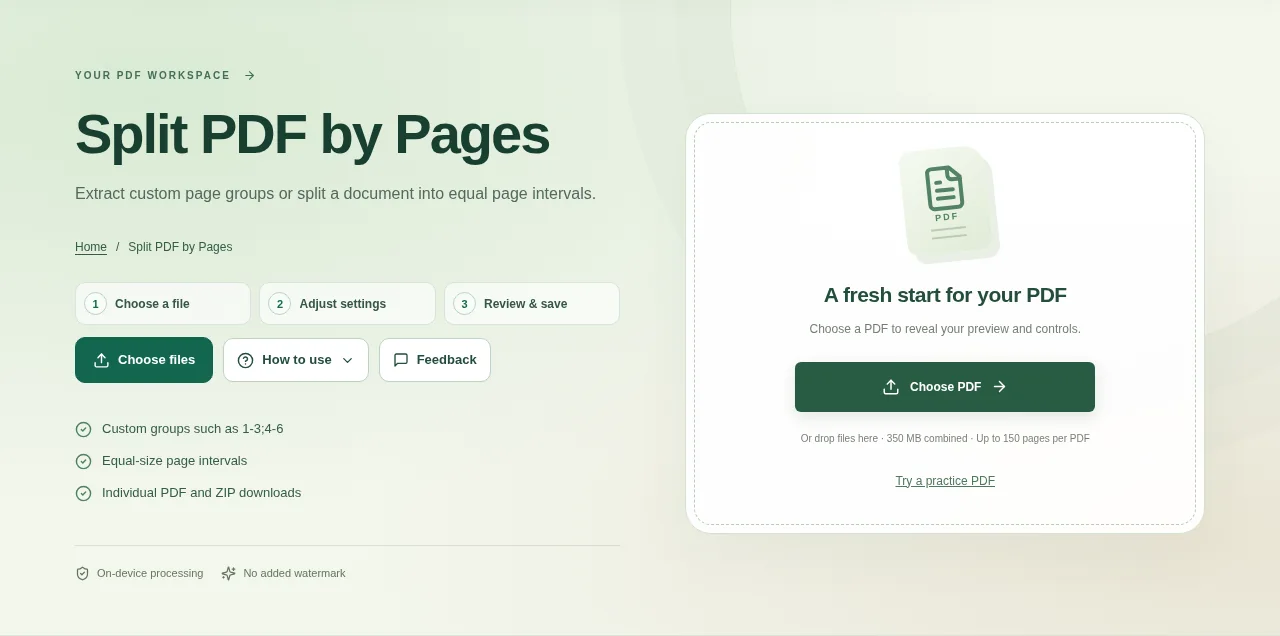
Choose your PDF and look at the source preview. Use the page numbers shown by the tool, which start at 1. Choose Create result, then download the individual parts or the ZIP.
 View full size
Sometimes a document needs three small sections rather than one file per page. Split PDF by Pages is a direct way to name those groups with page ranges or divide the document at regular intervals.
1. Open your file
Choose your PDF and look at the source preview. Use the page numbers shown by the tool, which start at 1.
2. Work through the settings
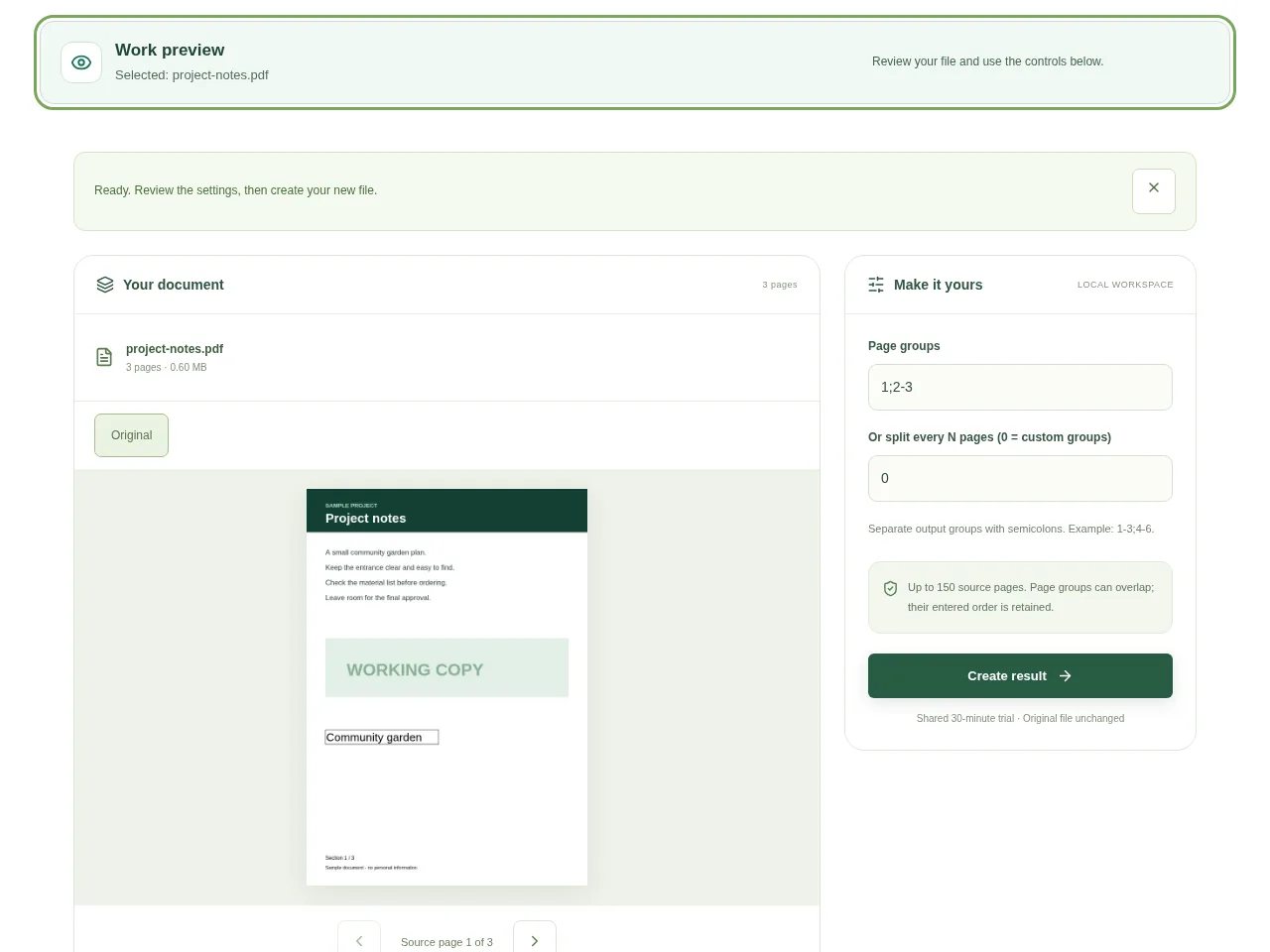
- Choose custom groups when the parts have different lengths. Enter groups such as 1-3;4-6, following the example beside the field.
- For evenly sized parts, choose the interval option and enter the number of pages per output file.
- Check whether you intentionally repeated a page in more than one group. Overlapping groups are allowed.
- Choose Create result, then download the individual parts or the ZIP.
 View full size
3. Check before you share
- Open the start and end of each part.
- Check that the final page of the source was included if you need it.
- Give the downloaded parts useful names before sending them.
File limits and first-use notes
The file budget is 350 MB, with up to 150 pages per source PDF. Up to 150 source pages. Page groups can overlap; their entered order is retained.
Questions you may have
Can one page appear in two files?
Yes. You can include it in more than one custom group, for example when every section needs the same cover page.
What if the parts should all have the same length?
Use equal-size page intervals instead of typing each group separately. The last part may contain fewer pages.


