
How to turn PDF bookmarks into chapter files
Open a PDF that has readable internal bookmarks. A visual contents page with printed chapter names is not necessarily a set of PDF bookmarks. Use Create result, then open a few chapter PDFs before downloading the set.
 View full size
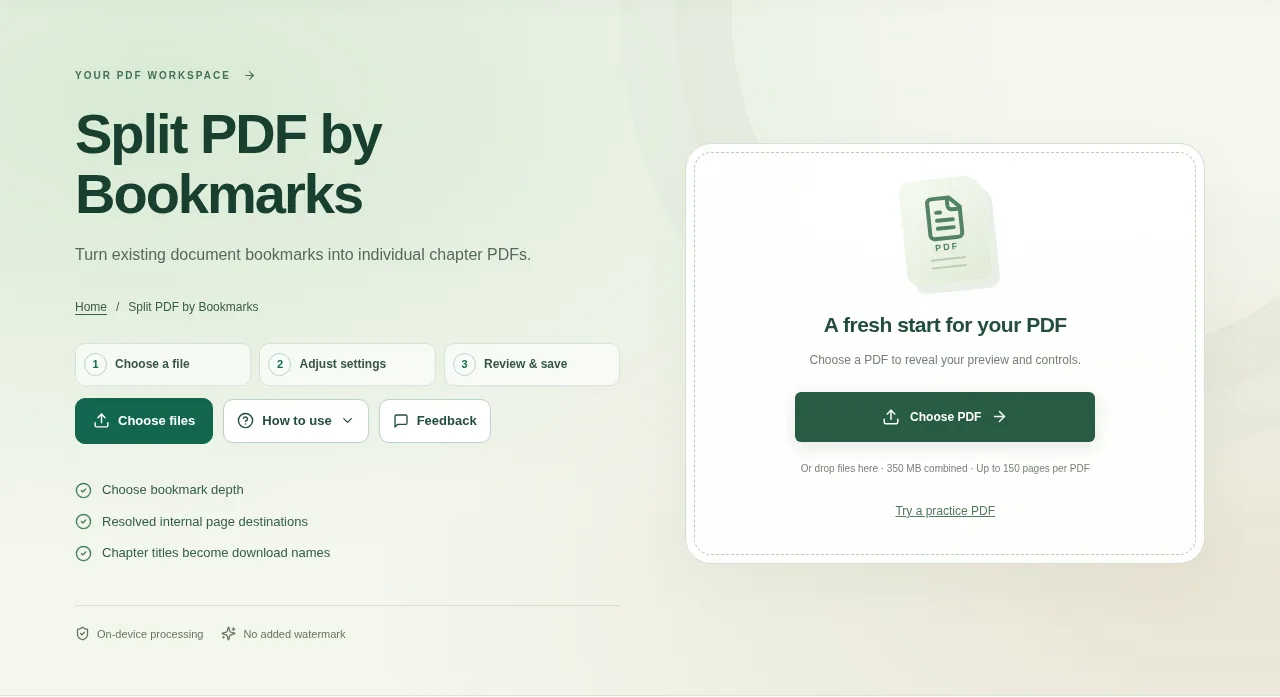
A long PDF may already contain a chapter list in its bookmarks panel. Split PDF by Bookmarks uses those existing page destinations to find where each part starts. You do not have to type all the chapter ranges again.
1. Open your file
Open a PDF that has readable internal bookmarks. A visual contents page with printed chapter names is not necessarily a set of PDF bookmarks.
2. Work through the settings
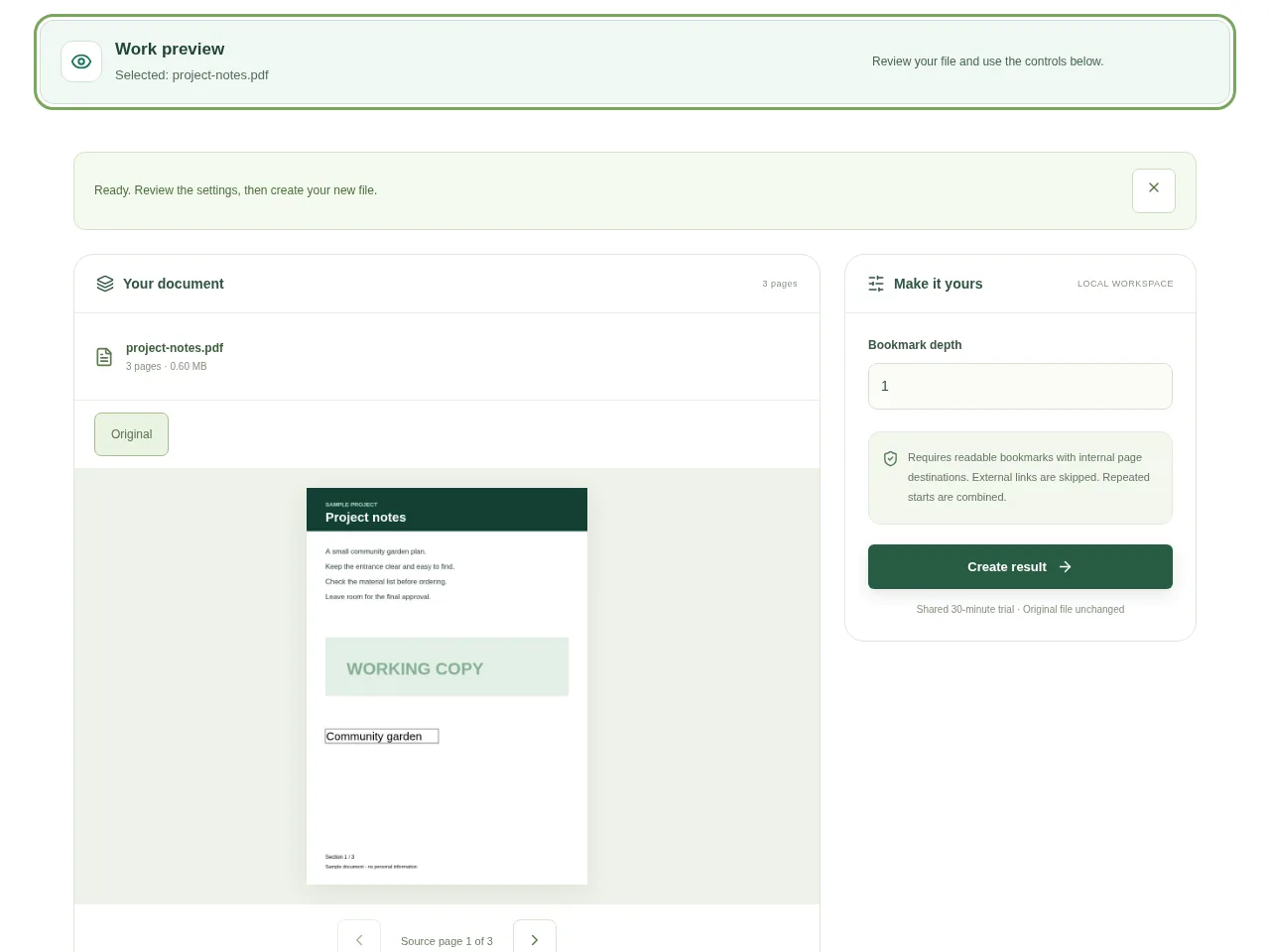
- Review the available bookmark levels. A document may have chapters at one level and smaller sections below them.
- Choose the depth that matches the parts you want to send.
- Check the resolved starting pages and chapter names. Bookmarks pointing to websites are not chapter boundaries.
- Use Create result, then open a few chapter PDFs before downloading the set.
 View full size
3. Check before you share
- Compare chapter starts against the original document.
- Check sections where two bookmarks lead to the same page.
- Review the generated filenames before sharing a ZIP.
File limits and first-use notes
The file budget is 350 MB, with up to 150 pages per source PDF. Requires readable bookmarks with internal page destinations. External links are skipped. Repeated starts are combined.
Questions you may have
Why is my printed table of contents not enough?
It is page artwork or text. The tool reads actual PDF bookmark objects, which contain destinations inside the document.
Can I split at smaller sections instead of chapters?
Yes, if those sections exist as a deeper bookmark level. Choose that depth and review the resulting boundaries.


