
How to try repairing a PDF that still opens partly
Keep the damaged original untouched and open a copy in Repair PDF. Note which pages fail or look wrong in your usual viewer. Open the output in another PDF viewer and compare the troublesome pages.
 View full size
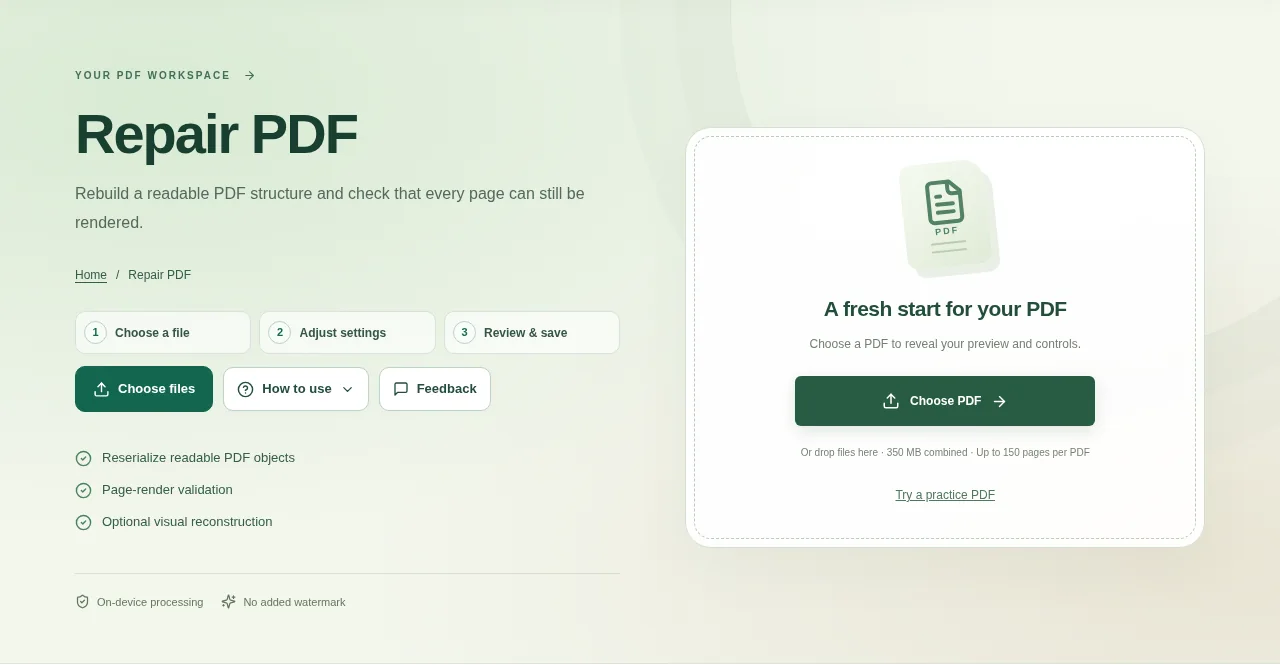
A PDF can have a readable page structure and still cause trouble in a viewer. Repair PDF tries to rebuild readable objects and checks that pages can render. It cannot recreate bytes that are missing from the source.
1. Open your file
Keep the damaged original untouched and open a copy in Repair PDF. Note which pages fail or look wrong in your usual viewer.
2. Work through the settings
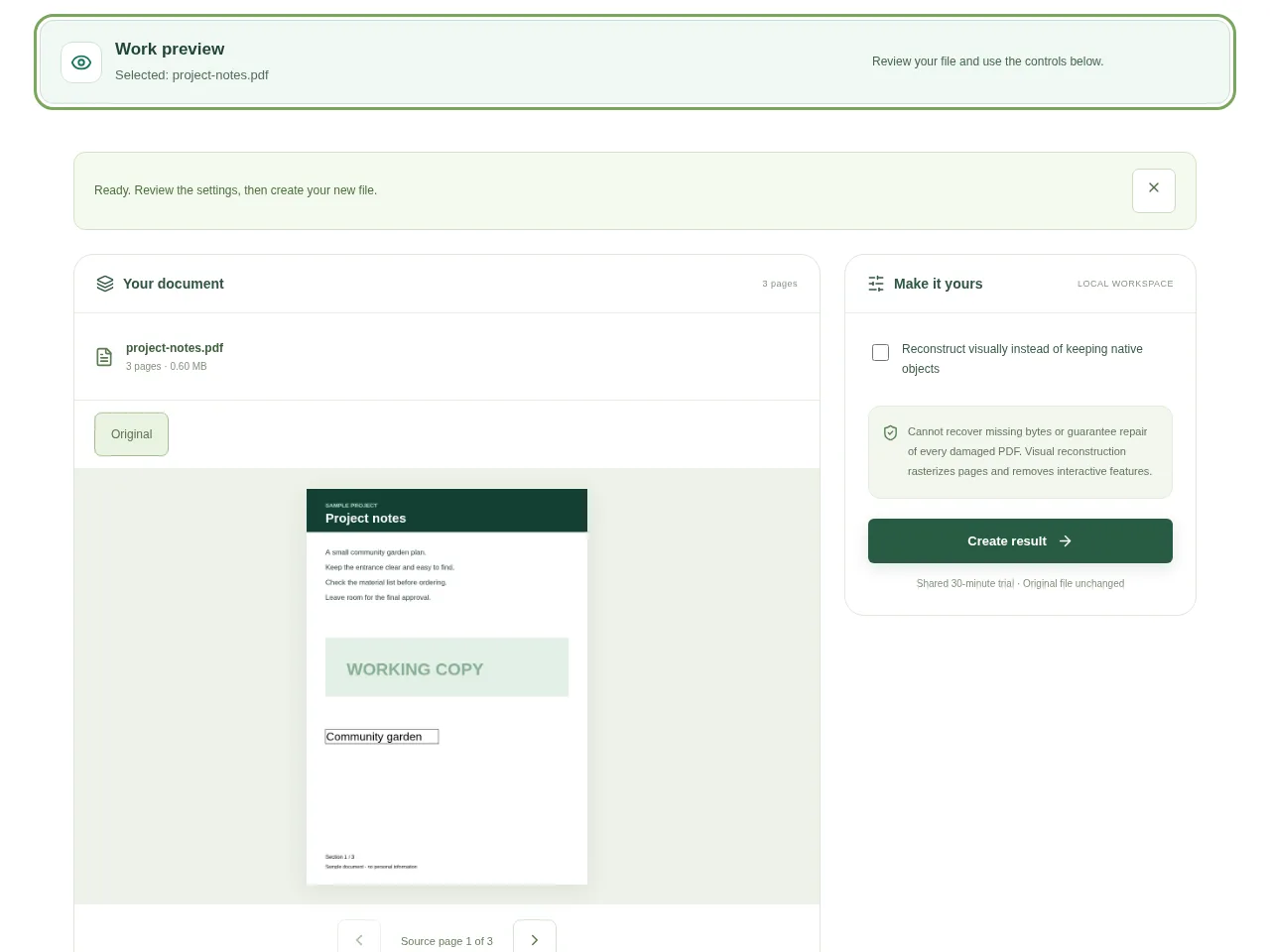
- Start with the structural repair option when you want to retain the document’s native content where possible.
- Use the optional visual reconstruction only when a page-image copy suits your purpose.
- Create the result and read any error instead of assuming a new filename means the repair worked.
- Open the output in another PDF viewer and compare the troublesome pages.
 View full size
3. Check before you share
- Check the total page count.
- Look at pictures, fonts and the page that originally failed.
- Test form fields and links if you expect those features to remain.
File limits and first-use notes
The file budget is 350 MB, with up to 150 pages per source PDF. Cannot recover missing bytes or guarantee repair of every damaged PDF. Visual reconstruction rasterizes pages and removes interactive features.
Questions you may have
Will this restore a missing page?
Not if the page data is absent. A fresh copy from the original sender may be the only reliable solution.
Why is a visual reconstruction no longer searchable?
It creates page images rather than preserving native text and interactive objects. OCR is a separate step.


