
How to give a PDF a clearer filename
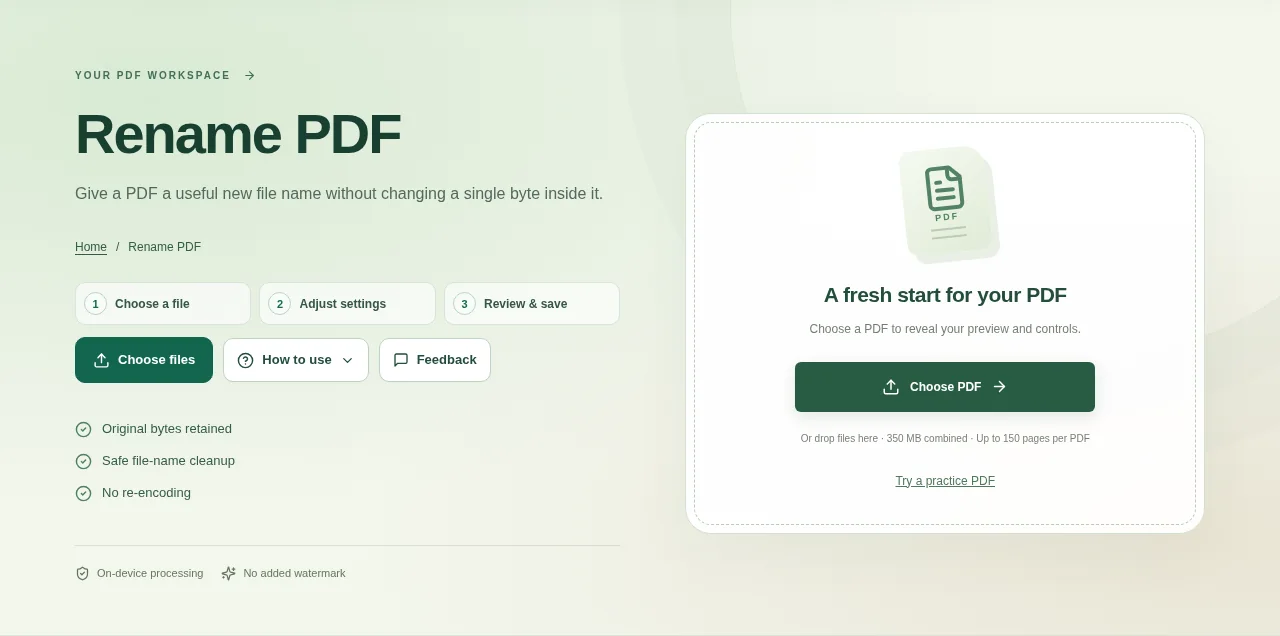
Choose the PDF and look at the current file name. Decide on a short, readable name that describes the document and, if useful, its date or part number. Download the copy and check the file name in your device’s Files or Downloads folder.
 View full size
A useful filename can explain a document before someone opens it. Rename PDF prepares a new download name while keeping the PDF’s contents exactly as they were.
1. Open your file
Choose the PDF and look at the current file name. Decide on a short, readable name that describes the document and, if useful, its date or part number.
2. Work through the settings
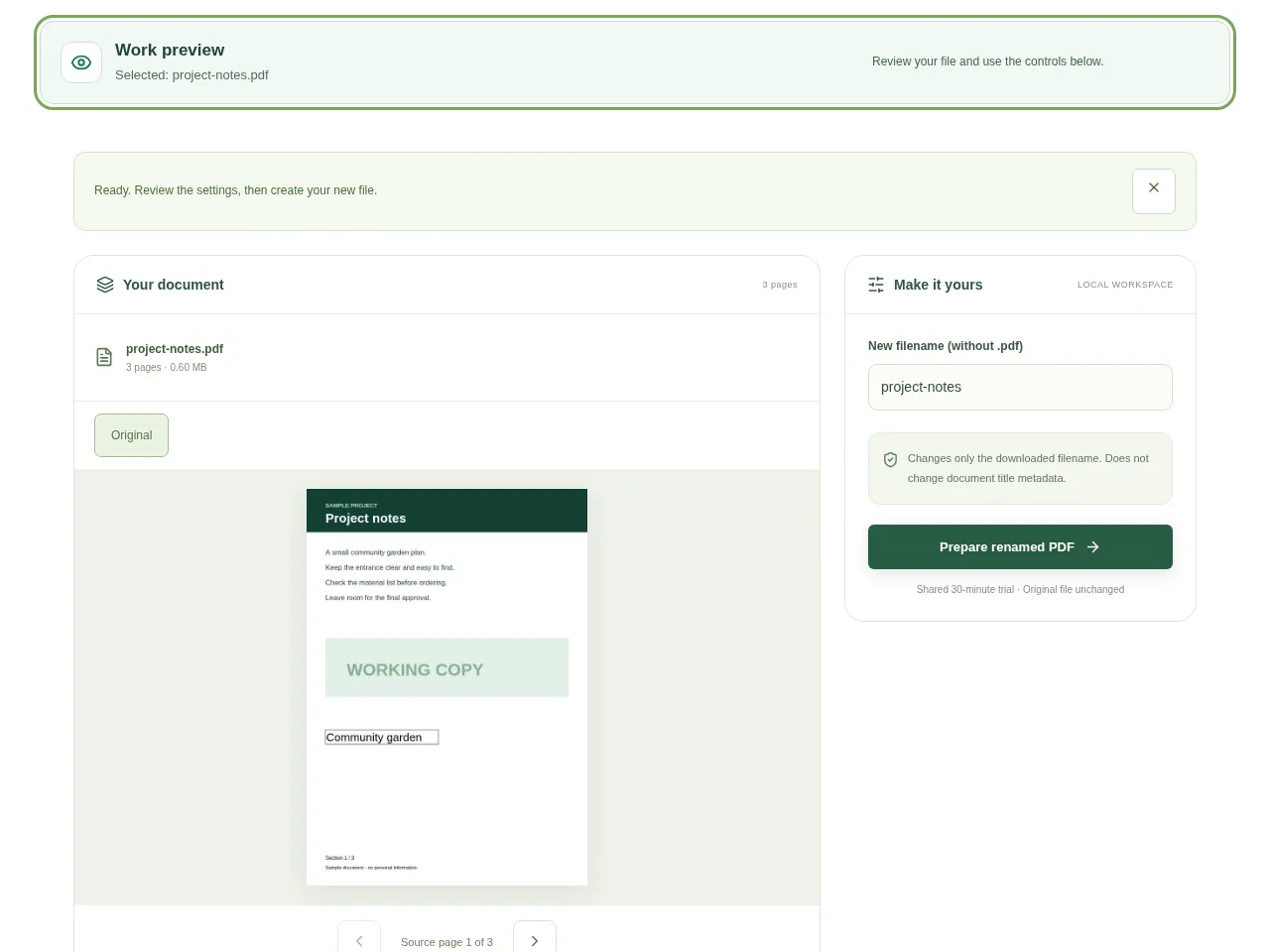
- Enter the new name without adding private information that does not need to be in a filename.
- Check the cleaned filename shown by the tool. Characters that do not belong in a safe download name may be adjusted.
- Choose Prepare renamed PDF.
- Download the copy and check the file name in your device’s Files or Downloads folder.
 View full size
3. Check before you share
- Confirm the extension is .pdf.
- Check that the new name is easy to recognize on a small screen.
- Open the file once if you are about to send it.
File limits and first-use notes
The file budget is 350 MB, with up to 150 pages per source PDF. Changes only the downloaded filename. Does not change document title metadata.
Questions you may have
Does renaming recompress the PDF?
No. The original PDF bytes are retained. Only the download name changes.
Why does my PDF viewer still show an old title?
The viewer may display internal title metadata. Use Edit PDF Metadata to change that property.


