How to colorize an old photo or make a grayscale copy
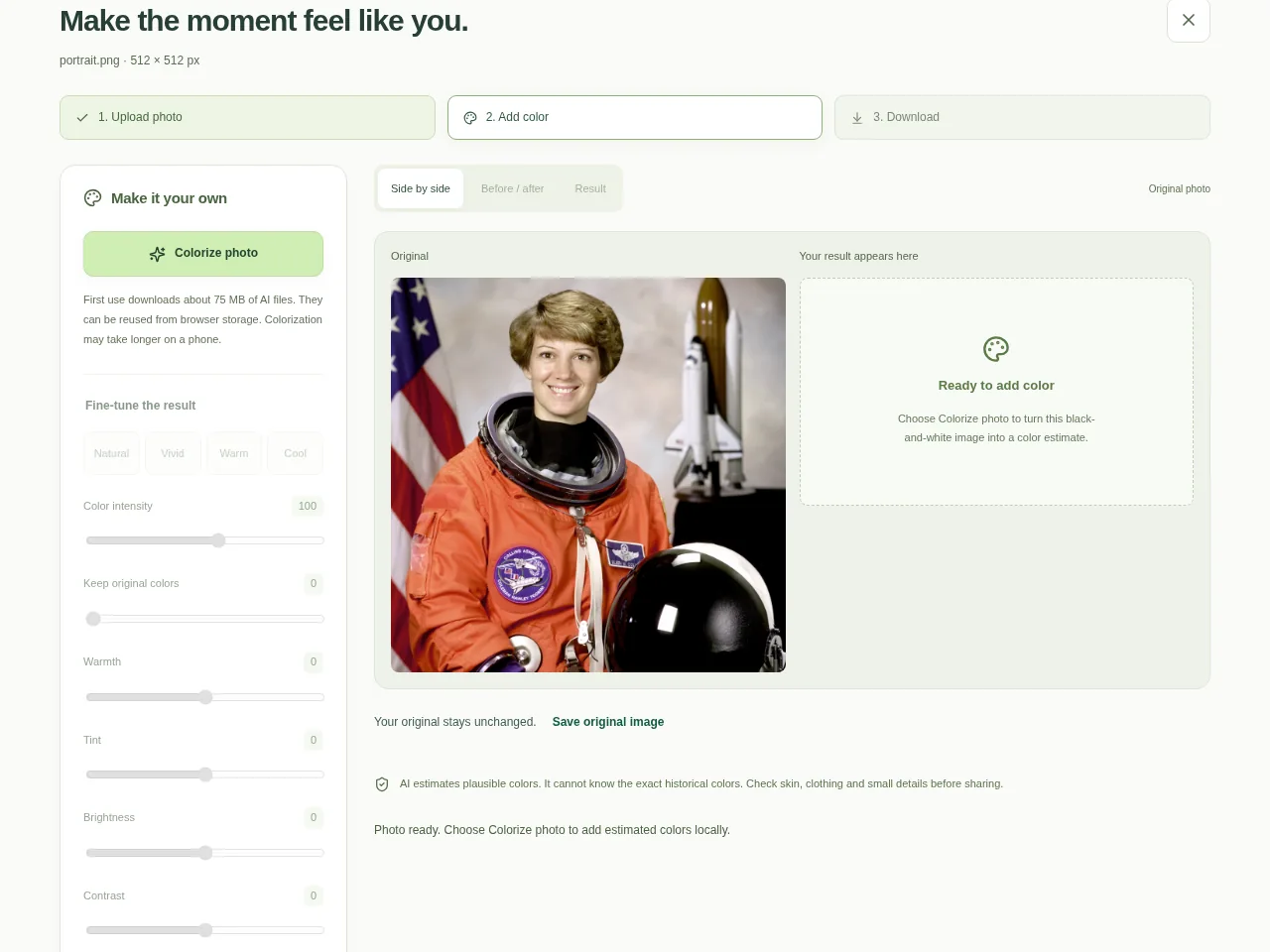
Choose a photo and use Colorize photo for a black-and-white source. Compare and adjust the result before preparing a download. For grayscale, use zero Color intensity with neutral Warmth and Tint.
 View full size
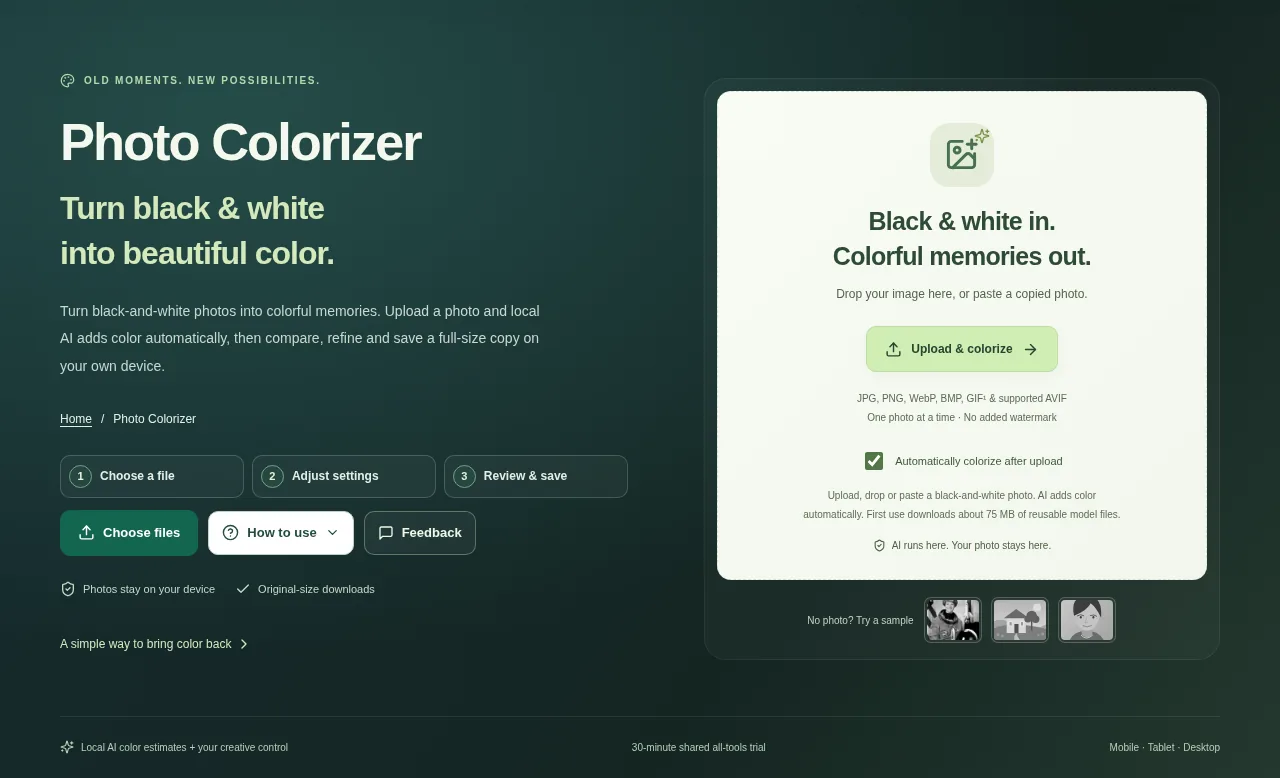
An old black-and-white photo can be easier to explore in color, but the new colors are estimates rather than a record of the past. Photo Colorizer lets you compare that estimate with the source and make your own adjustments.
1. Open your file
Choose one photo. Automatic colorization can start after upload; turn that option off if you prefer to open the controls first and start Colorize photo yourself.
2. Work through the settings
- For a black-and-white source, use Colorize photo and allow the local model to load on first use.
- Compare the result with the original. Adjust Color intensity, Warmth, Tint, Brightness and Contrast gently.
- Use Color brush for a small correction or Restore original where the source detail should return. For a grayscale copy, set Color intensity to zero and keep Warmth and Tint neutral.
- Prepare a full-size image or a smaller preview, then choose PNG, JPG or WebP for download.
 View full size
3. Check before you share
- Look at skin, clothing and edges where colors can spill.
- Check that important detail still follows the original photo.
- Save the finished result before closing the page.
File limits and first-use notes
350 MB per image. No fixed pixel/megapixel ceiling; device limits apply. First-use engine about 75 MB. Estimated colors, not exact historical recovery.
Questions you may have
Can I use the page for color to black and white too?
A zero Color intensity with neutral Warmth and Tint makes a grayscale treatment. Check the preview and prepare the output before downloading.
Why does the first photo take longer?
The browser must fetch and initialize the local colorization model. Later work can reuse the downloaded static engine assets.