
How to add a header or footer to PDF pages
Choose the PDF and check the blank space at the top and bottom of a few pages. A document with little margin needs a smaller label or a different position. Create the result and inspect pages with writing close to the edges.
 View full size
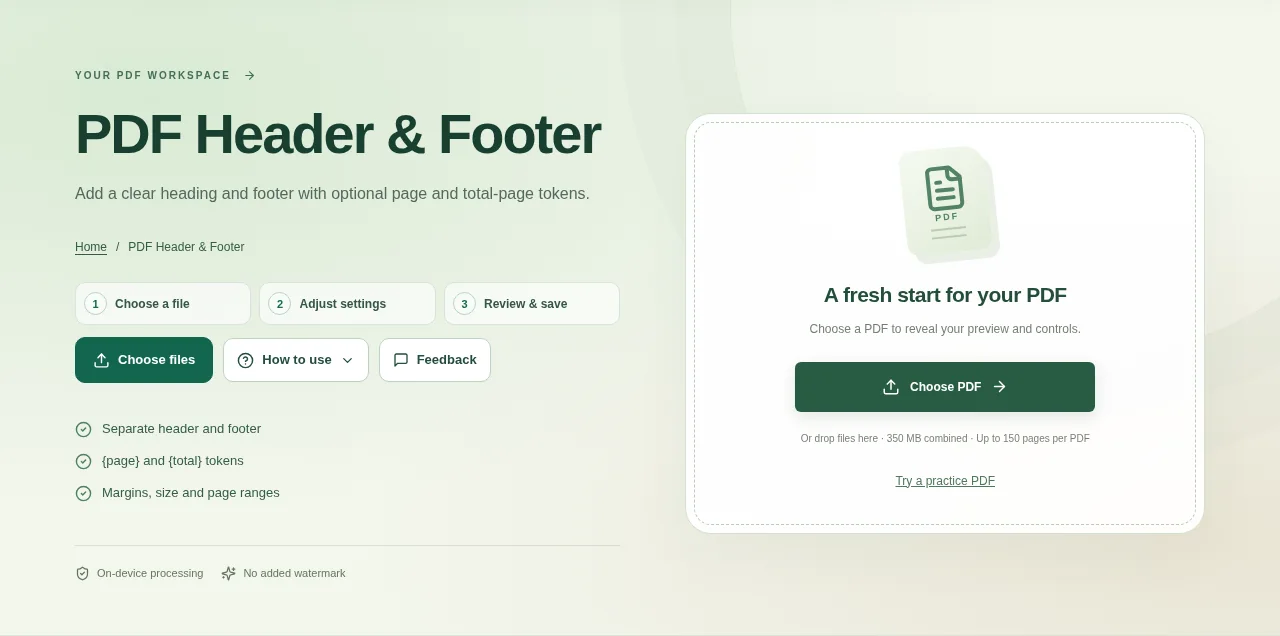
A short document label, project name or page reference can make a shared PDF easier to recognize. PDF Header & Footer adds those labels without moving the existing page content out of the way.
1. Open your file
Choose the PDF and check the blank space at the top and bottom of a few pages. A document with little margin needs a smaller label or a different position.
2. Work through the settings
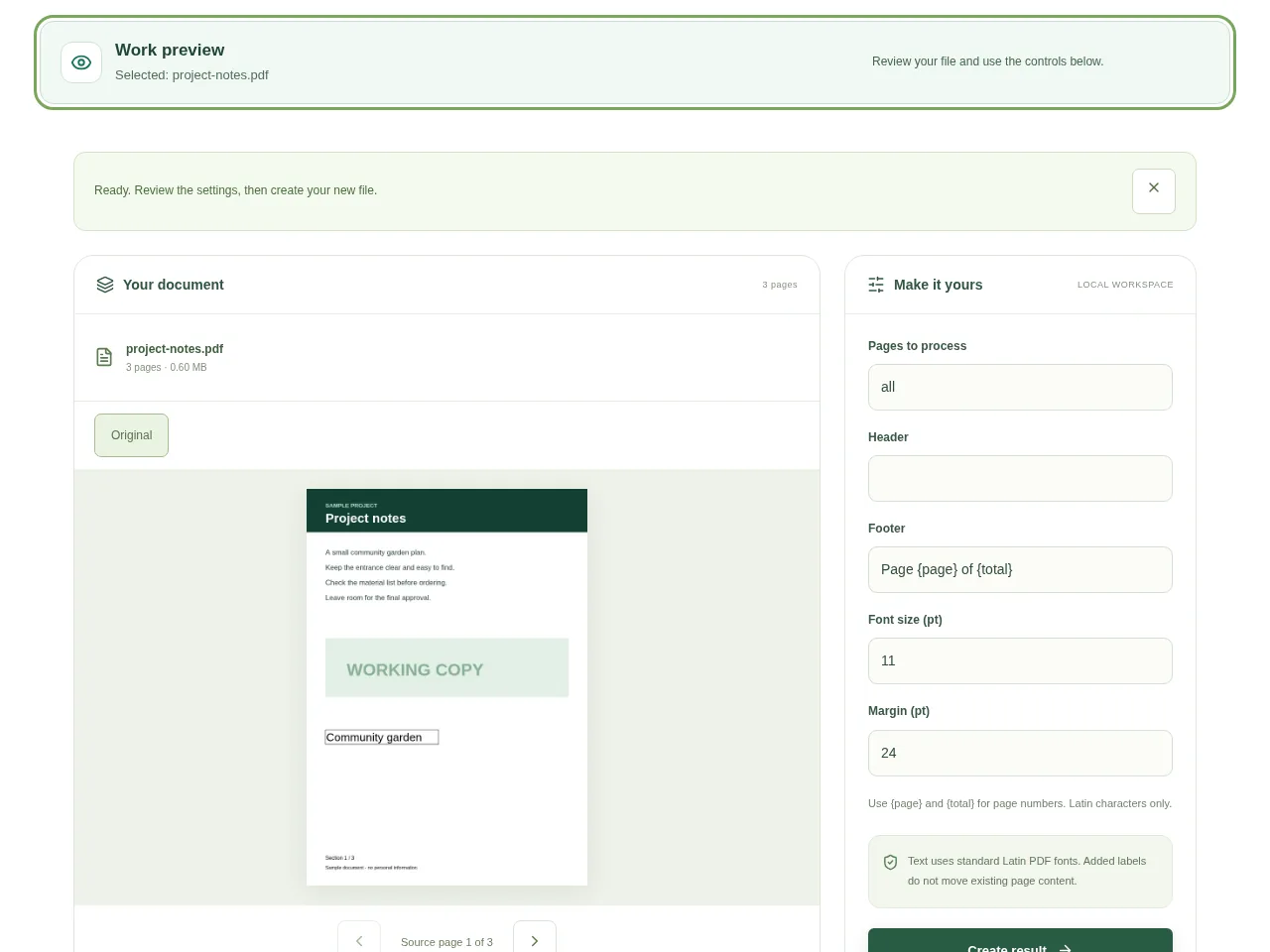
- Enter the header and footer text separately. Leave one empty if you only need the other.
- Use {page} and {total} where you want the current page and total-page values to appear.
- Set the margins and font size, then choose all pages or a page range.
- Create the result and inspect pages with writing close to the edges.
 View full size
3. Check before you share
- Look for labels overlapping an existing heading or page number.
- Check the first and last page for the expected numbering.
- Print a test page if the document is intended for paper.
File limits and first-use notes
The file budget is 350 MB, with up to 150 pages per source PDF. Text uses standard Latin PDF fonts. Added labels do not move existing page content.
Questions you may have
Can I add only a footer?
Yes. Leave the header text empty and configure the footer.
Why is the new label covering existing text?
The original content stays in place. Increase the margin offset, reduce the label size or choose a position with more space.


