
How to make selected PDF pages grayscale
Open the PDF and choose the pages to convert. Keep a color original, especially when charts use color to distinguish their values. Create the PDF and compare the chosen pages with the original.
 View full size
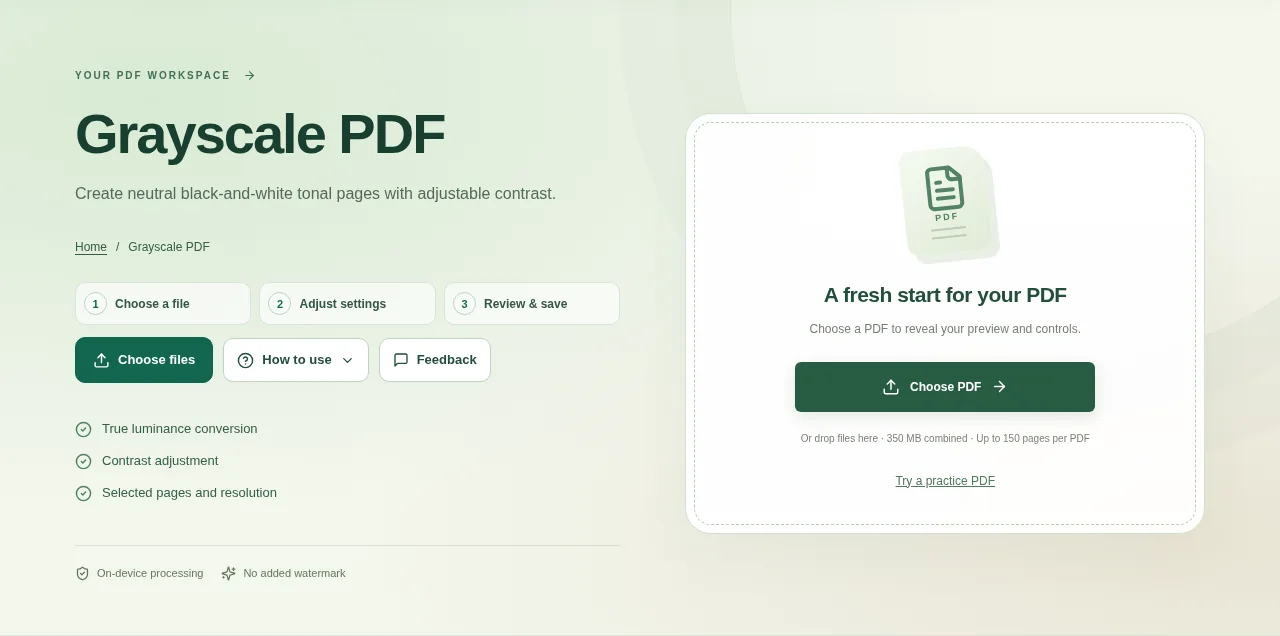
Color is not always needed for a reading copy or a simple printout. Grayscale PDF converts selected pages into shades of gray and lets you adjust contrast before you save.
1. Open your file
Open the PDF and choose the pages to convert. Keep a color original, especially when charts use color to distinguish their values.
2. Work through the settings
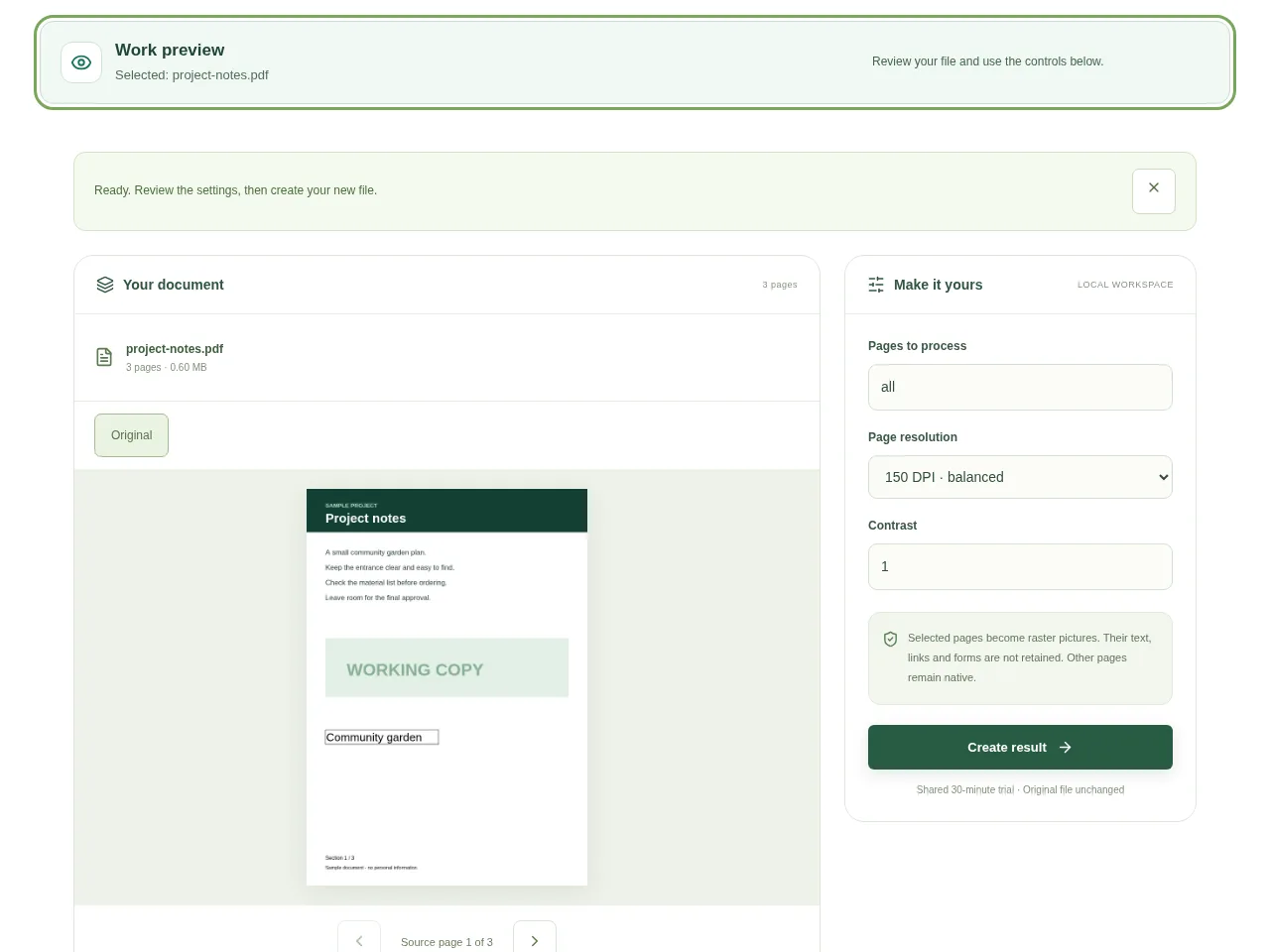
- Set the page range so pages that still need color can remain unchanged.
- Choose a resolution that keeps the source text readable.
- Adjust contrast gently. Check both pale areas and dark text rather than judging one small part.
- Create the PDF and compare the chosen pages with the original.
 View full size
3. Check before you share
- Check small text and fine chart lines.
- Make sure different chart colors still look distinguishable in gray.
- Confirm that pages outside the selection retained their original appearance.
File limits and first-use notes
The file budget is 350 MB, with up to 150 pages per source PDF. Selected pages become raster pictures. Their text, links and forms are not retained. Other pages remain native.
Questions you may have
Is grayscale the same as pure black and white?
No. Grayscale uses a range of gray tones. It can keep more subtle shading than a two-color scan.
Can I keep some pages in color?
Yes. Convert only the page range you choose and check the remaining pages in the saved file.


