How to mirror a photo horizontally or vertically
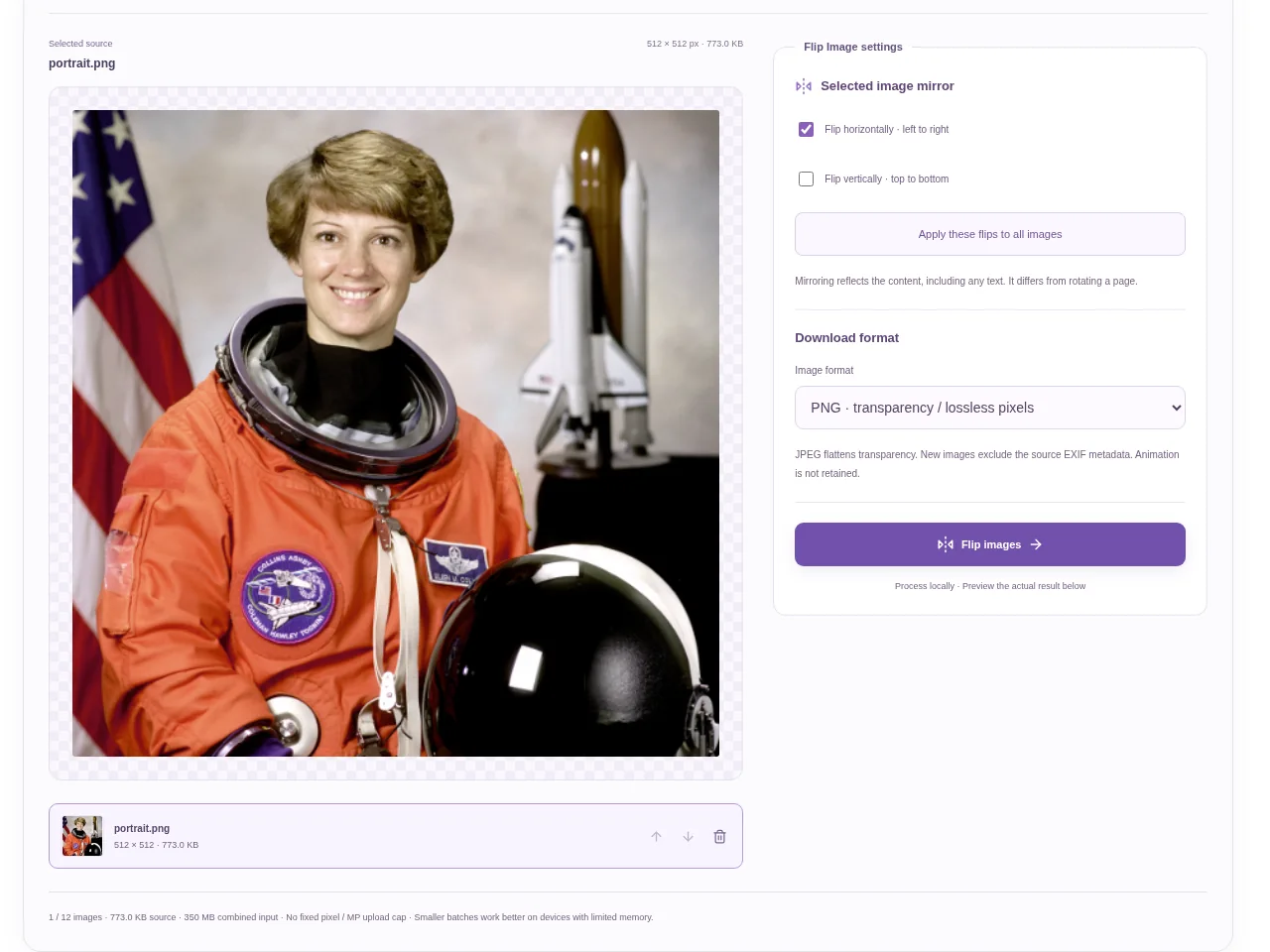
Choose the images and select a picture in the preview. Decide whether you need a left/right reflection or a top/bottom one. Process and download the new image copies.
 View full size
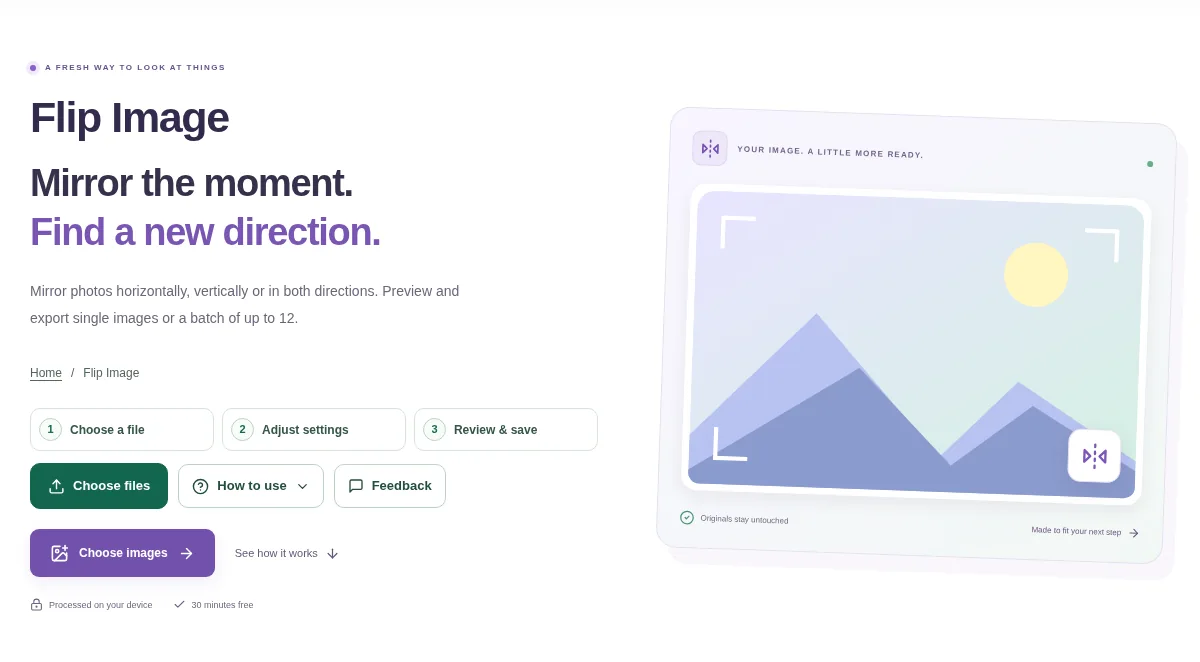
A mirrored image can be useful for a design or a specific print process. Flip Image reverses one axis of a picture. Check any text or logo carefully, because a reflection changes how it reads.
1. Open your file
Choose the images and select a picture in the preview. Decide whether you need a left/right reflection or a top/bottom one.
2. Work through the settings
- Choose Flip horizontally to swap the left and right sides.
- Choose Flip vertically for a top/bottom reflection, or use both if that is the intended design.
- Review faces, writing and asymmetrical details before applying the change.
- Process and download the new image copies.
 View full size
3. Check before you share
- Check a word or logo to confirm the reflection.
- Make sure a simple sideways image did not need Rotate Image instead.
- Review the full batch rather than one example.
File limits and first-use notes
350 MB combined input. 12 images. No fixed pixel / MP upload cap. 350 MB output. Device memory and codec limits apply.
Questions you may have
Which direction should I use for a mirror-like reflection?
Horizontal swaps left and right. Vertical swaps the top and bottom.
Does flipping increase image detail?
No. It changes the arrangement of the existing pixels. It is not an enhancement or upscaling operation.