
How to make filled PDF form fields part of the page
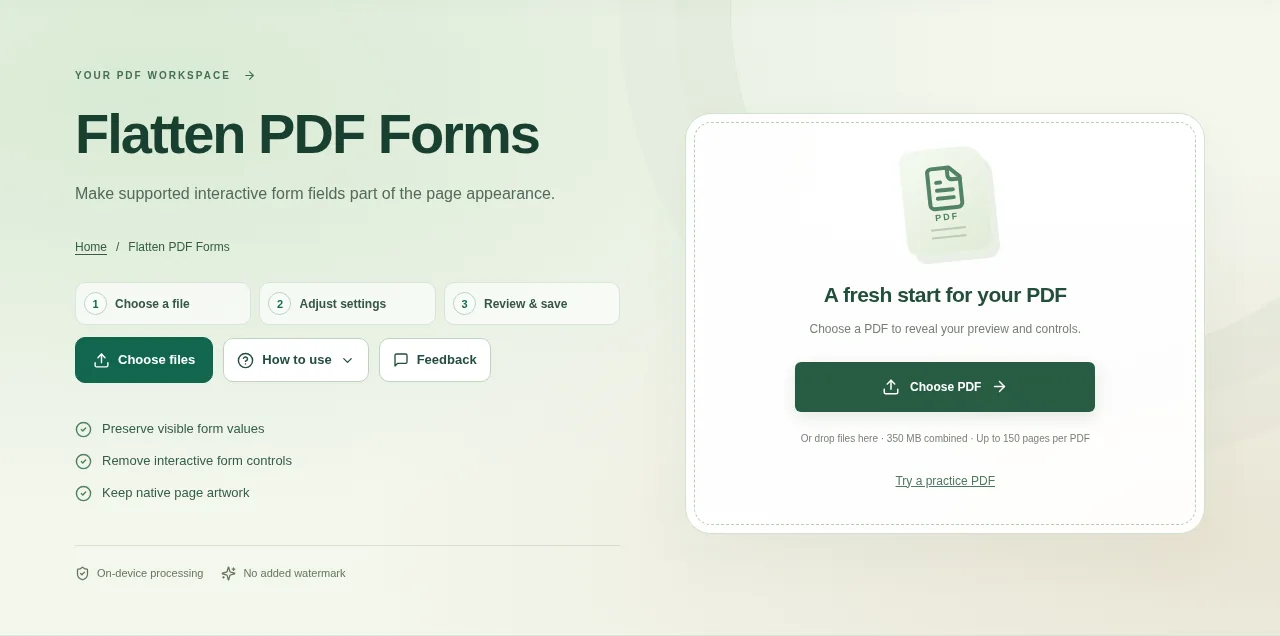
Fill in the form and save it first. Open that saved copy in Flatten PDF Forms, then look at the visible values before processing. Reopen the output in a PDF viewer and check that the form values remain visible.
 View full size
A completed form may need to be shared as fixed page content instead of editable fields. Flatten PDF Forms takes supported form-field appearances and places them into the page, so the recipient does not keep editing those controls.
1. Open your file
Fill in the form and save it first. Open that saved copy in Flatten PDF Forms, then look at the visible values before processing.
2. Work through the settings
- Check text fields, checkboxes and other supported AcroForm controls.
- Make sure each value has a visible appearance. A field that looks blank in the source deserves attention before flattening.
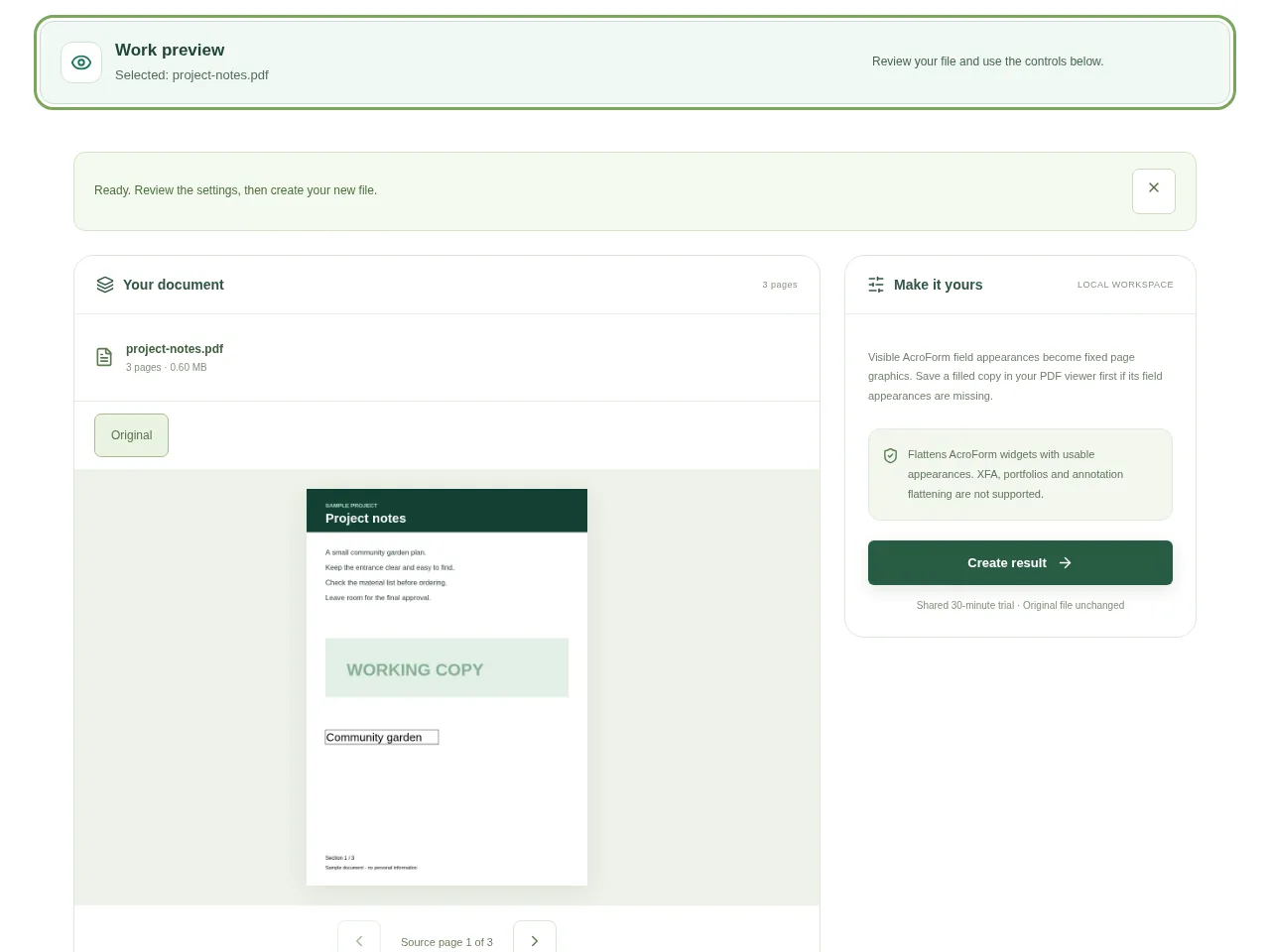
- Choose Create result to make a fixed copy.
- Reopen the output in a PDF viewer and check that the form values remain visible.
 View full size
3. Check before you share
- Try clicking a former field to confirm it no longer behaves as a form control.
- Read long values near the edges of their boxes.
- Keep a separate fillable original for later corrections.
File limits and first-use notes
The file budget is 350 MB, with up to 150 pages per source PDF. Flattens AcroForm widgets with usable appearances. XFA, portfolios and annotation flattening are not supported.
Questions you may have
Can I fill the fields again after flattening?
The output fields are no longer interactive. Keep the original fillable PDF if you may need to change the answers.
Will it flatten every comment and highlight too?
No. This page is for form controls. Comments and drawing annotations are a separate kind of PDF object.


