
How to fill a PDF form and add a visible signature
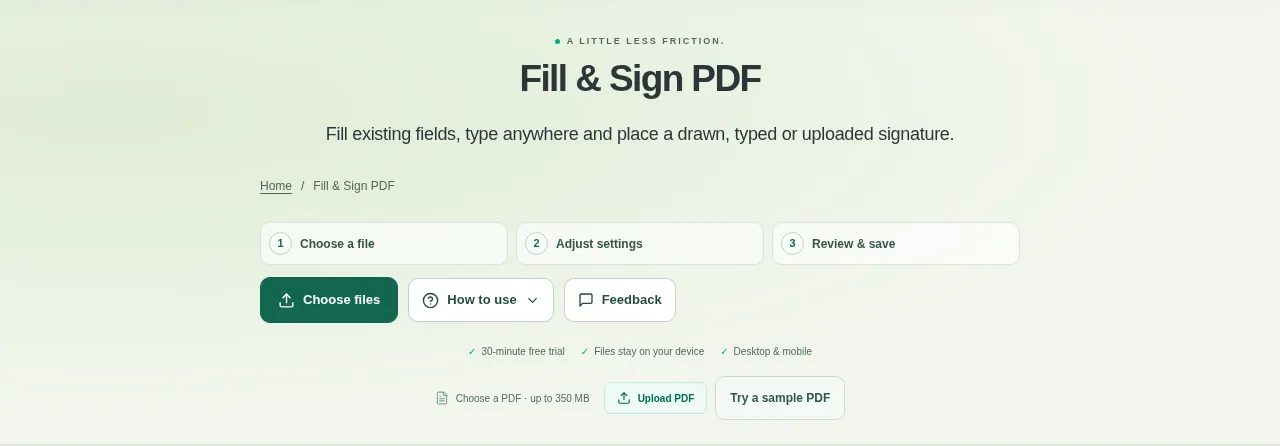
Open the PDF and check whether its form fields are interactive. Keep an original copy before filling in answers. Use Apply changes, review the saved preview and download the completed copy.
 View full size
Some forms already have clickable fields. Others are flat pages where you need to place text yourself. Fill & Sign PDF brings both tasks into the editor, along with drawn, typed or uploaded visual signatures.
1. Open your file
Open the PDF and check whether its form fields are interactive. Keep an original copy before filling in answers.
2. Work through the settings
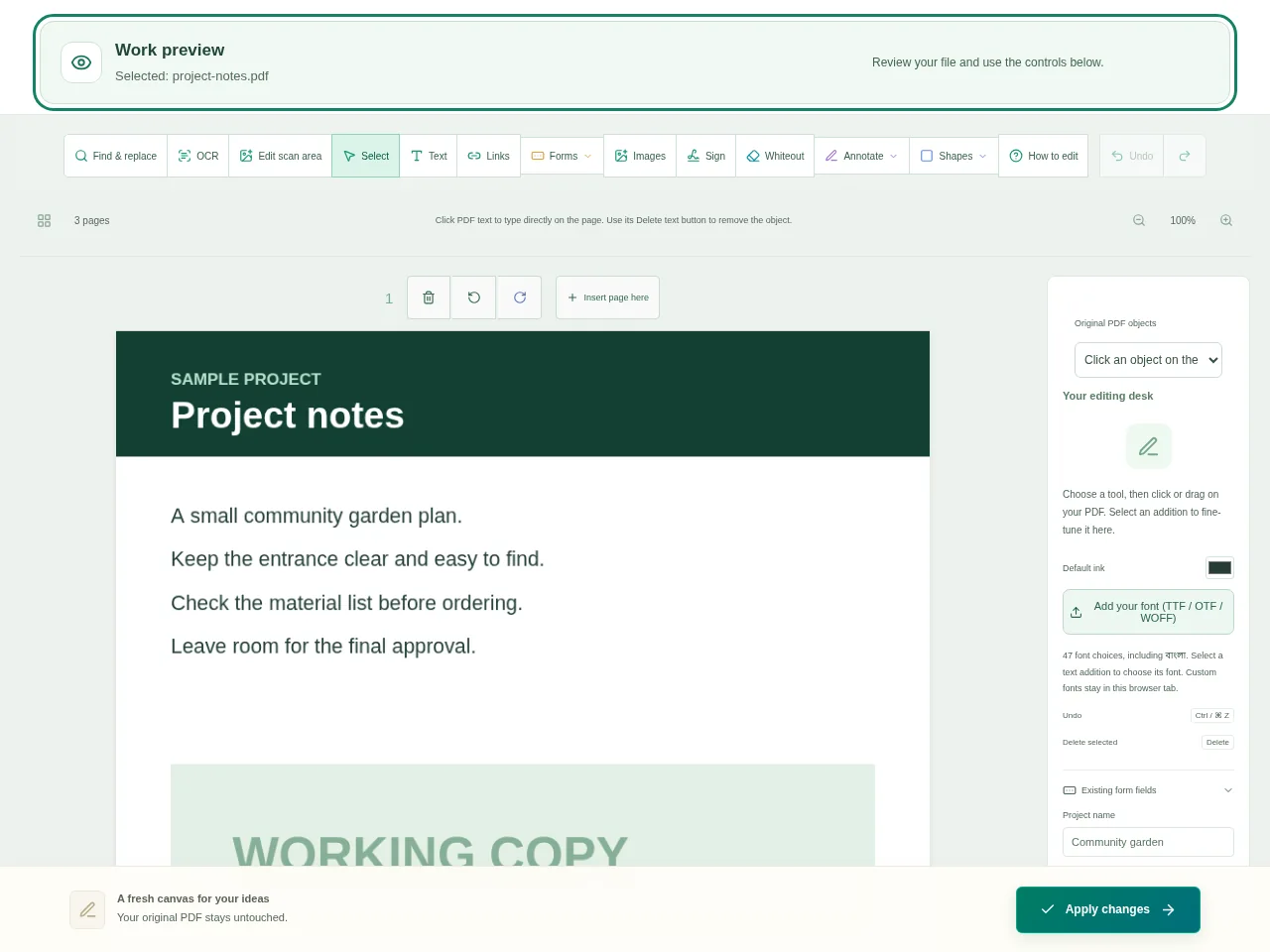
- Click an existing editable field and enter the answer. Read-only fields stay protected.
- If the page has no suitable field, use Text to place an answer in the blank area. Adjust the size so it fits.
- Open the signature controls, choose Draw, Type or Upload and place the resulting mark on the correct page.
- Use Apply changes, review the saved preview and download the completed copy.
 View full size
3. Check before you share
- Check long names and addresses for clipped text.
- Review checkboxes and any answers on a later page.
- Confirm the receiving organization accepts a visible signature for this form.
File limits and first-use notes
The file budget is 350 MB, with up to 150 pages per source PDF. Visual signatures are not certificate-based digital signatures. Read-only fields stay protected.
Questions you may have
Can I fill a form that is just a scanned picture?
You can add text over the visible blank spaces. That does not turn the original scan into an interactive form.
Why will one field not accept my answer?
It may be read-only or use a form structure the editor cannot safely change. Check the source and the receiving organization’s requirements.


