
How to edit a PDF without starting again
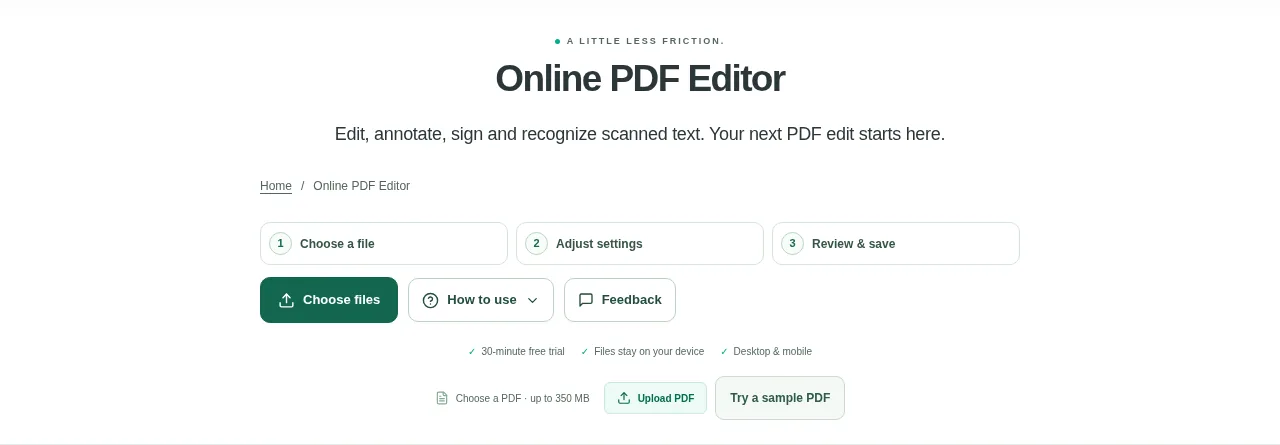
Open your PDF and click supported original text to edit it. Use Add text in this font for a separate addition in a verified embedded font, or choose an editing tool. Apply changes, inspect the saved preview and download a copy.
 View full size
A PDF does not always need to go back to Word for a small change. You can correct supported text, add a note or place an image on the page. The useful first question is whether you are looking at real PDF text or a picture of a page.
1. Open your file
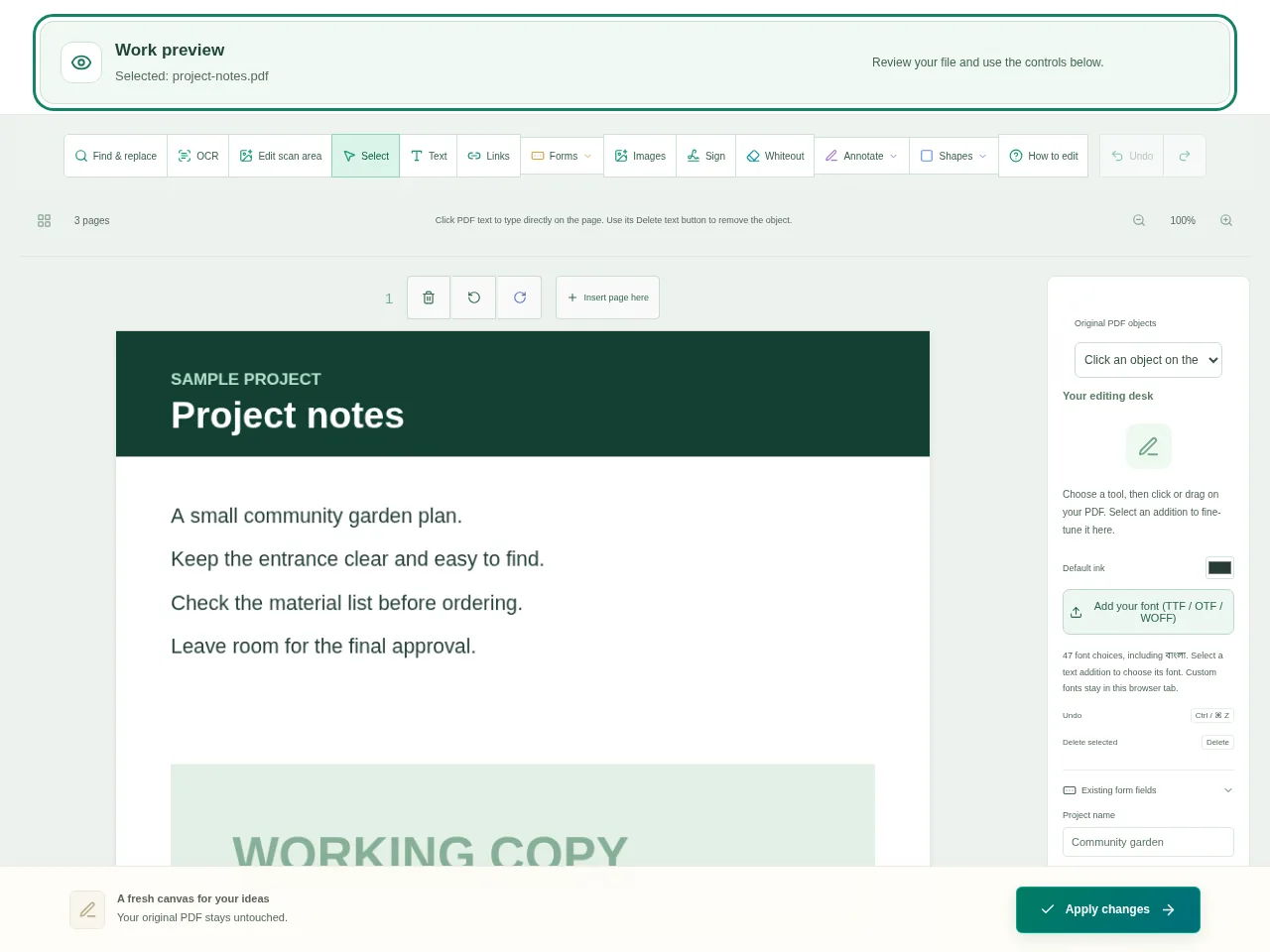
Open PDF Editor and choose your document. The work preview opens after it has loaded. Click the words you want to change, rather than drawing a new text box over them.
2. Work through the settings
- Edit supported original text at the caret. Check the detected font and size before making a long replacement.
- To add a separate line in the same embedded font, select the source text and use Add text in this font. Fonts in this PDF lists verified reusable subsets.
- For a new note, choose Text and click the page. Links, images, highlights, comments and visual signatures have separate controls.
- If the page is a scan, use OCR for English or Bengali text. Review recognized names and numbers; recognition does not recover the original font.
 View full size
3. Check before you share
- Use Apply changes, then read the saved preview.
- Look for missing letters, overlapping lines and changes near tables.
- Download the PDF and reopen it before sending it.
File limits and first-use notes
350 MB. 150 pages. Font mappings and document structure can limit original-text edits.
Questions you may have
Why can I select a picture but not its words?
A scanned page stores its words as pixels. OCR can recognize them, but editable reconstruction still needs a suitable font and careful checking.
Will new text always match the original font?
Verified embedded TrueType subsets can be reused for supported characters. Other fonts, complex scripts and absent glyphs may need a full font upload. The editor does not promise a match for every PDF.


