
How to remove unwanted pages from a PDF
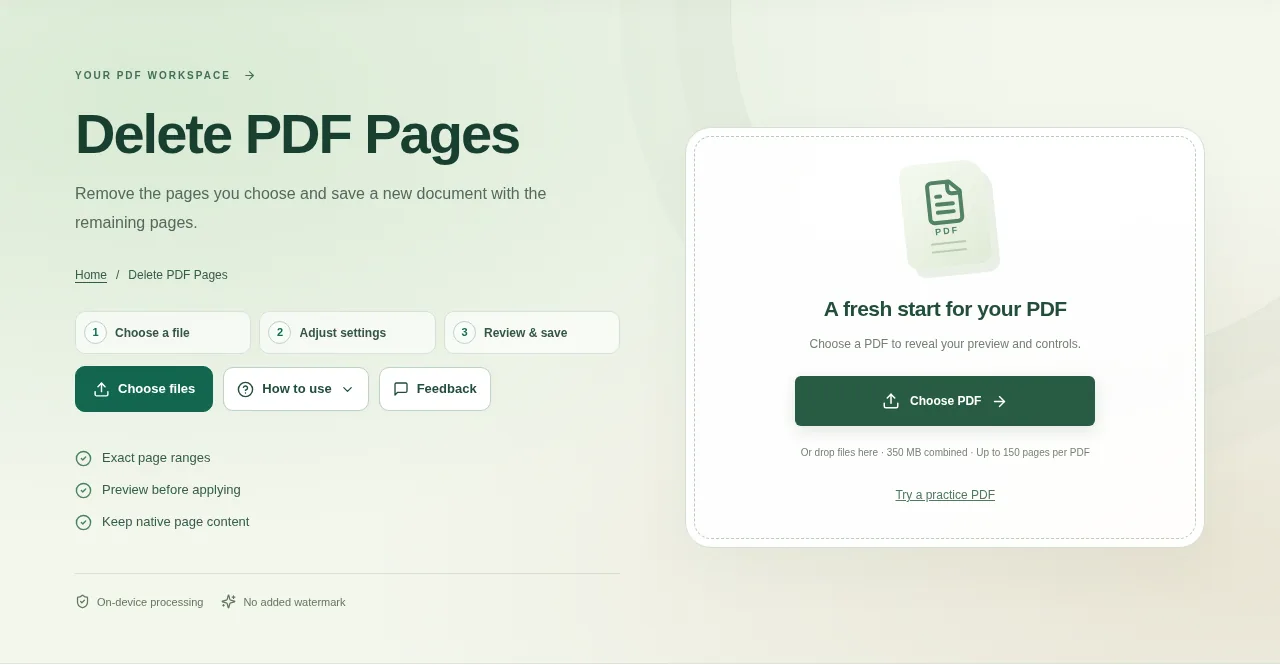
Open the PDF and find the unwanted pages in the preview. Use the source page numbers, not a chapter number printed inside the page. Use Create result, then open the saved PDF and count the remaining pages.
 View full size
A blank scan or an outdated attachment can make a document harder to follow. Delete PDF Pages removes the pages you choose from the visible page sequence and saves a new copy.
1. Open your file
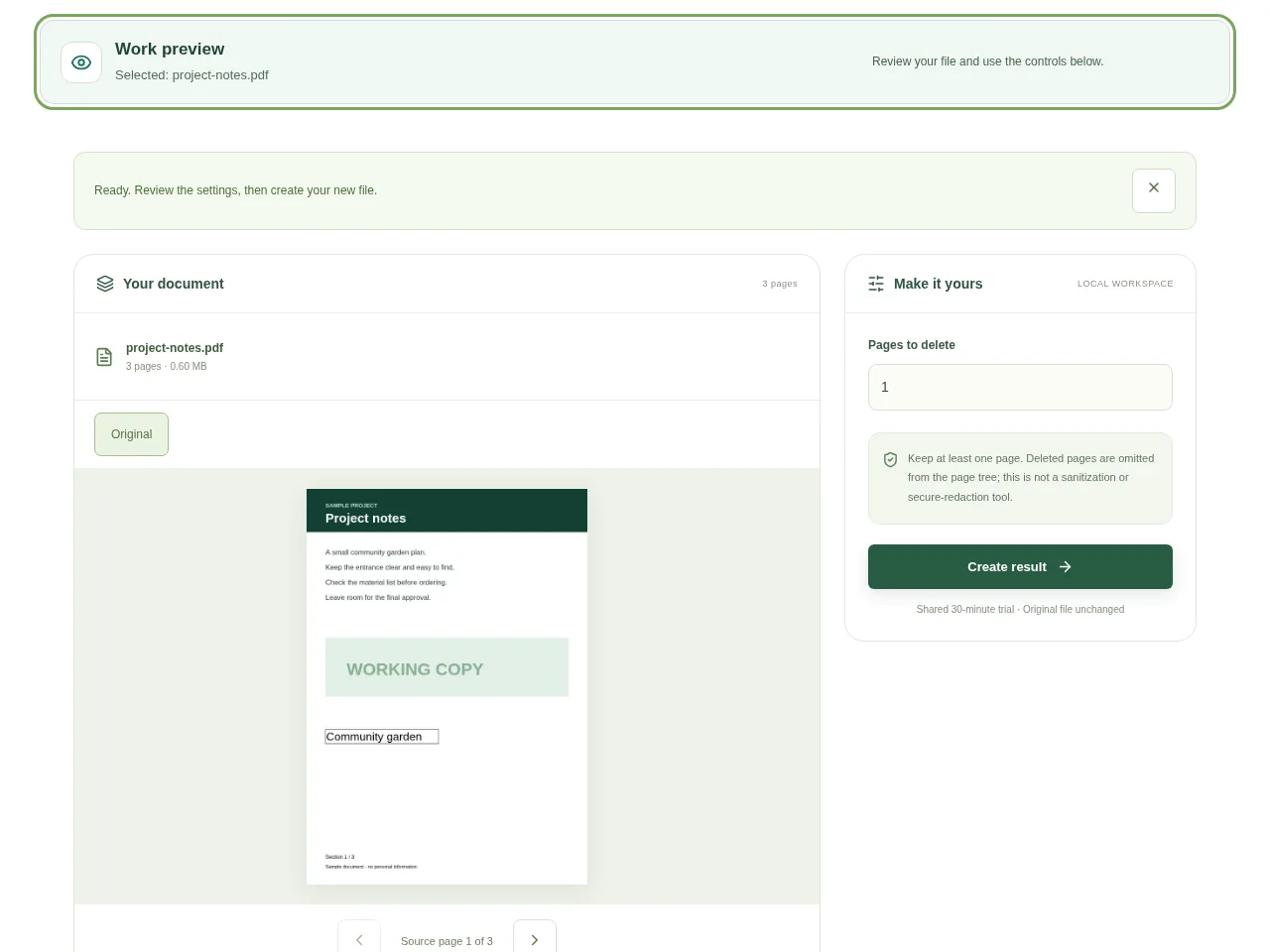
Open the PDF and find the unwanted pages in the preview. Use the source page numbers, not a chapter number printed inside the page.
2. Work through the settings
- Enter the page numbers or ranges to remove, using the format shown beside the control.
- Check the preview around each selection. A printed cover may shift the document’s internal numbering.
- Keep at least one page in the result.
- Use Create result, then open the saved PDF and count the remaining pages.
 View full size
3. Check before you share
- Look at the pages immediately before and after a deletion.
- Confirm that the document still contains its opening or cover page if required.
- Keep the original until someone has checked the new sequence.
File limits and first-use notes
The file budget is 350 MB, with up to 150 pages per source PDF. Keep at least one page. Deleted pages are omitted from the page tree; this is not a sanitization or secure-redaction tool.
Questions you may have
Can I remove several non-adjacent pages?
Yes. Use the page-selection syntax shown in the workspace and review every selected page.
Will the printed page numbers update themselves?
No. Page numbers drawn inside the remaining pages are part of their content. Use Add Page Numbers if you need a new visible sequence.


