
How to trim extra margins from PDF pages
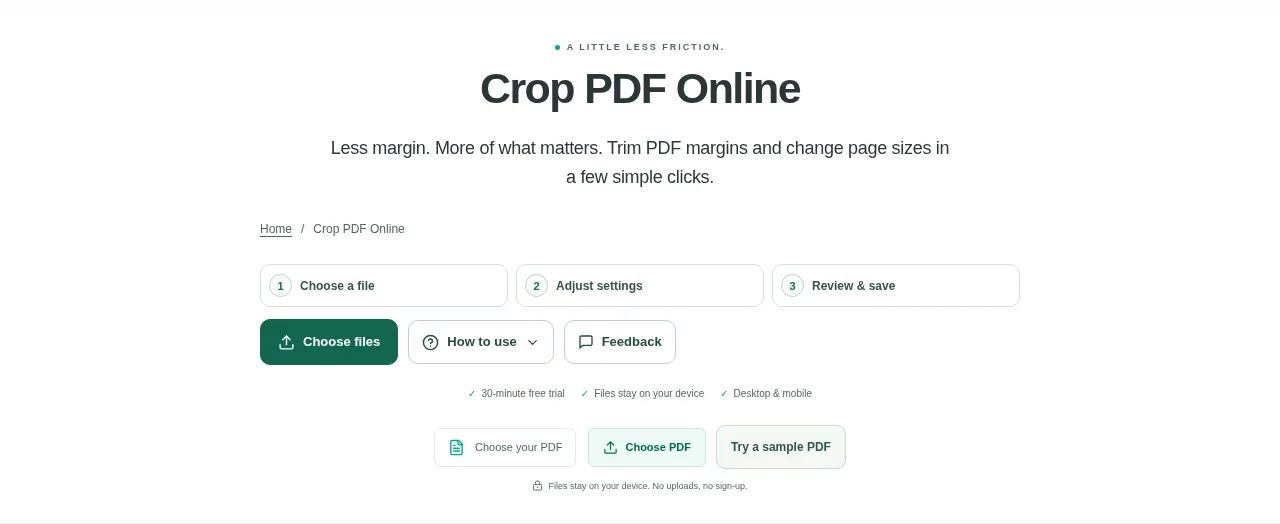
Choose your PDF and look at the page, blended or odd/even preview. Pick a view that makes it easy to see whether the page margins are consistent. Check every affected preview before cropping and downloading the PDF.
 View full size
Wide blank margins can make a scanned page look small on a phone or waste space in print. Crop PDF changes the visible page boundary. It lets you preview the cut before you save.
1. Open your file
Choose your PDF and look at the page, blended or odd/even preview. Pick a view that makes it easy to see whether the page margins are consistent.
2. Work through the settings
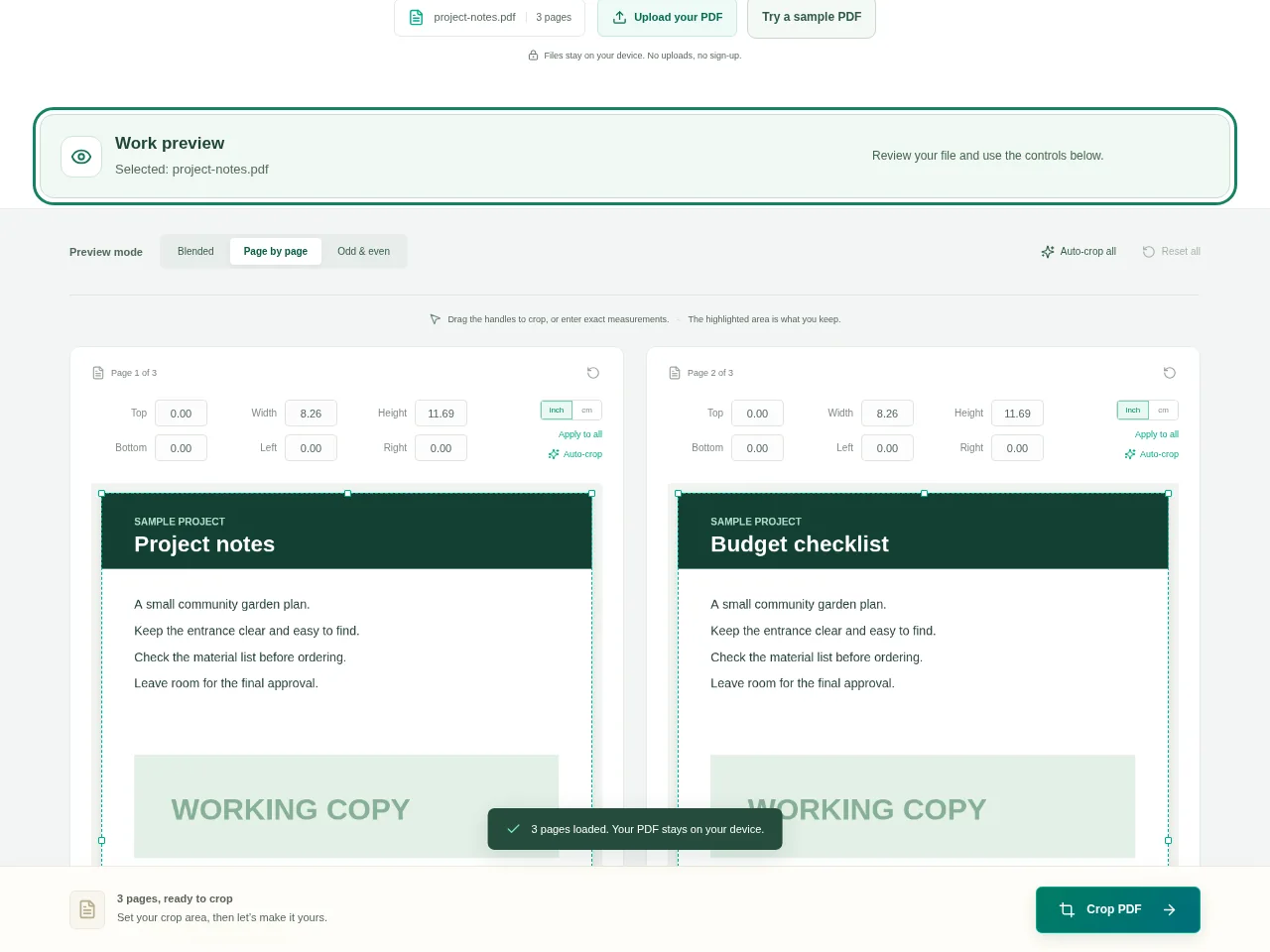
- Drag the crop handles until the visible area contains the content you want.
- For a precise cut, enter margins in inches or centimetres. You can also try blank-margin detection as a starting point.
- Apply the setting to one page or all pages. Use odd/even preview when a book scan has different inside margins.
- Check every affected preview before cropping and downloading the PDF.
 View full size
3. Check before you share
- Look at page numbers, signatures and notes near the edges.
- Make sure a wider page has not lost content because of a shared crop.
- Open the downloaded copy and check its visible page size.
File limits and first-use notes
350 MB. 150 pages. Cropping hides content; it is not secure redaction.
Questions you may have
Can I enter exact margins instead of dragging?
Yes. Use the margin fields and choose inches or centimetres.
Will cropping remove a confidential address permanently?
No. Use Redact PDF for permanent removal and review the resulting document before sharing it.


