
How to make a PDF with fillable fields
Open the template and choose the form controls you want to add. Leave enough blank space for real answers rather than squeezing fields into the design. Apply the changes, download the PDF and test it in a PDF viewer that supports forms.
 View full size
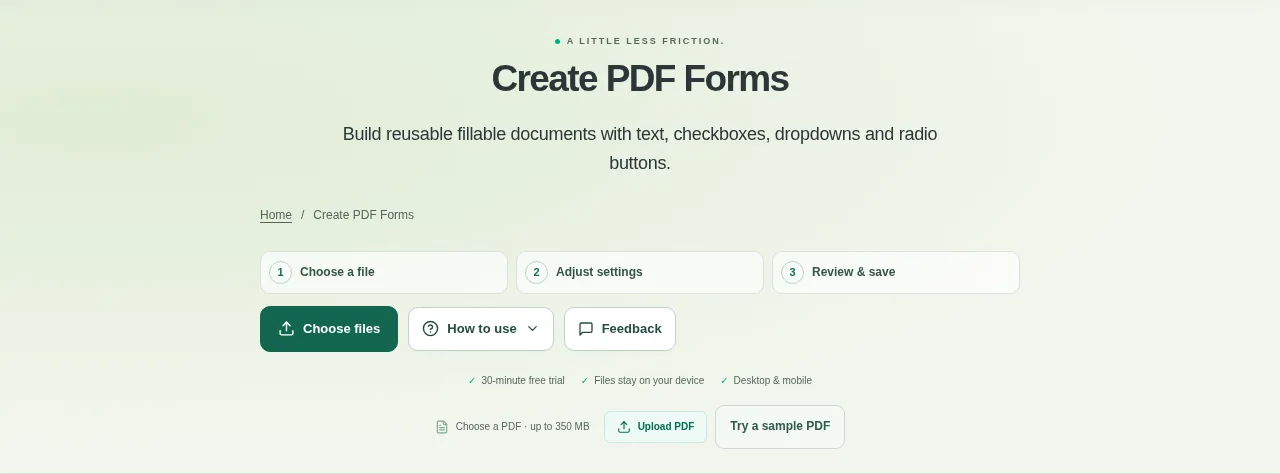
A reusable form is easier to complete when the blanks are actual fields. Create PDF Forms lets you place text fields, checkboxes, dropdowns and radio controls on a suitable PDF template.
1. Open your file
Open the template and choose the form controls you want to add. Leave enough blank space for real answers rather than squeezing fields into the design.
2. Work through the settings
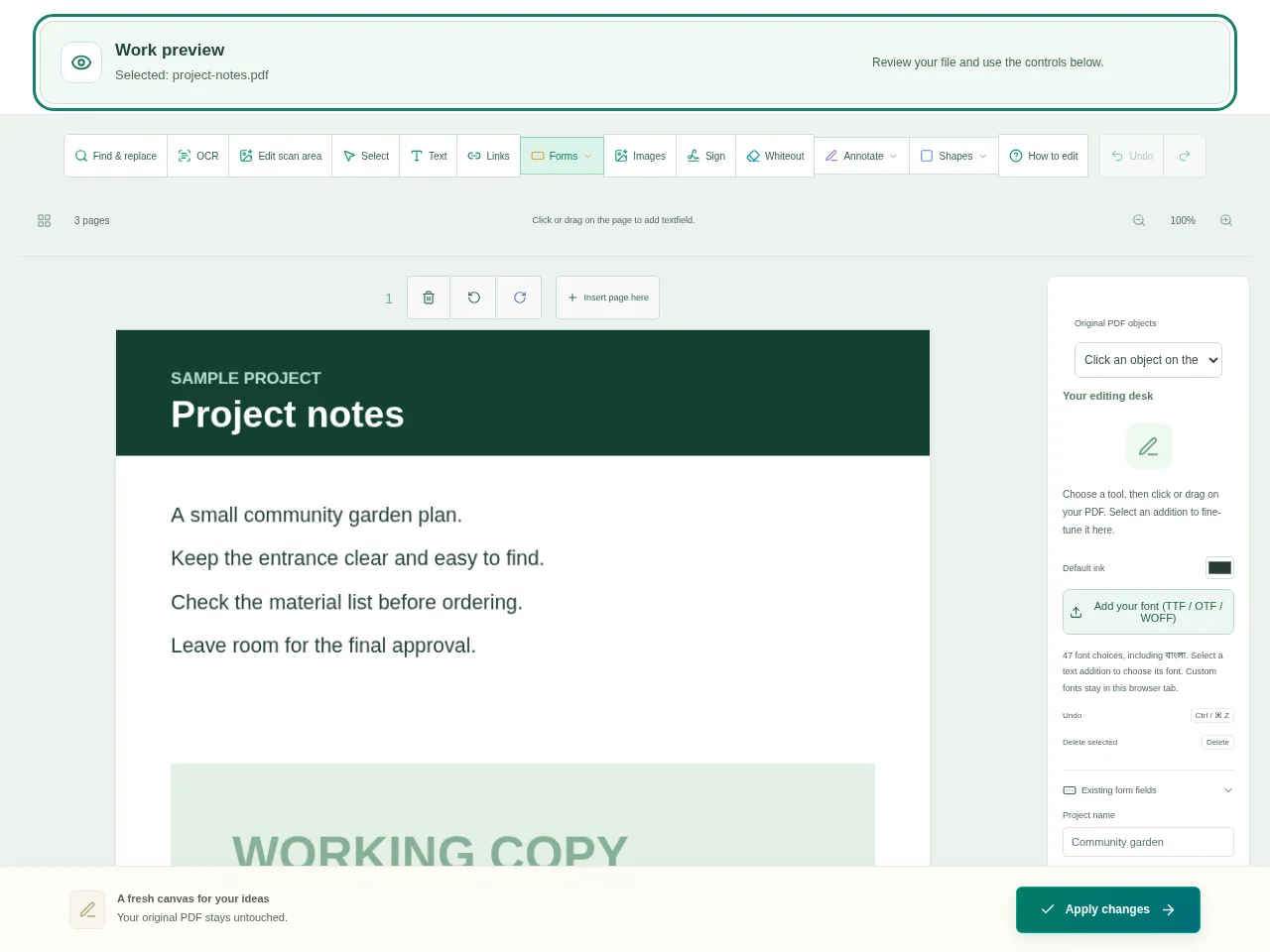
- Add a text field for short answers or a multiline field for a longer response. Move and resize it to fit the printed label.
- Add checkboxes for independent choices, dropdowns for a list and radio controls for a single choice from a group.
- Give fields useful names and set their options carefully. Avoid accidentally reusing a field name when the answers should be separate.
- Apply the changes, download the PDF and test it in a PDF viewer that supports forms.
 View full size
3. Check before you share
- Type a long sample answer into each kind of field.
- Test tabbing between fields on a keyboard.
- Save the filled form and reopen it to check that the answers remain.
File limits and first-use notes
The file budget is 350 MB, with up to 150 pages per source PDF. Form appearance and font support depend on the PDF viewer. Existing digitally signed PDFs require an unsigned copy.
Questions you may have
Will every browser show the form the same way?
Form support varies between PDF viewers. Test with the viewer your readers are likely to use.
Should I flatten the form before sending it out to be filled?
No. Flattening removes interactive controls. Keep the fillable version for respondents and flatten a completed copy only if that suits your workflow.


