
How to turn a Word document into a PDF
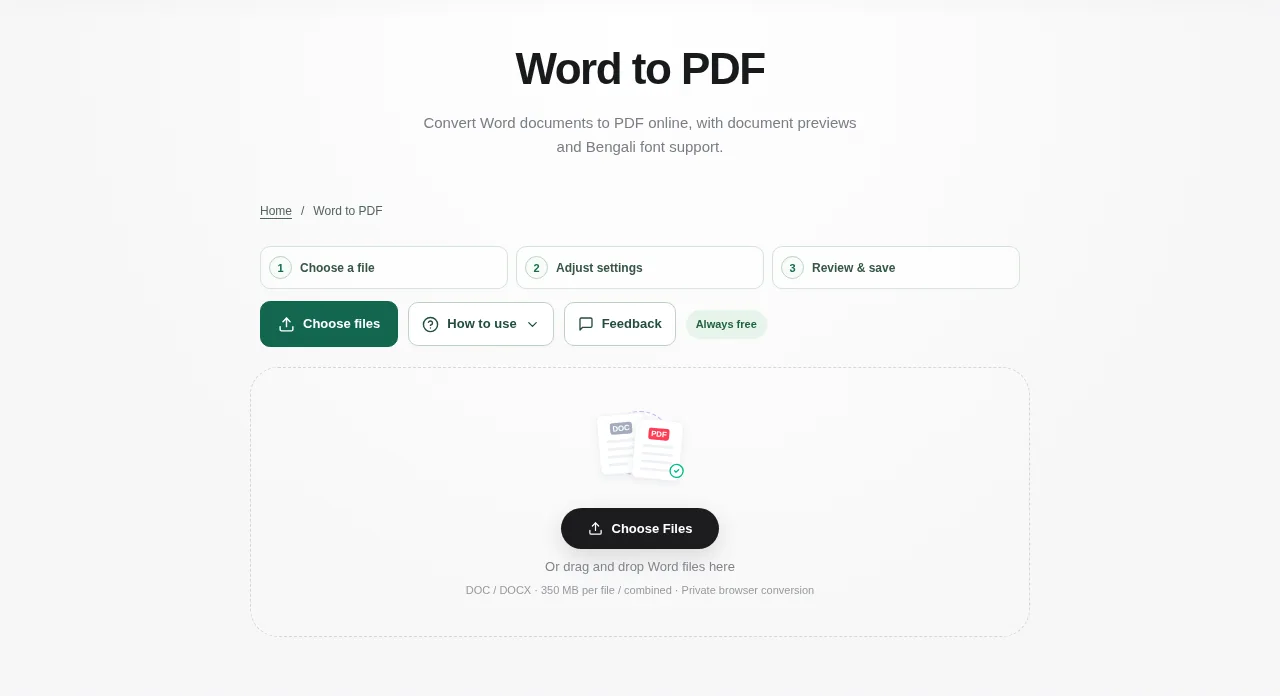
Choose a DOCX or DOC file, select suitable fonts and use Convert to PDF. Review the page preview, especially tables and line breaks, then download the PDF or a batch ZIP.
 View full size
PDF is useful when the reader should see a finished document rather than keep editing it. Start with the Word file you still have, then check the converted pages. A clean preview matters more than a successful download message.
1. Open your file
Open Word to PDF and choose DOCX or DOC files. You can add up to ten files. Keep the original Word documents so you can correct the source if needed.
2. Work through the settings
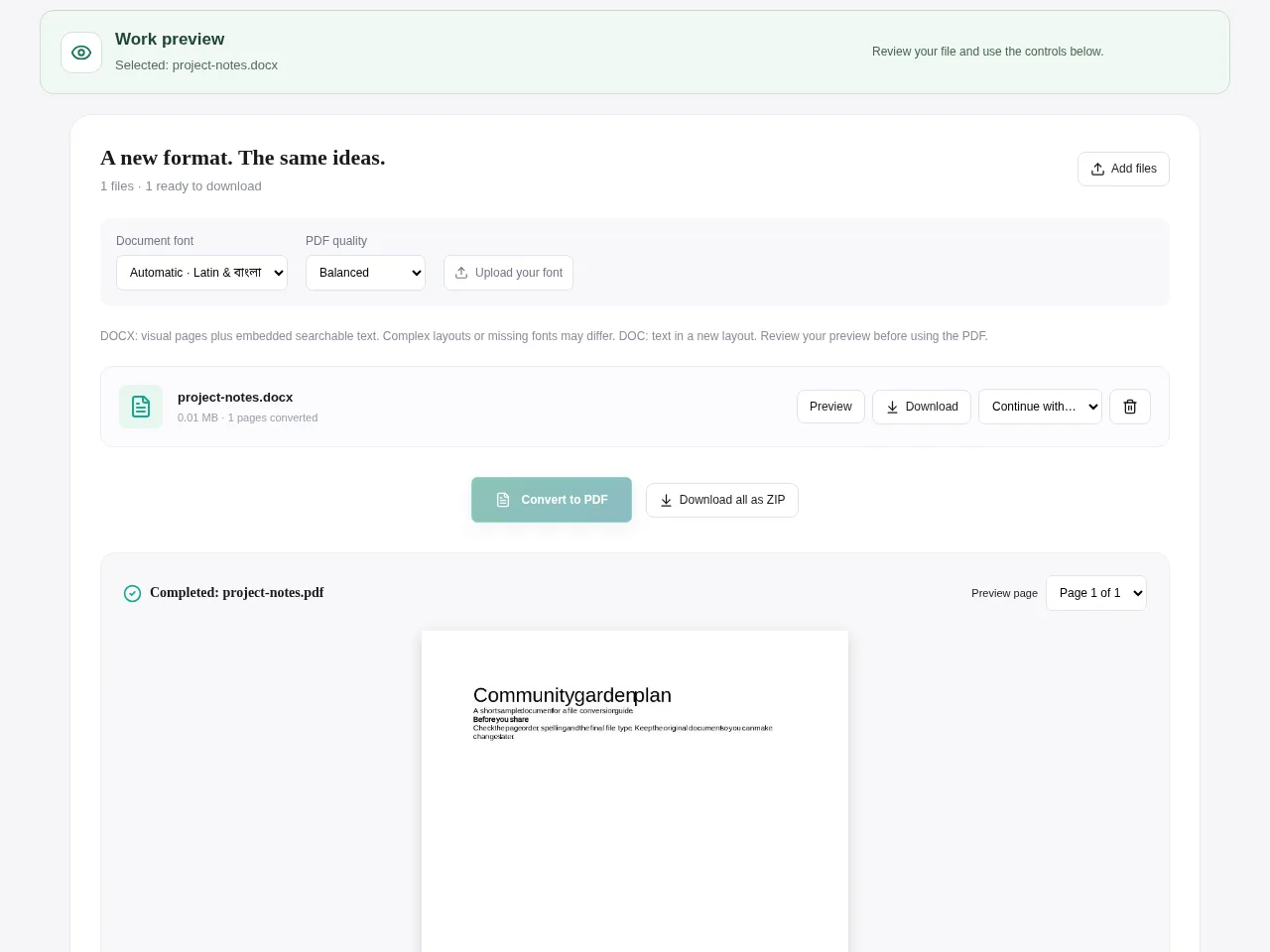
- Choose the font option that fits the document. If an important font is unavailable, add a font file you are allowed to use.
- Choose the conversion quality, then use Convert to PDF. Keep the tab open while the pages are prepared.
- For DOCX, inspect supported paragraphs, tables, pictures, headers and footers in the preview.
- For older DOC files, expect extracted text in a new layout rather than an exact copy of the original page design.
 View full size
3. Check before you share
- Read the opening and closing pages.
- Look at table edges, line breaks and any Bengali or other non-Latin text.
- Download each completed PDF or use the ZIP for a batch.
File limits and first-use notes
350 MB per file / combined. 10 files. 50 pages per file. Free, without registration or time limits; file and device limits still apply.
Questions you may have
Is Word to PDF free without registration?
Yes. This tool has no registration requirement or session time limit. File, page and device-memory limits still apply.
Why does an old DOC file look different?
Legacy DOC conversion extracts the text into a fresh layout. Use a supported DOCX source when the original page design is important, and still check the preview.


