
How to number a set of PDFs with one Bates sequence
Add the PDFs that belong in the set. Put them in the correct file order before choosing the starting number. Apply Bates numbers, then download the PDFs, the combined ZIP and the audit CSV as needed.
 View full size
Bates numbers give pages a stable reference across a document set. Instead of restarting at 1 for every file, Bates Numbering continues the sequence through the PDFs in the order you choose.
1. Open your file
Add the PDFs that belong in the set. Put them in the correct file order before choosing the starting number.
2. Work through the settings
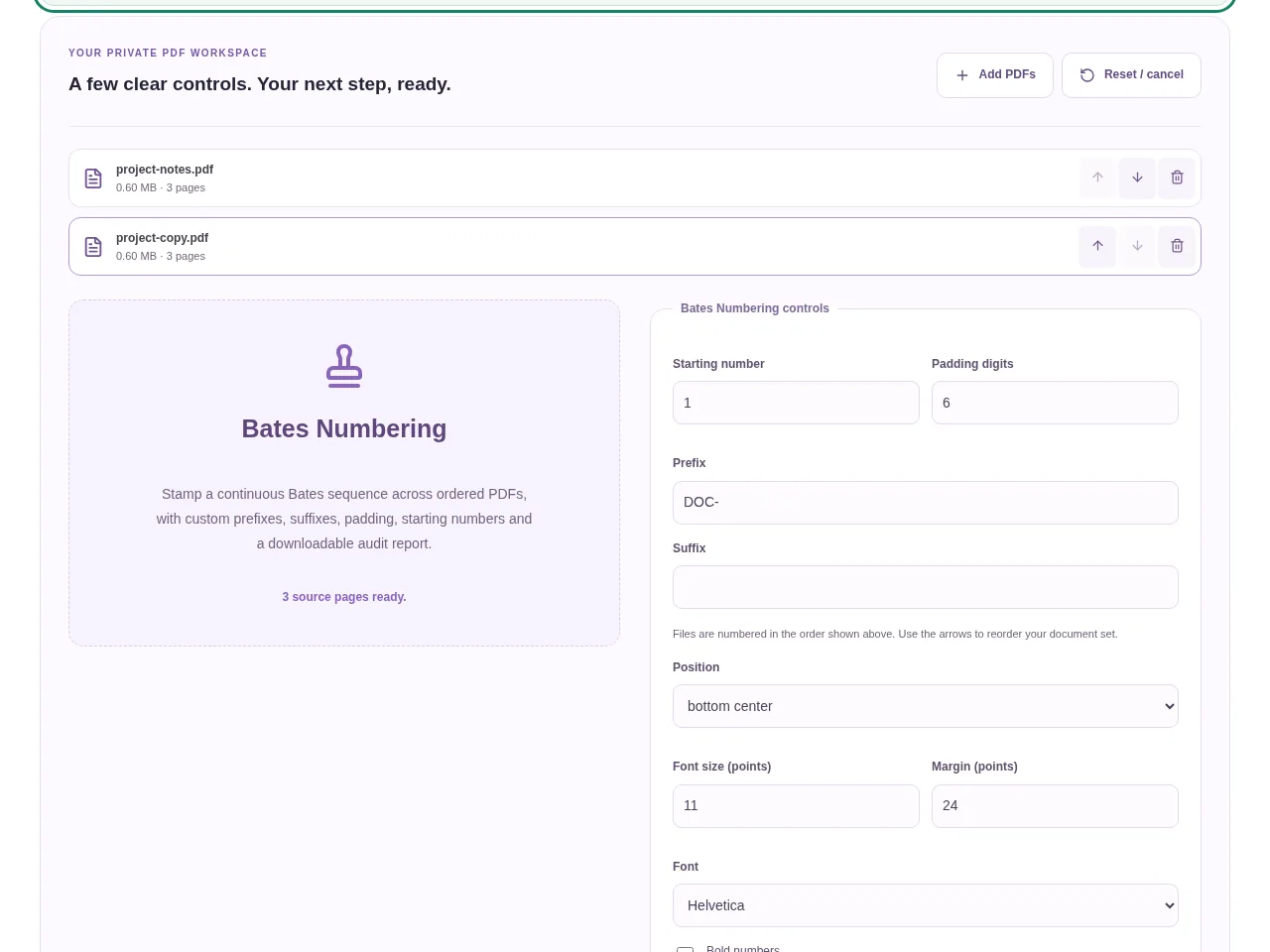
- Reorder the files with the list controls. The first file receives the beginning of the sequence.
- Set the starting number, padding digits and any prefix or suffix. For example, a project prefix can make the reference easier to recognize.
- Choose the page selection and a clear label position. Check margins on more than one source document.
- Apply Bates numbers, then download the PDFs, the combined ZIP and the audit CSV as needed.
 View full size
3. Check before you share
- Check the last number in one PDF against the first number in the next.
- Look for labels covering a footer or a scan edge.
- Save the audit CSV with the numbered document set.
File limits and first-use notes
The file budget is 350 MB, with up to 150 pages per source PDF. 350 MB combined input and output, up to 150 pages per document and 300 stamped pages per batch. Prefixes/suffixes use standard Latin PDF fonts. Existing digital signatures are protected.
Questions you may have
Does the sequence restart for each file?
The tool applies a continuous sequence across the ordered document set. File order is therefore important.
What does padding do?
It adds leading zeroes to the numeric part, making references such as 000042 consistent in width and easier to sort.


