How to join audio clips and smooth the joins
Add at least two supported audio tracks. Wait for their waveforms, then put them in the order you want to hear. Choose MP3, WAV, FLAC or OGG, use Join audio and download the completed mix.
 View full size
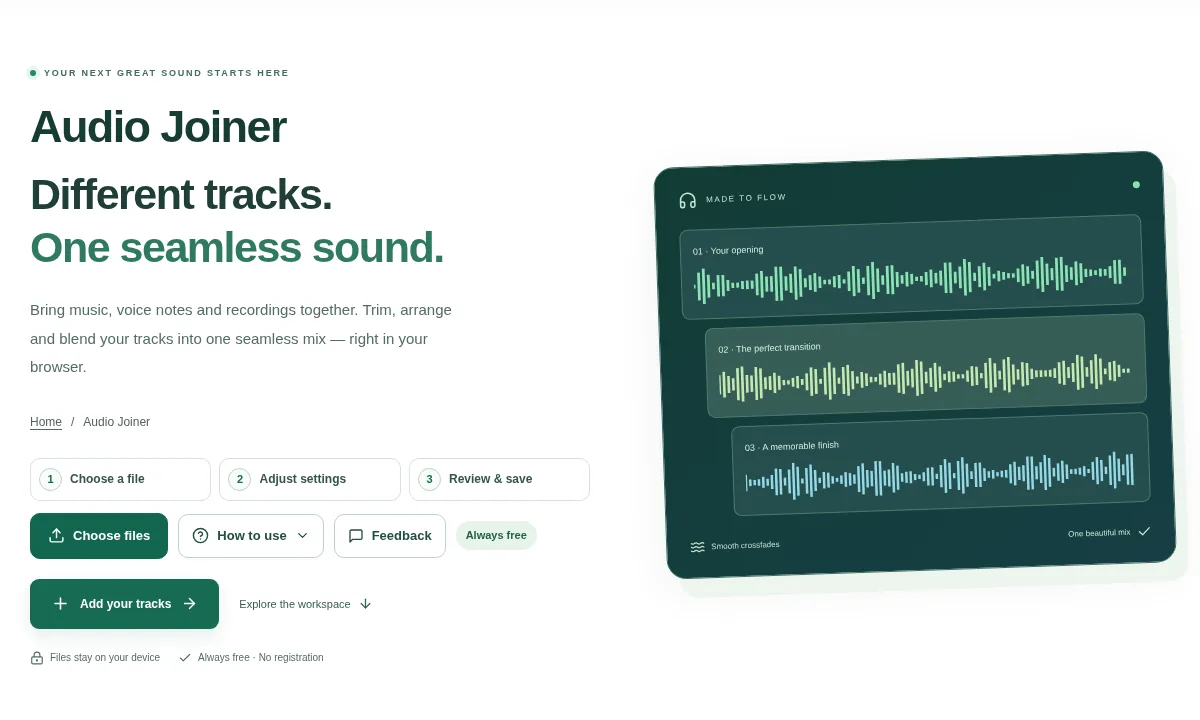
Joining recordings is more than putting file names in a list. The order, silence at the edges and the way two clips meet all affect the result. Audio Joiner lets you trim each source and preview the sequence.
1. Open your file
Add at least two supported audio tracks. Wait for their waveforms, then put them in the order you want to hear.
2. Work through the settings
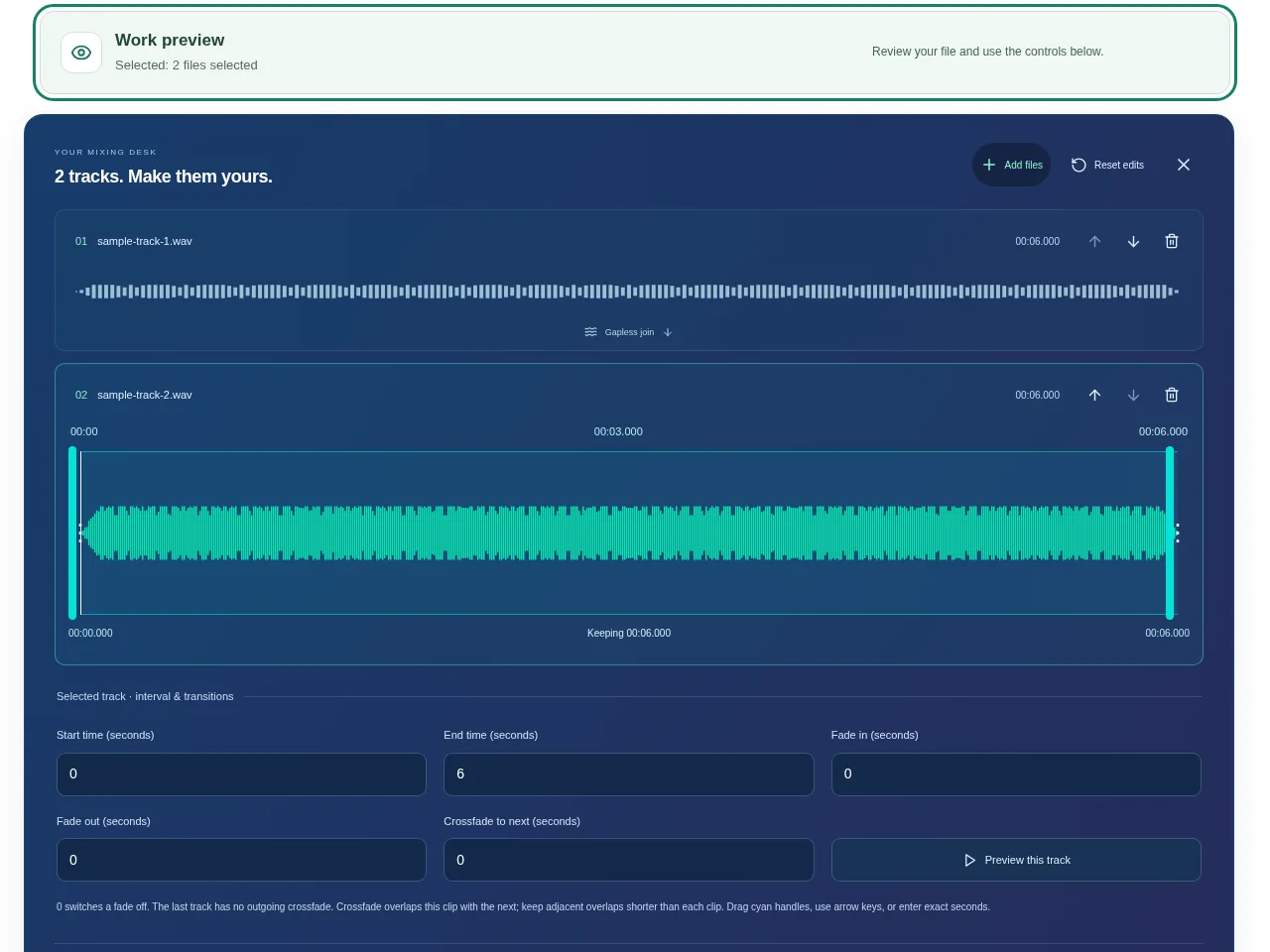
- Set a useful start and end interval for each track. Remove unwanted silence before deciding on the join.
- Reorder the tracks with the file controls. Listen to a selected track when its boundaries are unclear.
- Add fades or a crossfade where appropriate. A crossfade overlaps the end of one clip with the next, so it can change the total duration.
- Choose MP3, WAV, FLAC or OGG, use Join audio and download the completed mix.
 View full size
3. Check before you share
- Listen across every join, not just the start of the output.
- Check for sudden jumps in volume or words cut by an overlap.
- Confirm the track order and the final duration.
File limits and first-use notes
350 MB combined input. 20 tracks. 10 minutes total source audio. 120 MB output. Codec and device memory limits apply. Free, without registration or time limits; file and device limits still apply.
Questions you may have
Can I use it without registering?
Yes. Audio Joiner is one of the permanently free tools. Published file, duration and device limits remain in place.
Why is the joined clip shorter than all the source lengths added together?
Trimming and crossfades can reduce the total. A crossfade plays part of two tracks at the same time.