How to convert audio and choose sensible output settings
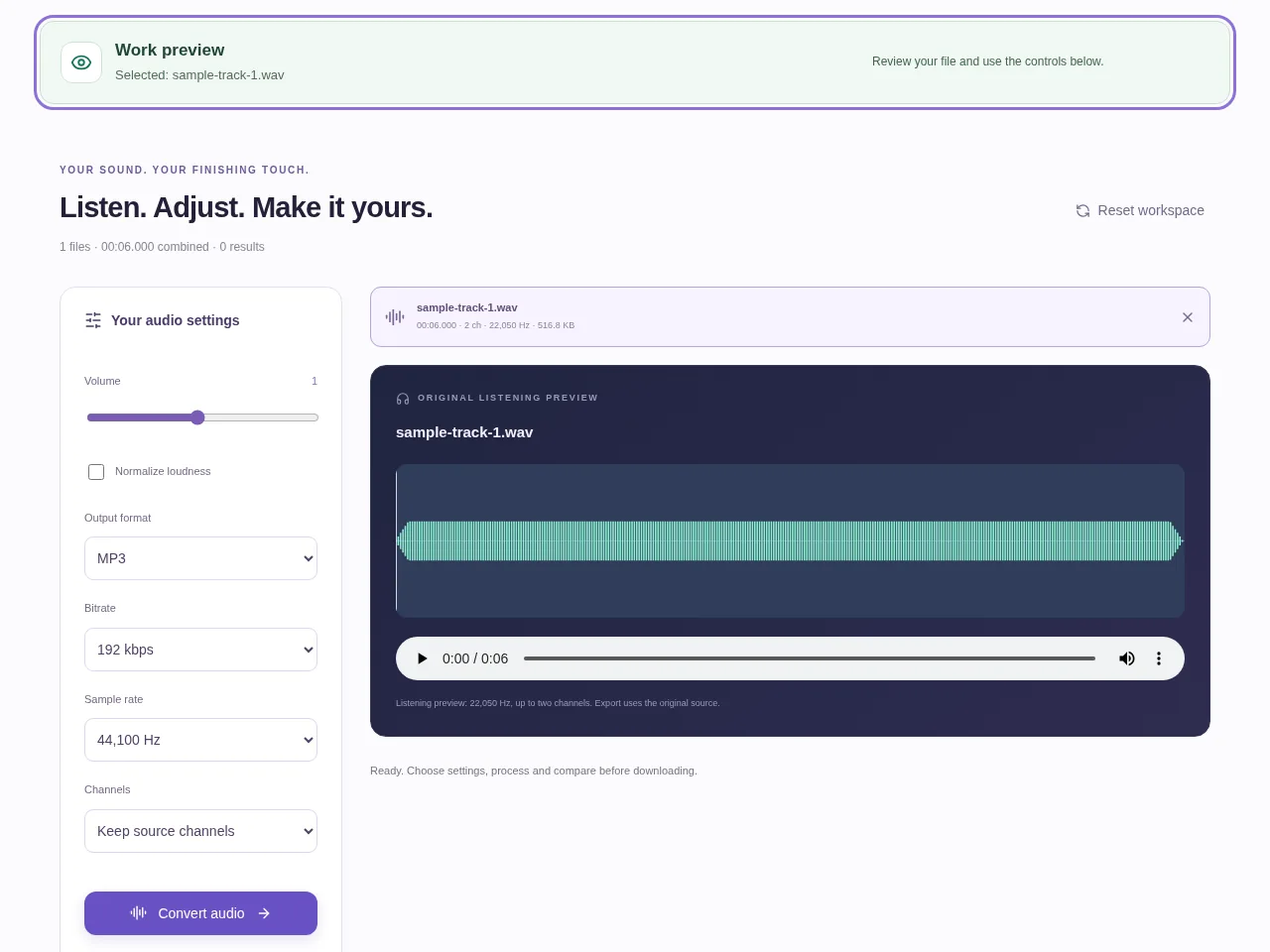
Add your recordings or a video with sound. Review the original playback and duration after the local decoder opens each file. Convert the files, listen to the results and download them individually or in a ZIP.
 View full size
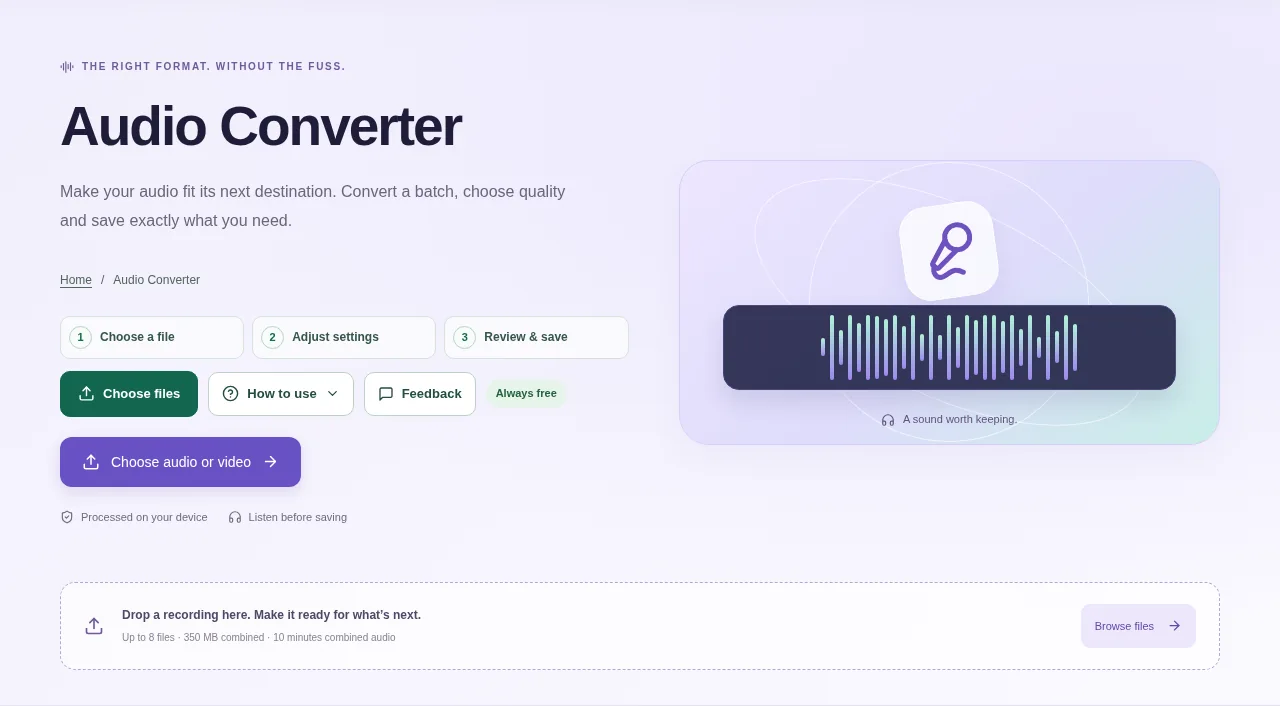
An audio file needs a format the receiving app understands. Audio Converter can prepare common formats and extract sound from supported video files. Choose compatibility first, then adjust quality settings if the task needs them.
1. Open your file
Add your recordings or a video with sound. Review the original playback and duration after the local decoder opens each file.
2. Work through the settings
- Choose an output format: MP3, WAV, FLAC, OGG, M4A, AAC or Opus are available.
- Set bitrate where relevant, sample rate and mono or stereo. WAV also offers bit-depth choices.
- Avoid repeatedly converting an already-compressed source when you still have a better original.
- Convert the files, listen to the results and download them individually or in a ZIP.
 View full size
3. Check before you share
- Test the chosen format in the destination app.
- Check the duration and that both expected channels are present.
- Compare file size and sound at a similar playback volume.
File limits and first-use notes
Up to 8 files, 350 MB combined, 10 minutes combined source duration and 350 MB combined output. Supported input formats depend on the bundled decoder. Lossy conversion cannot restore missing detail. Free, without registration or time limits; file and device limits still apply.
Questions you may have
Is conversion free without registration?
Yes. This tool has no registration requirement or session time limit. It still enforces its file, duration and output budgets.
Can I save only the sound from a video?
You can add a supported video with audio and choose an audio output format. Check which source audio track is used and listen to the result.