How to cut a short clip from audio or video
Open a supported audio file or a video with sound. The tool works with the first audio track. Wait for the waveform before setting the cut. Choose MP3, WAV, M4R, FLAC or OGG, then use Cut & Save and download the result.
 View full size
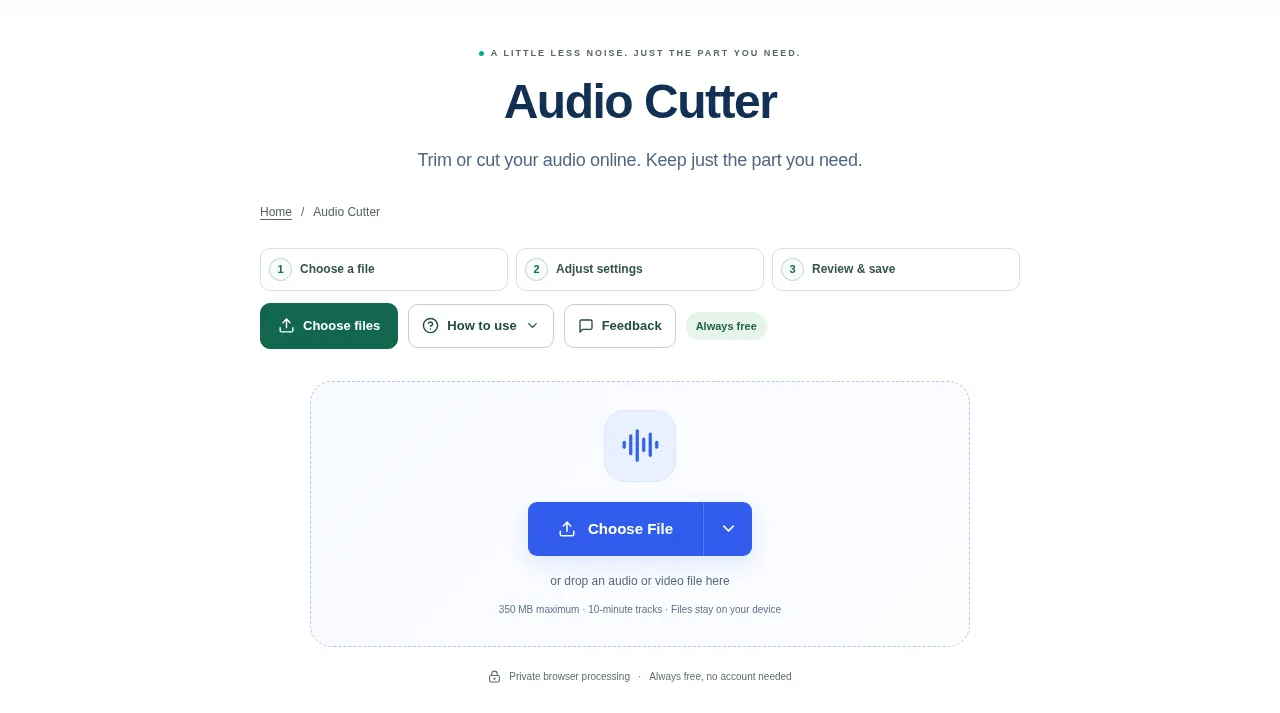
A recording may contain a long pause before the useful part, or you may only need one short section. Audio Cutter shows a waveform and exact times so you can choose the clip by listening as well as by looking.
1. Open your file
Open a supported audio file or a video with sound. The tool works with the first audio track. Wait for the waveform before setting the cut.
2. Work through the settings
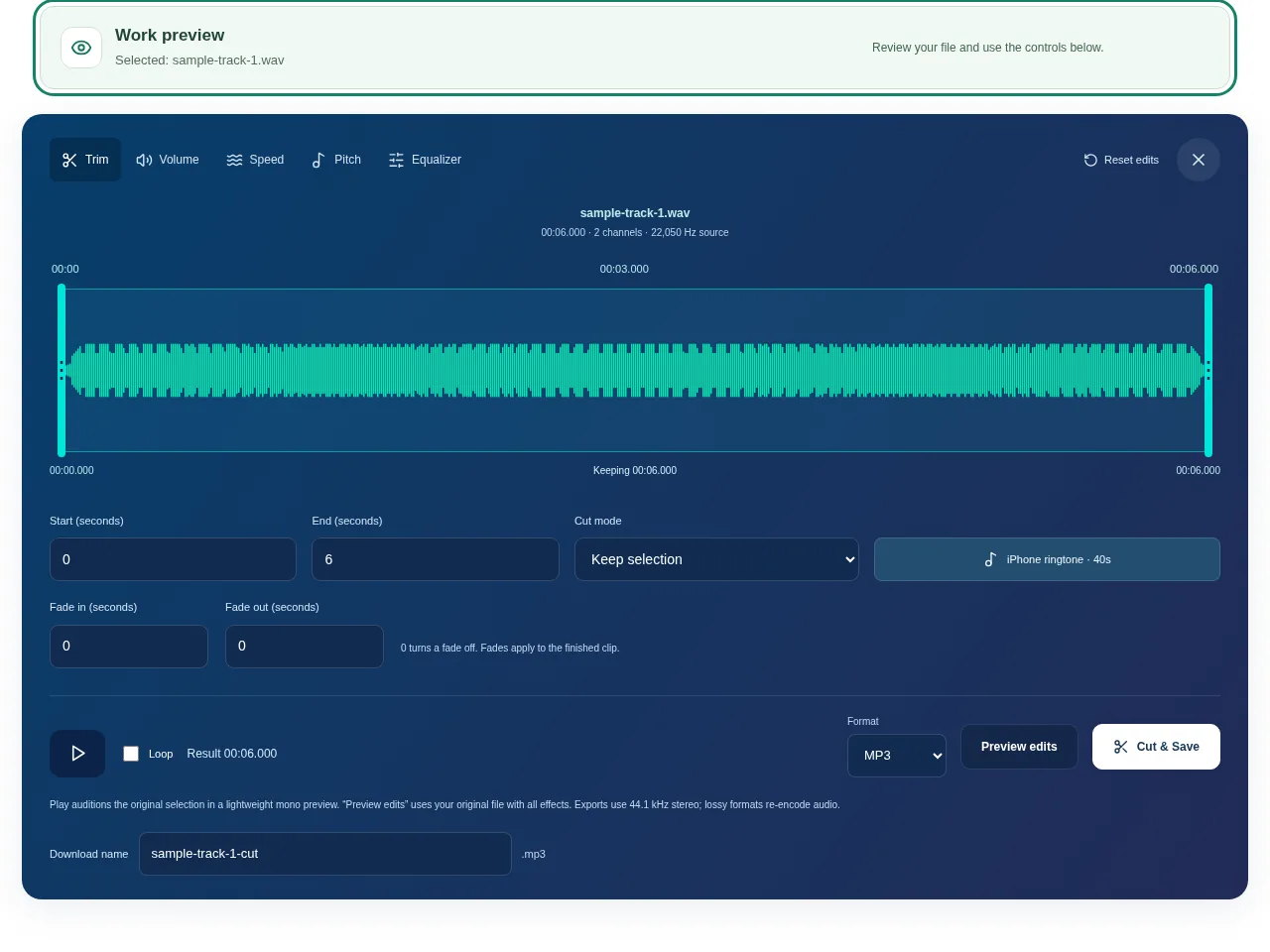
- Set the start and end time, or move the selection handles. Choose whether to keep the selection or remove it from the recording.
- Listen near both cut points. Use Preview edits to hear the processed selection, not just the original playback.
- Add fades or adjust volume, speed, pitch and EQ only if the clip needs them. For a ringtone, check the format and duration rules of the phone.
- Choose MP3, WAV, M4R, FLAC or OGG, then use Cut & Save and download the result.
 View full size
3. Check before you share
- Listen to the first and last second for a click or a cut-off word.
- Check the duration after any speed change.
- Open the saved file in the app where you intend to use it.
File limits and first-use notes
350 MB input. 10-minute tracks/results. 120 MB output. Codec and device memory limits apply. Free, without registration or time limits; file and device limits still apply.
Questions you may have
Is Audio Cutter free without an account?
Yes. It has no registration requirement or session time limit. The file, duration and device limits still apply.
Does the waveform tell me exactly where a word starts?
It is a useful visual guide, but listen around the cut. A small-looking waveform area may still contain a quiet part of a word.