
How to mix PDF pages in alternating order
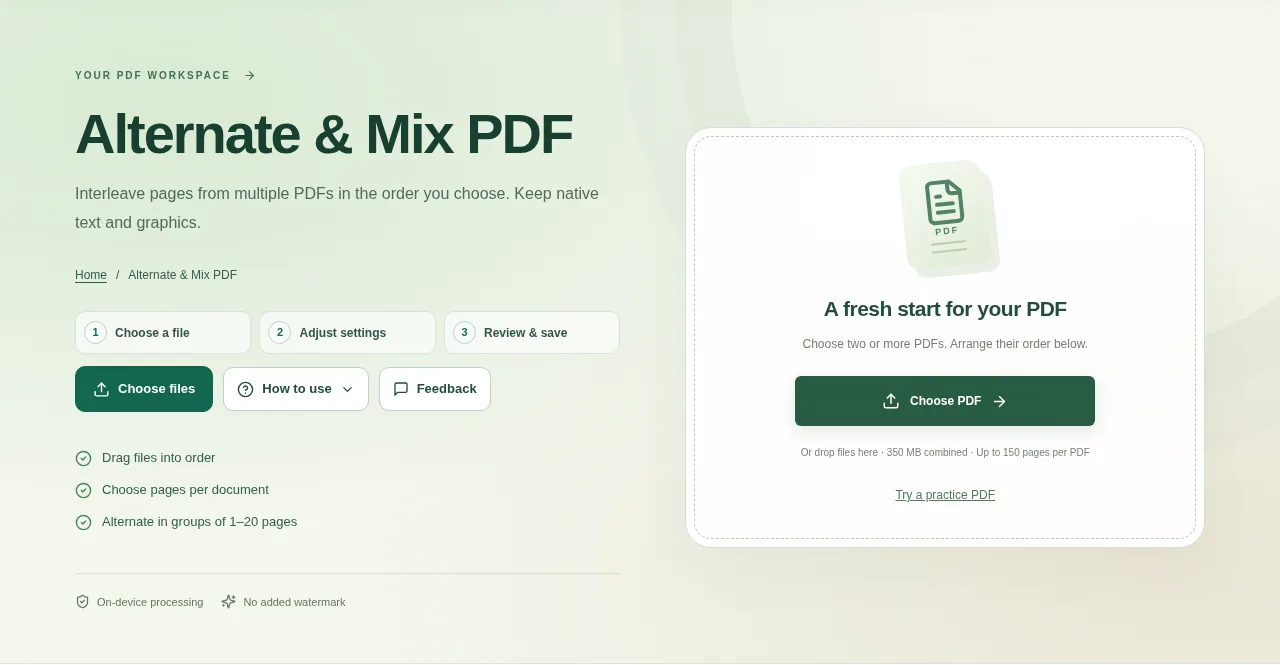
Choose the source PDFs in Alternate & Mix PDF. Put the file that should supply the first page at the start of the file list. Use Create result and read the first few pages of the new PDF.
 View full size
A scanner may give you one PDF of front pages and another of back pages. Adding one whole file after the other would leave the reading order wrong. Alternate & Mix PDF takes pages from the sources in turns.
1. Open your file
Choose the source PDFs in Alternate & Mix PDF. Put the file that should supply the first page at the start of the file list.
2. Work through the settings
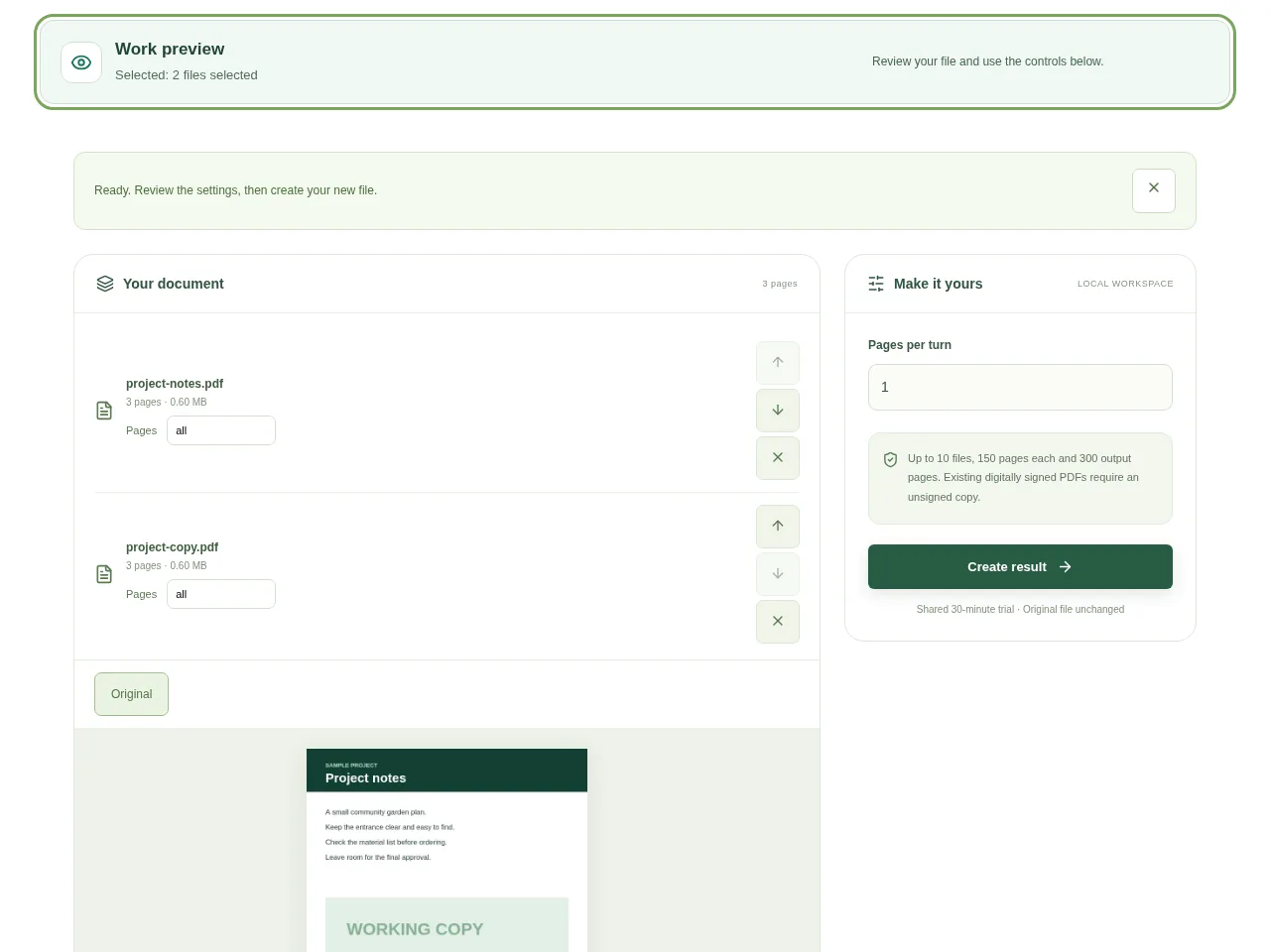
- Check the page selection for each file. Include only the pages needed for this document.
- Choose the group size. A group of 1 alternates one page at a time; larger groups take that many pages before moving to the next source.
- Use the file controls to correct the source order. For a front/back scan, check that the back-page source itself is in the right order.
- Use Create result and read the first few pages of the new PDF.
 View full size
3. Check before you share
- Follow a page number or sentence across the first change of source.
- Look at the end if the source PDFs have different page counts.
- Download the merged result and keep the separate scans.
File limits and first-use notes
The file budget is 350 MB, with up to 150 pages per source PDF. Up to 10 files, 150 pages each and 300 output pages. Existing digitally signed PDFs require an unsigned copy.
Questions you may have
How is this different from Merge PDF?
Merge normally places one document after another. Alternate & Mix takes page groups from the files in turns.
Can it fix back pages that were scanned in reverse order?
Check and arrange the back-page document first. Alternation chooses sources in sequence; it does not know the intended reading order of a book.


