How to make an image smaller with Tooldu
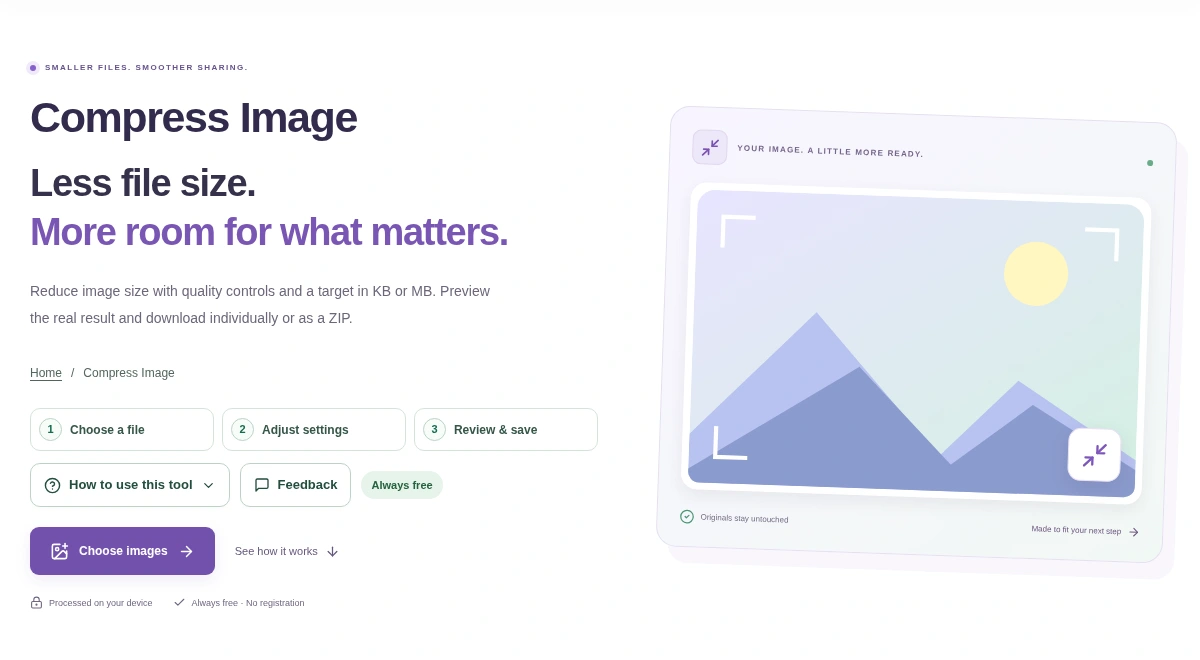
Open Compress Image, choose your photo and set the file size or image quality. Click Compress images, check the result and download your copy.
 View full size
If an upload form says your photo is too large, you usually need a smaller file. You do not have to start again or take another photo. Here is how to try it with Tooldu.
1. Choose your image
Open Compress Image and press Choose images. On a phone, pick a picture from your photos or files. On a computer, you can also drag it onto the page. The preview opens after the image is added.
Keep the original. The tool makes a new file, so you can try different settings without changing your source photo.
2. Pick the size or quality you need
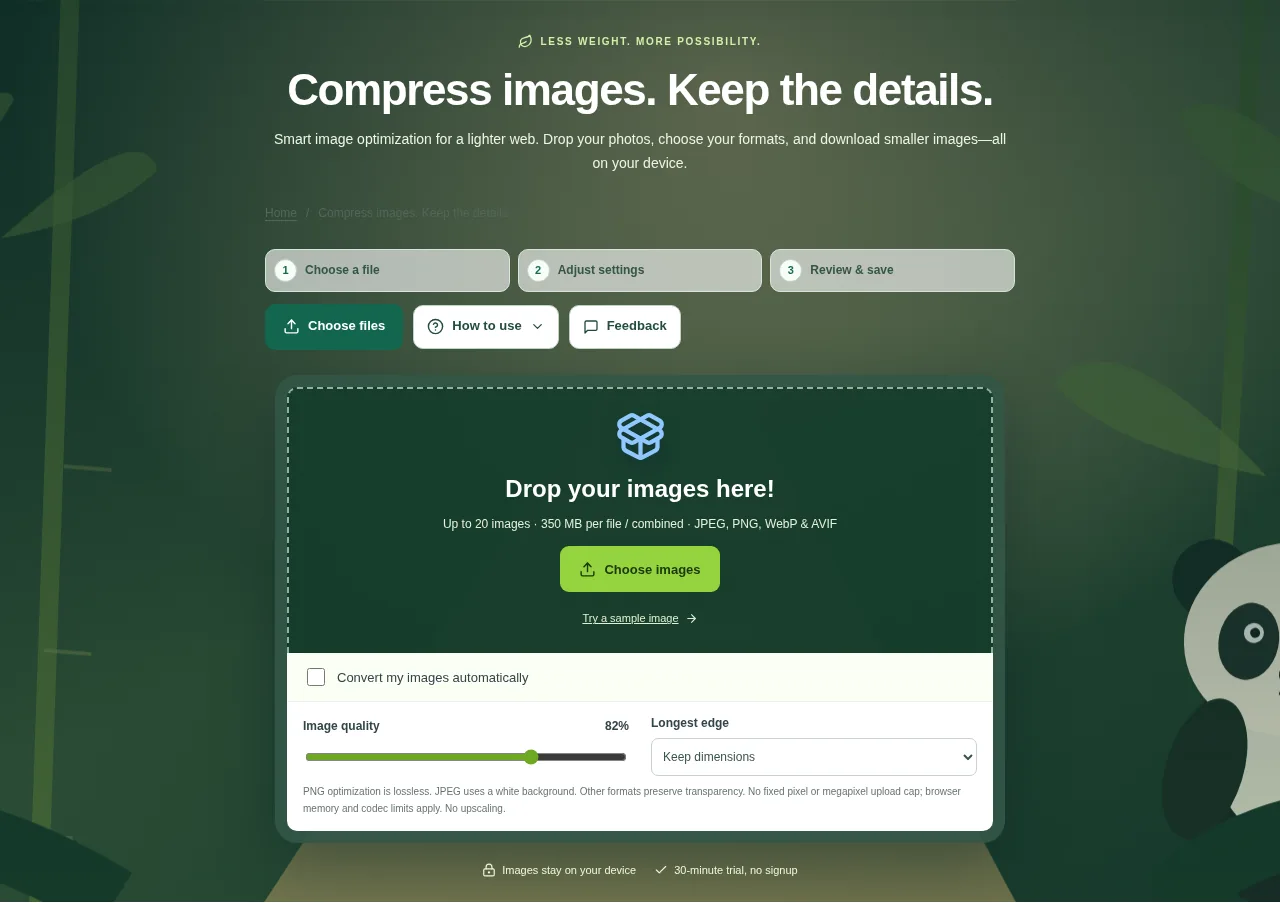
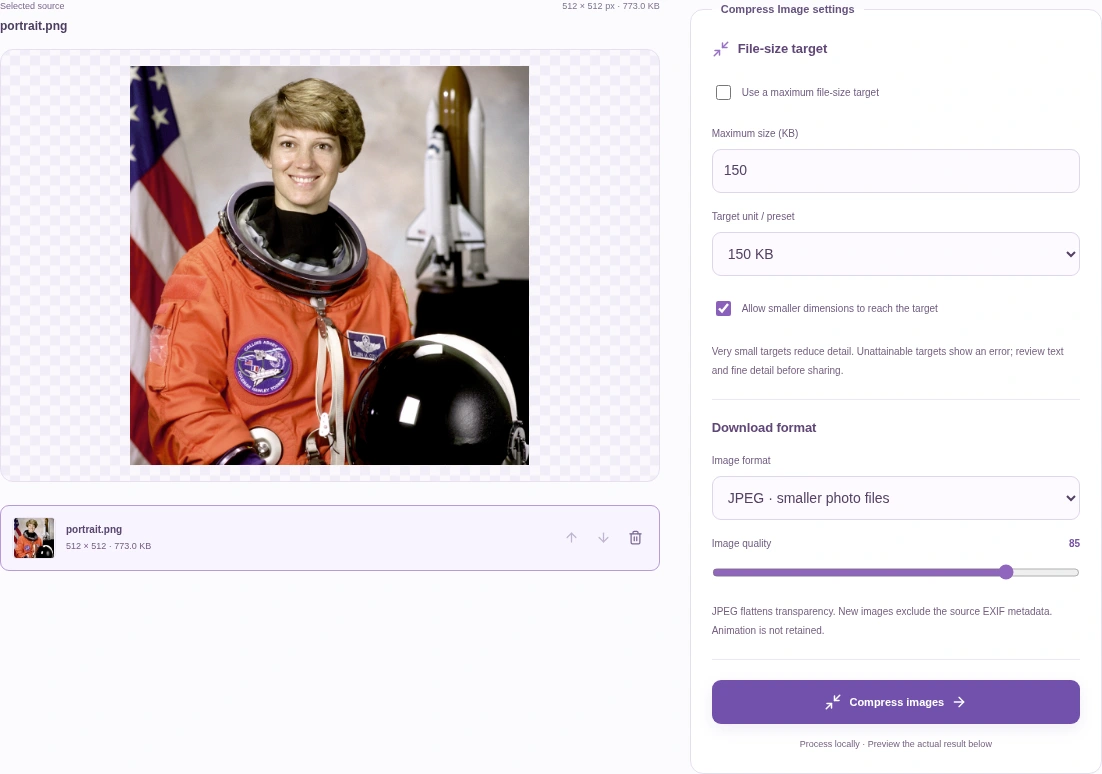
For a form with a size limit, tick Use a maximum file-size target and enter the limit in KB. For example, enter 150 if the form accepts images up to 150 KB. Check the form’s rules for file type and image width or height too.
If there is no fixed limit, untick that box and use Image quality instead. In the example below, the target is off, JPEG is selected and the quality is 85.
 View full size
- Choose JPEG for an ordinary photo when you need a small file.
- Choose PNG when the picture needs a transparent background. JPEG cannot keep transparency.
- Leave Allow smaller dimensions to reach the target off if the receiving site requires the original dimensions. A very small size limit may then be out of reach.
3. Compress, check and download
Press Compress images. When it finishes, find the result below the workspace and look at its file size and pixel dimensions. In this example, the 773 KB PNG became a 52.4 KB JPEG at the same 512 × 512 pixels. Your result will depend on your image and settings.
Use Download image to save it. Open the downloaded copy and check any writing, faces and small details. If they look too soft, go back to the original and try a higher quality or a larger target.
A couple of things to know
A file size such as 150 KB tells you how much storage the image uses. Dimensions such as 512 × 512 tell you how many pixels it contains. These are different measurements. Use Resize Image if you need a particular width or height.
Compress Image is free, with no registration or session time limit. The image is processed in your browser. For a large batch on a phone, try a few images at a time and keep the page open until it finishes.
Questions you may have
Can I make a photo smaller without changing its dimensions?
Yes. Turn off Allow smaller dimensions to reach the target and try JPEG or WebP at a suitable quality. Some size limits may still be too small for that image.
Why is my file still larger than the limit?
The chosen format, quality and dimensions may not fit that limit. Try a larger target or allow smaller dimensions if the receiving site accepts them. Always check the result.
Do I need an account to compress an image?
No. Compress Image is free to use without registration or a session time limit.